
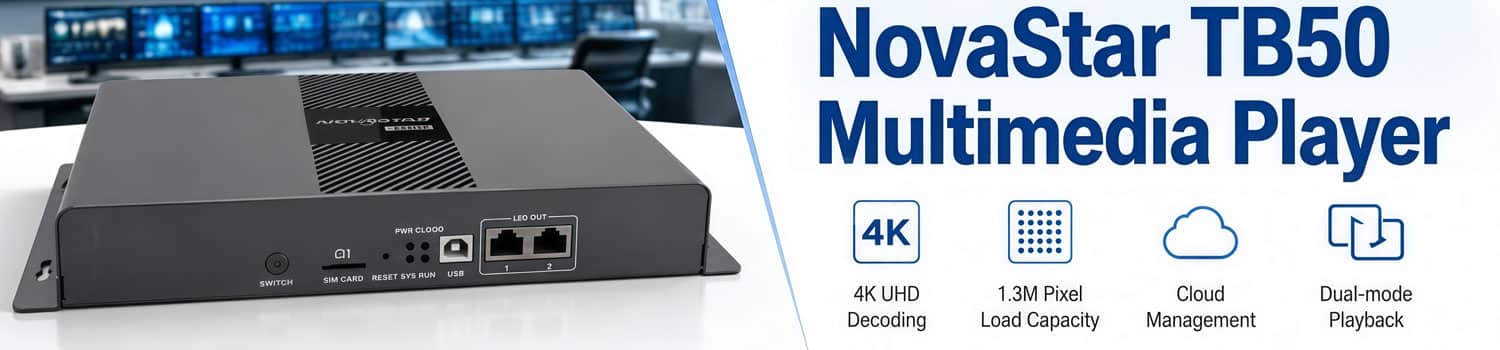
NovaStar TB50 Multimedia Player: Full Guide & Specs
NovaStar TB50 is a small box, but it does a lot: playback, content sending, and screen control, all from one device. This article breaks down what it is, what’s inside it, how it looks, and how to get it running.
1. What Is the NovaStar TB50?
The NovaStar TB50 is a multimedia player made for full-color LED displays. It handles two jobs at once: it plays your content and sends it to the screen. So you skip the part where a separate PC has to run around the clock just to keep a display alive.
It’s part of NovaStar’s Taurus series, which replaced older, discontinued players like the TB6 and TB8. Other models in the same family include the TB30, TB40, and TB60. Each one is built for a different pixel load, and the TB50 lands in the middle of that range.
The Taurus series doesn’t need much setup on-site. No computer to configure, no complicated wiring. You connect the player, and it takes care of playback and sending on its own.


2. TB50 Appearance
The TB50 is a compact metal box. Its ports and controls are split across the front and rear panels, listed below.
2.1 Front Panel

| Component | Function |
| SWITCH | Toggles between synchronous and asynchronous mode |
| SIM CARD | SIM card slot, designed to prevent wrong-way insertion |
| RESET | Hold 5 seconds to restore factory settings |
| USB (Type B) | Connects to a control computer for content publishing |
| LED OUT | Two Gigabit Ethernet outputs to the display |
2.2 Rear Panel

Component | Function |
SENSOR (x2) | Connects a brightness sensor or a temperature/humidity sensor |
RF antenna connector | Reserved for RF time synchronization module |
HDMI (IN/OUT) | Video input and output, supports HDMI loop |
WiFi | Antenna connector, supports Wi-Fi AP and Wi-Fi Sta at the same time |
ETHERNET | Gigabit port for a control computer, LAN, or public network |
COM 2 | GPS antenna connector |
COM 1 | 4G antenna connector |
USB 3.0 (Type A) | USB playback and firmware upgrade |
AUDIO OUT | 3.5 mm audio output |
Power input / ON-OFF | Power connector and switch |
3. NovaStar TB50 Specifications
Quick look at the specs that matter most when comparing or choosing the TB50.
Category | Specification |
CPU | Quad-core ARM A55, 1.8 GHz |
RAM / Storage | 1 GB / 32 GB |
Video decoding | 4K @ 60Hz |
Max loading capacity | 1,300,000 pixels |
LED output ports | 2x Gigabit Ethernet |
HDMI | 1.3, max 1920×1200@60Hz |
Network | 1000 Mbps LAN, 2.4G WiFi (AP+STA), optional 4G |
Playback capacity | 1x 4K, 2x 1080p, 5x 720p, 6x 480p, or 6x 360p |
Power consumption | 18 W max, 25 W recommended supply |
Operating temperature | -20°C to +60°C |
Weight | 1234 g |
IP rating | IP20 |
4. TB50 Key Features
The TB50 packs a lot into a small box. Here’s a closer look at what actually makes it work well in real installations.

✔ Processing Power That Handles 4K
The TB50 runs on a quad-core ARM A55 processor, and that’s enough muscle to decode 4K video at 60Hz without stutter. For LED displays showing fast-moving content, like retail ads or live data feeds, that decoding speed keeps everything smooth instead of choppy.
✔ Room to Load a Big Display
With a loading capacity of 1.3 million pixels, the TB50 can drive fairly large screens without needing a second player. It also has 32 GB of onboard storage, so you can keep several video files loaded at once instead of constantly swapping content in and out.
✔ Two Ways to Receive Video
The TB50 isn’t locked into one input method. It can take a live HDMI feed or run entirely from its own stored content, which gives it more flexibility than players that only support one mode.
✔ Built-In Wireless Options
Beyond the standard Ethernet port, the TB50 comes with WiFi and supports an optional 4G module. So even a site without a fixed internet line still has a way to stay connected.
✔ Multiple Video Streams at Once
Because of its decoding power, the TB50 can play more than one video stream at a time. Depending on the resolution, that means anywhere from a single 4K stream down to several lower-resolution clips running together. That’s useful for split-screen layouts or control rooms juggling more than one feed.
✔ Sensor Support for Real-World Conditions
The TB50 has connectors for a brightness sensor and a temperature/humidity sensor. Outdoor screens deal with changing light and weather all day, so being able to read those conditions and react to them matters more than it might seem at first.
5. Core Functions
Here’s how those features actually play out once the TB50 is running.

① Managing Displays From Anywhere
The TB50 works with NovaStar’s cloud platform, so you’re not tied to a laptop next to the screen. Publish content, check status, or troubleshoot from a phone or computer instead, wherever you are.
② Choosing Between Live Feed and Stored Content
Synchronous mode pulls a live signal through HDMI, for setups with a media server or camera feed already running. Asynchronous mode plays stored content instead, which keeps a retail display or lamp-post screen looping with nothing else plugged in.
③ Running a Hotspot and Staying Connected
Since the TB50 can run WiFi AP and STA at the same time, a technician can connect to the player’s own hotspot for quick adjustments while it stays linked to the site’s main network in the background.
④ Keeping Multiple Screens in Sync
When several TB50 units play the same content across different screens, even a small timing gap looks sloppy. Synchronized time sources keep every unit on the same beat, and we’ll cover how to set that up later in this guide.
⑤ Backup Through Dual Ethernet
With two Gigabit Ethernet ports, one active and one on standby, a screen doesn’t necessarily go dark the moment a cable fails. That redundancy matters more where a blank screen means lost revenue.
⑥ Quick Content Swaps Over USB
The USB 3.0 port loads new media or pushes a firmware update straight from a flash drive, which helps on sites with a shaky or nonexistent internet connection.
6. NovaStar TB50 Price
A single TB50 unit typically runs somewhere in the low-to-mid hundreds of dollars, though the exact number moves depending on your supplier, order volume, and region. Shipping, packaging, and any accessories you add, like sending cards or a video processor, aren’t usually included in a base quote either, so it’s worth asking upfront.
Because pricing shifts with these factors, the most reliable way to get a number that actually applies to your order is through LedInCloud‘s price calculator. You can select the TB50, set your quantity, and compare it against other Taurus models or brands side by side, all without waiting on a sales email. Register for a free account on LED Screen Cloud Platform to save your quote and get the full breakdown, including shipping and any add-ons your setup needs.
7. TB50 Setup Guide
Once the TB50 is connected and powered on, here’s what to know about a few common setup tasks.
7.1 Default WiFi Password
The TB50 broadcasts its own WiFi hotspot, so you can connect to it directly without a router.
(1) The SSID (network name) is “Model + last 8 digits of the serial number.”
(2) On current units, the password is printed on the SSID label on the device itself, not fixed in the manual.
(3) Older TB50 units used a fixed default password of “12345678.” If you’re working with an older batch, that’s the one to try first.
This WiFi password is different from the password used to log into the device through ViPlex Handy or ViPlex Express. That login defaults to password 123456. If you’re connected to the WiFi fine but ViPlex won’t let you in, this is usually the password you’re missing.
7.2 Setting Up Synchronized Playback
If more than one TB50 is playing the same content and the screens need to switch at the same moment, the units need a shared time reference. NovaStar supports three ways to do this.
Option 1: NTP (recommended when all units share a local network)
(1) Set up an NTP server on the local network. A regular PC can act as one, and you’ll need to record its domain name or IP address.
(2) In ViPlex Handy or ViPlex Express, turn on Synchronous Playback for each unit.
(3) Under time synchronization settings, select NTP and enter the server address you set up in step 1.
Option 2: RF (for units that aren't networked together)
(1) Install an RF module on each TB50 (NovaStar’s E32-433T30D-NW).
(2) Set one unit as the master device. It acts as the time reference only and doesn’t need to load a screen.
(3) Set the rest as slave devices and assign them the same Group ID, so they sync to the master over the RF connection.

Option 3: GPS (for outdoor or spread-out installations)
(1) Install a 4G module (NovaStar’s EC20) and a SIM card in each unit.
(2) Enable GPS time synchronization through ViPlex Express or NovaStar’s VNNOX platform.
All three methods can also be configured remotely through VNNOX if your units connect over the public internet instead of a local network.
7.3 Installing the 4G Module
If you’re setting up GPS time synchronization or need a cellular backup connection, you’ll need to install a 4G module (NovaStar’s EC20) and a SIM card inside the TB50. The module slots into a dedicated bay on the mainboard, and the SIM card goes into the SIM CARD slot on the front panel, which is designed to prevent inserting it the wrong way around.
Since the process involves opening the unit and handling small components, it’s easier to follow along visually than read through it step by step. Here’s a walkthrough of the installation:
7.4 Changing the Display Resolution
Resolution settings are handled through ViPlex Express, under Terminal Control. From there, you can adjust playback settings, video source, and screen configuration for a connected TB50, including the resolution it outputs to your display.
This one’s also easier to watch than describe, since it walks through several menus in the software:
8. TB30 vs TB50 vs TB60
If you’re not sure which Taurus player fits your project, the real differences between these three come down to more than just the numbers on a spec sheet. Here’s what actually changes, based on NovaStar’s official documentation for each model.
Spec | TB50 | ||
Max loading capacity | 650,000 pixels | 1,300,000 pixels | 2,300,000 pixels |
LED output ports (RJ45) | 2, fixed as 1 primary + 1 backup | 2, both primary by default, or split as 1+1 | 4, all primary by default, or split as 2+2 |
HDMI input/output | Not available | 1x HDMI 1.3 in, 1x HDMI 1.3 out | 1x HDMI 1.3 in, 1x HDMI 1.3 out |
Sync/async mode switch | Not supported | Supported | Supported |
CPU / RAM / Storage | Quad-core A55, 1.8 GHz / 1 GB / 32 GB | Same | Same |
Video decoding | 4K @ 60fps | Same | Same |
Network | LAN, 2.4G WiFi (AP+STA), optional 4G | Same | Same |
Net weight | 1228.9 g | 1234.0 g | 1230.4 g |
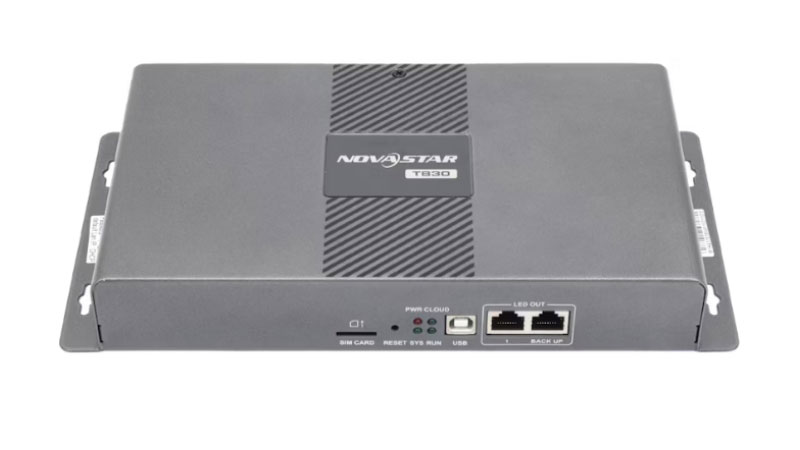
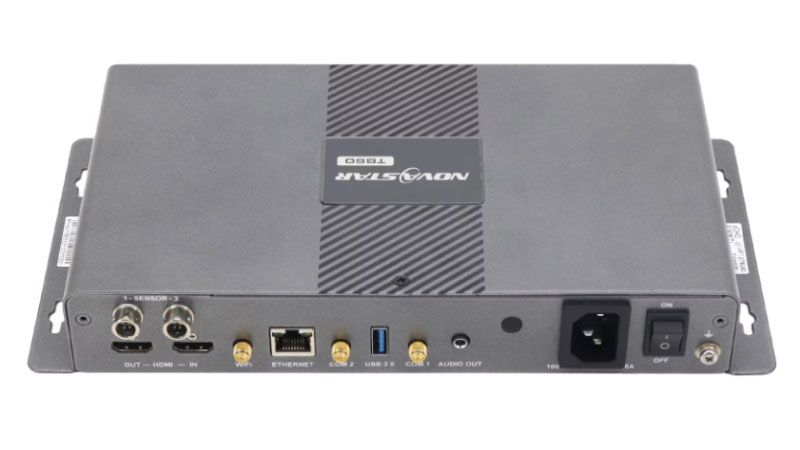
Processing power stays the same across the board. What actually separates these three is pixel capacity, output ports, and whether HDMI is even on the device.
The TB30 skips HDMI entirely and can’t switch into synchronous mode, so it’s built for smaller displays that just loop stored content. The TB50 adds HDMI in/out and sync mode support, plus double the pixel capacity. The TB60 keeps all of that and pushes further, with more headroom and two extra output ports for larger installations.
If your screen is under 650,000 pixels and doesn’t need a live feed, the TB30 is enough. Need HDMI or more capacity, the TB50 fits. Running something bigger, the TB60 has the room.
9. TB50 Manual, Software & Firmware Downloads
✔ TB50 User Manual — full setup and operation instructions
✔ TB50 Specifications — the complete official spec sheet
✔ TB50 Firmware — latest firmware package
Just click any link above to download.
If you need software for other NovaStar devices, like ViPlex Express, ViPlex Handy, VNNOX, or NovaLCT, or firmware for a different Taurus model, head over to our NovaStar Software page. You’ll find the full library there, organized by product.
10. NovaStar TB50 FAQ
What video and photo formats does the TB50 support?
The TB50 supports common video formats including H.264, H.265/HEVC, MPEG4, VP8, and VP9. H.265 provides higher performance, supporting up to 60fps and a 100 Mbps bit rate. For images, it supports JPEG, BMP, PNG, WEBP, and GIF files. Most standard files exported from editing software can be used directly without conversion.
Does the TB50 work without an internet connection?
Yes. When operating in asynchronous mode, the TB50 stores content locally on its built-in 32 GB memory and continues playback without an internet connection. A network connection is only required for remote content updates or cloud-based monitoring.
How do I factory reset the TB50?
Press and hold the RESET button on the front panel for about 5 seconds. This restores the TB50 to factory settings and can help resolve configuration issues or prepare the device for a new installation.
How many videos can I store on the TB50 at once?
The number of videos depends on their file size, resolution, and bitrate. With 32 GB of internal storage, the TB50 can store multiple videos for most applications. Each individual file must be smaller than 4 GB, so very long or high-bitrate videos may need compression or splitting.
What's the difference between the TB50 and older NovaStar players like the TB6 or TB8?
The TB50 is part of NovaStar's newer Taurus series, which replaces older models such as the TB6 and TB8. For existing TB6 or TB8 installations, the TB50 is a newer upgrade option with improved hardware performance and ongoing product support.