

NovaStar NovaLCT V5.9.2: Download, Setup Guide & LED Screen Configuration
NovaStar NovaLCT is a Windows-based LED display configuration tool for NovaStar control systems. The latest version available on this page is NovaLCT V5.9.2. It is used for LED screen configuration, receiving card setup, brightness and color adjustment, firmware updates, and hardware monitoring.
You can download NovaLCT V5.9.2, the matching user manuals, and related drivers below. Older NovaLCT versions are also available for projects that require a specific software version.
1. What Is NovaStar NovaLCT?
NovaStar NovaLCT is a professional LED display configuration and management software developed for NovaStar LED control systems. Running on Windows, NovaLCT is used to configure, adjust, and maintain LED screens across different control architectures, including both synchronous control systems and multimedia player–based systems.
- NovaLCT LED Configuration Tool for Synchronous Control System: The images are played and controlled on the screen synchronously with the video source (such as on a PC or camera).
- NovaLCT LED Configuration Tool for multimedia players of Asynchronous Control System: The resources are played and controlled asynchronously. The program is pre-stored on the local device. Then, it will be sent and played on the LED screen wall.
In practical LED projects, NovaLCT serves as the core tool for screen setup. It allows users to complete essential tasks such as screen configuration, receiving card parameter setup, brightness and color adjustment, and configuration file management. Depending on the connected hardware, the software automatically displays relevant functions and configuration options, helping users work efficiently in different application scenarios.
2. NovaLCT Software Free Download and Install
The latest version is NovaLCT V5.9.2 for Windows. Click below to download directly.
2.1 NovaLCT Download
- NovaLCT V5.9.2
Need an older version? All releases from V5.4.8 to V5.9.2, including user manuals and driver files, are listed on the LedInCloud – LED Screen Cloud Platform, just click the button blow.
- What’s New in NovaLCT V5.9.2?
NovaLCT V5.9.2 brings a few useful changes for everyday LED screen setup and maintenance. One of the biggest additions is Load from Cloud, which lets you search for an NCP file by file ID or order number instead of loading it manually from your computer. The new version also supports the TCC80 and N4H, adds more driver ICs, and brings calibration support to TB10, TB10 Plus, TB20, and TB20 Plus. Several issues with firmware updates, screen configuration, monitoring, calibration, and driver IC settings have also been fixed.
2.2 NovaLCT Install
Before installing, make sure you are on a Windows PC. Turn off antivirus software temporarily — some security tools flag the installer as a false positive.
Unzip the downloaded package, then run the .exe file and follow the setup wizard. If a firewall prompt appears, click Allow. The installer will also check for the serial port driver and install or update it automatically if needed.
3. Nova LCT Software Functions and Features
NovaLCT covers the full range of tasks involved in setting up and maintaining a NovaStar LED display system. Below are the main functions users work with most often.
✔ Screen Configuration
NovaLCT handles receiving card setup, cabinet layout mapping, and data path configuration. This is typically the first step when commissioning a new LED screen.
✔ Brightness and Color Adjustment
Users can adjust brightness levels manually or set automatic schedules based on time of day. Color calibration and gamma correction are also done through NovaLCT.
✔ Hardware Monitoring
The software reads live status data from receiving cards, monitoring cards, and multifunction cards. Voltage, temperature, and fan status are all visible from the main interface.
✔ Configuration File Management
NovaLCT can save and load .rcfgx configuration files. This is useful for backing up screen settings or replicating the same setup across multiple displays.
✔ Advanced Login Modes
The software supports three login levels: standard, advanced synchronous, and media player. Each level unlocks different configuration options depending on the connected hardware and user role.
✔ Controller Box Configuration
For projects using NovaStar controller boxes, NovaLCT supports importing configuration files directly and adjusting brightness curve settings per cabinet.
4. How to Connect NovaLCT to Your LED System?
NovaLCT works with different hardware setups. The connection method depends on whether you are using a synchronous control system or an asynchronous multimedia player.
4.1 NovaLCT LED Configuration Tool for Synchronous Control System
In synchronous mode, the PC is only used to control the LED display wall, and the media source is transferred by DP/HDMI/DVI cable from other devices.
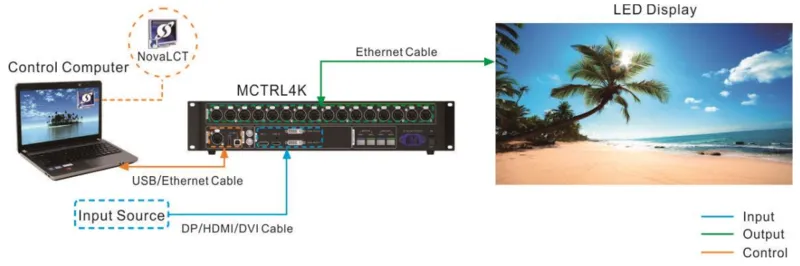
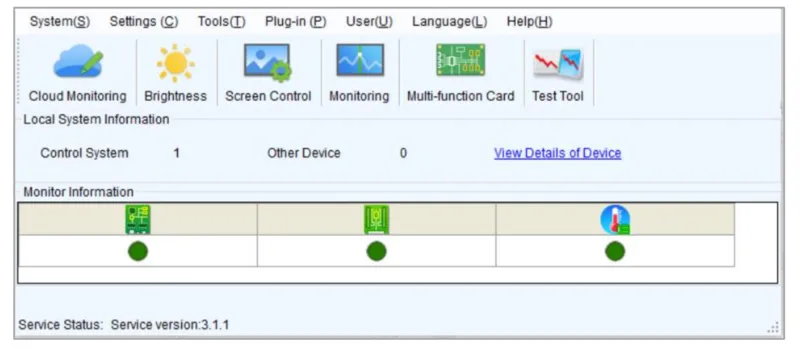
If the hardware is successfully connected and the sending card is operating normally, NovaLCT will connect to the sending card automatically. After the successful connection, the NovaLCT main window displays the sending card quantity and monitoring information about the control system.
4.2 NovaLCT LED Configuration Tool for Asynchronous Multimedia Play Control System
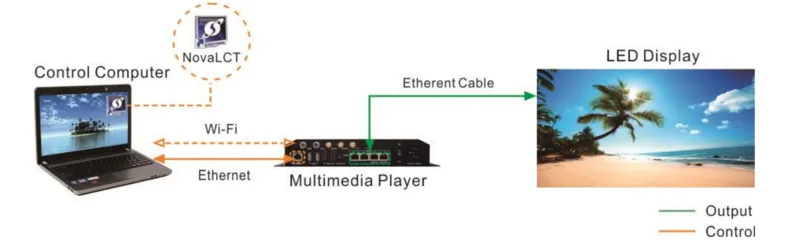
In this asynchronous mode, the ethernet works as the control cable and media source transmission cable (the media sources are stored on the PC).
Direction connection via Ethernet cable:
Simply connect the control computer to the Multimedia Player using an Ethernet cable. For this to work, ensure the Multimedia Player’s DHCP is active. Then, in NovaLCT, navigate to Plug-in > DHCP Service, choose your PC’s IP address, and activate the DHCP Service.
Direction connection via Wi-Fi:
Link the control computer, which runs NovaLCT, to the Multimedia Player over Wi-Fi. If your Multimedia Player comes with an integrated Wi-Fi AP, this connection can be established without any additional setup.
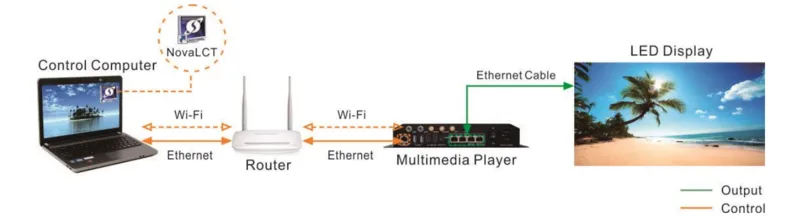
Wired LAN connection:
Connect your control computer and multimedia player to the same wired LAN using an Ethernet cable. This plug-and-play method requires no additional configuration.
Wireless LAN connection:
For a wireless setup, ensure both the control computer and multimedia player are on the same Wi-Fi network. This connection type is viable if your multimedia player is Wi-Fi STA compatible. Remember to enable the player’s DHCP settings. To connect, use configuration software like ViPlex to log into the multimedia player, then link it to the router’s Wi-Fi AP via the network configuration page.
5. NovaLCT Manual & User Guides
The operation NovaStar LCT manual guides are available with asynchronous and synchronous modes.
5.1 How to Update NovaLCT Software?
If you’re not running the latest Nova LCT software, an “Online Update” dialog will appear. To update to the new NovaLCT version, follow these steps:
Step 1: Click OK.
Step 2: Click Get Update.
Step 3: Once you have downloaded the update packag, click Install Update and wait for the installation.
5.2 NovaLCT Screen Configuration
Basic Configuration
Complex Configuration
To quickly complete NovaLCT screen configuration, load either a cloud or local configuration file. It’s important to note that NovaLCT is currently limited to configuring standard screens only.
- For a Cloud Configuration File: Ensure the control computer has an internet connection.
- For a Local Configuration File: Have the system configuration file (.scfg and .zip) ready.
While you can view the information in both the cloud configuration file and local .zip file within NovaLCT, editing is not possible until the data is transmitted to the hardware.
Conversely, the local .scfg file allows for both viewing and editing in NovaLCT before sending the information to the hardware.
- Operation Steps
Step 1: Access the multimedia player by logging in.
Step 2: Navigate to Settings > Screen Configuration via the menu bar to initiate the dialog.
Step 3: Choose one of the following methods to upload a configuration file as needed.
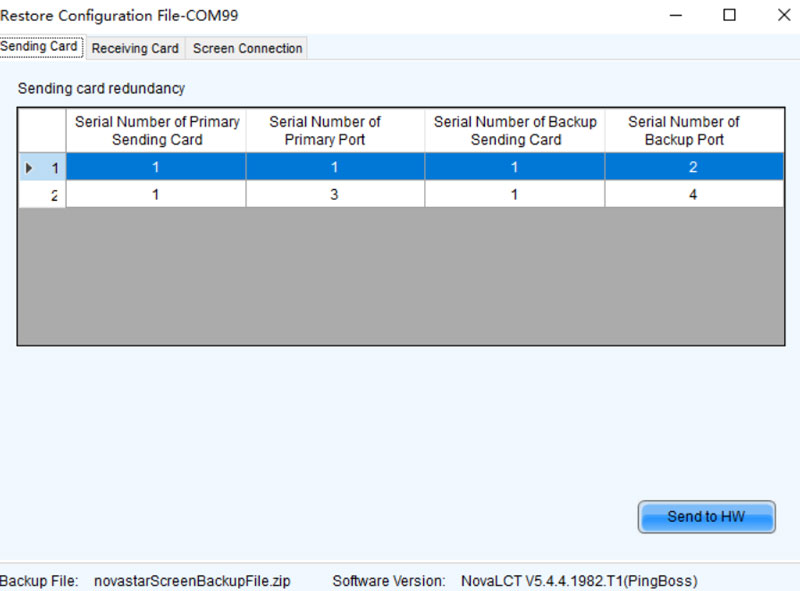
(1) Load From The Cloud Platform
- Choose “Cloud Restore” and pick a node from the dropdown menu.
- Hit “Next” to bring up the “Restore Configuration File” dialog.
- Select the appropriate tab and dispatch the configuration file to your hardware.
Receiving Card:
Opt for “Send By Topology” or “Send By Physical Address,” adjust the necessary parameters, and click “Send to Specified RV Cards” to transfer the receiving card configuration file to your hardware. If selecting an area via the software is impractical when “Select by Topology” or “List” is chosen, use “Select Operating Area on Screen” to pick the area directly on the display window.
Screen Connection:
- Press “Send to HW” to forward the screen connection file to your hardware.
- In the pop-up dialog, select either “Save to HW” or “Don’t Save to HW.”
(2) Load From Local PC
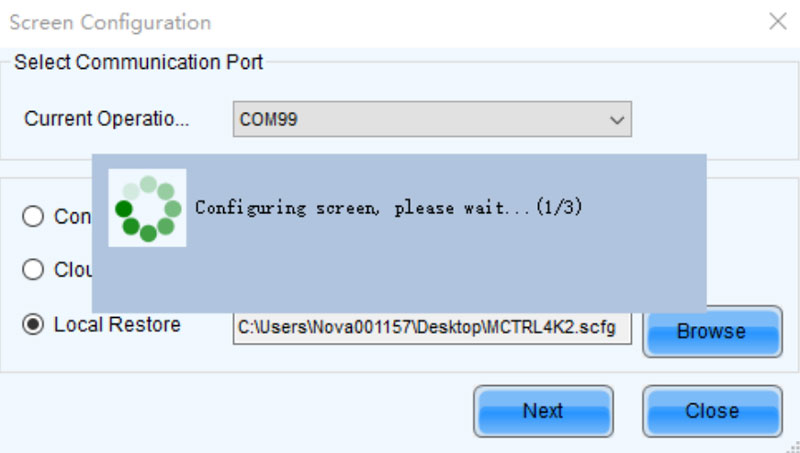
- Select Local Restore.
- Click Browse to select a configuration file, and Open it.
Refer to the visuals and steps under the “Load from cloud platform” section for the .zip local configuration file.
The loading progress for the .scfg local configuration file will be shown. Once the file is loaded, the dialog box will close on its own.
5.3 Firmware Program Update
Check and update your current firmware program version of the receiving card and sending card
Step 1: Sign in to the multimedia player.
Step 2: Enter “admin” to access the program loading interface.
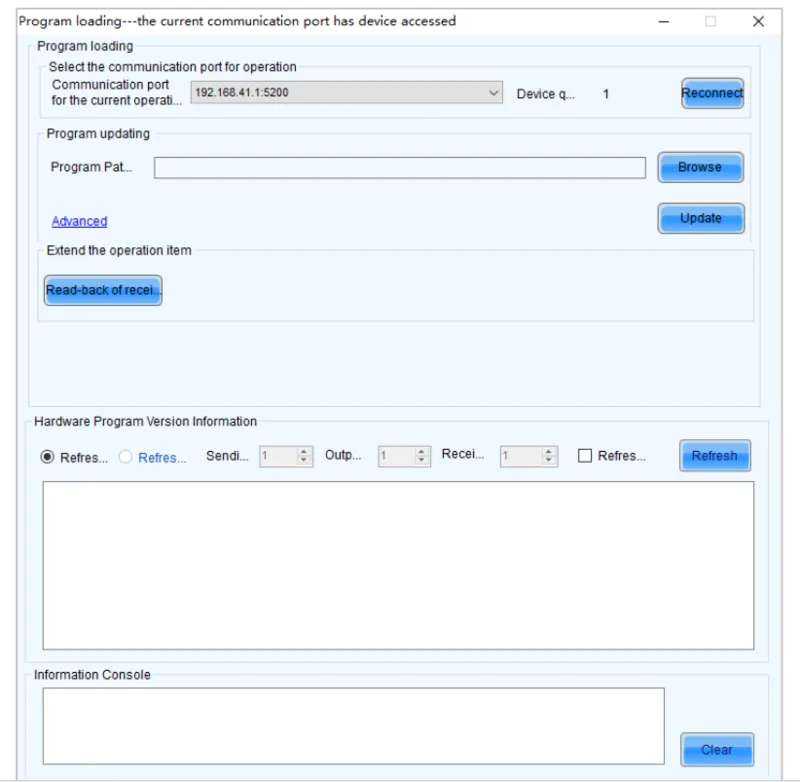
Step 3: Select the appropriate communication port. If reconnection to the multimedia player is necessary, select Reconnect.
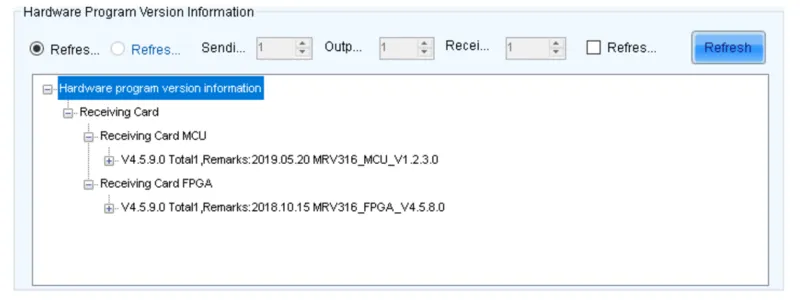
Step 4: Define the range for the update and click Refresh to check the current firmware version on your hardware. If your module includes an MCU, choose Refresh Module MCU to review the MCU’s version.
Step 5: Click Browse, pick a firmware package, and confirm with OK.
Step 6: Go to Advanced and choose the components you wish to update, and confirm with OK.
Step 7: Initiate the update by clicking Update.
Step 8: Decide whether to update all receiving cards or just a specific one, then confirm with OK.
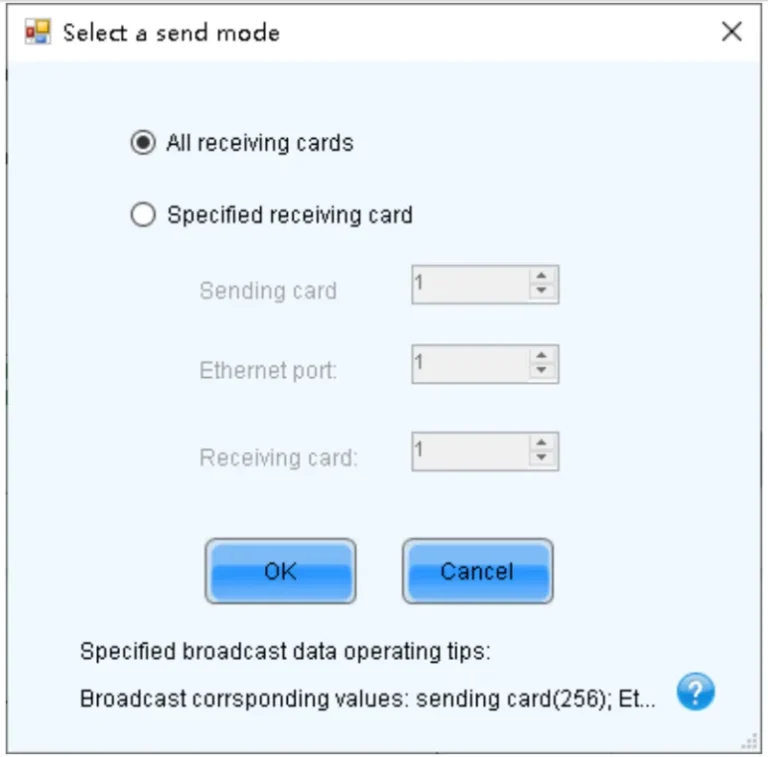
Step 9: Once the update is completed, click OK.
5.4 NovaLCT Adjust Brightness Manually
Step 1: Sign in to the multimedia player.
Step 2: Click on “Brightness” or go to Settings > Brightness in the menu bar.
Step 3: Use the slider to modify brightness levels and choose between Grayscale or Contrast. If your screen is equipped with TBS6332 or TBS6336 chip receiving cards, you can set up Gamma Interlink.
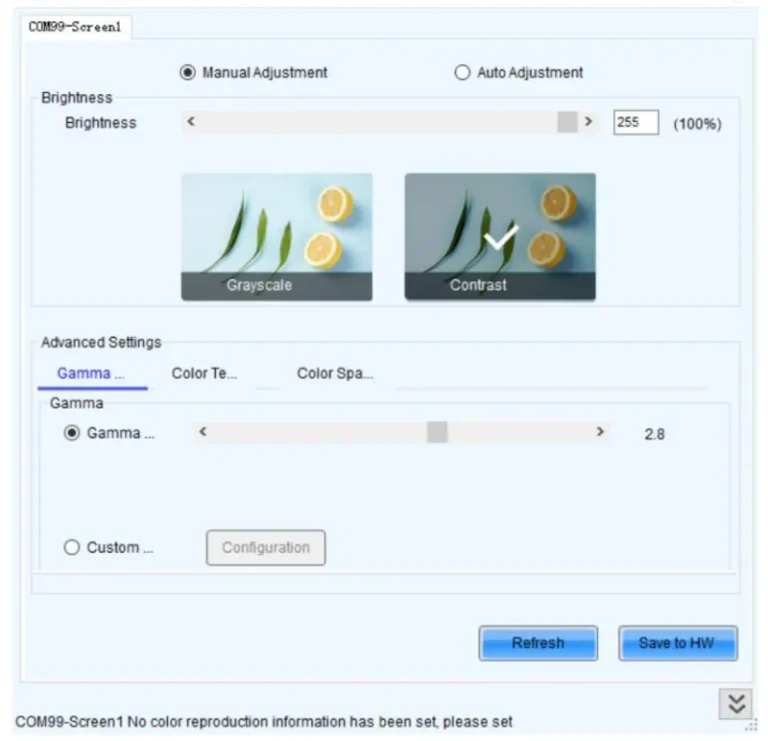
Step 4: Proceed as needed:
- Adjust Gamma: Access “Gamma Value Adjustment” and move the slider to alter the Gamma value, or define a custom Gamma as outlined in “Custom Gamma.”
- Adjust Color Temperature: Select “Rough Adjustment” and move the slider to change the color temperature, or opt for “Precise Adjustment” and apply a predefined custom color temperature. For setting up a new custom color temperature, refer to “Custom Color Temperature.”
- Adjust Color Space: Turn off color space, activate a standard color space (PAL/NTSC), or implement a custom color space. Instructions for creating a custom color space are available in “Custom Color Space.”
Step 5: Once you’ve completed the setup, click “Save to HW” to store the configurations on the hardware.
5.5 NovaStar NovaLCT Screen Monitoring
For centralized remote monitoring of your screens’ operational status, register them with NovaStar VNNOX Care.
5.5.1 Register Screens with VNNOX Care
Save configuration files to register online screens.
Step 1: In the menu bar, select User > Advanced Synchronous System User Login. Input the password and press Login. The standard password is “admin.”
Step 2: From the menu bar, go to Settings > Screen Configuration to bring up the dialog box.
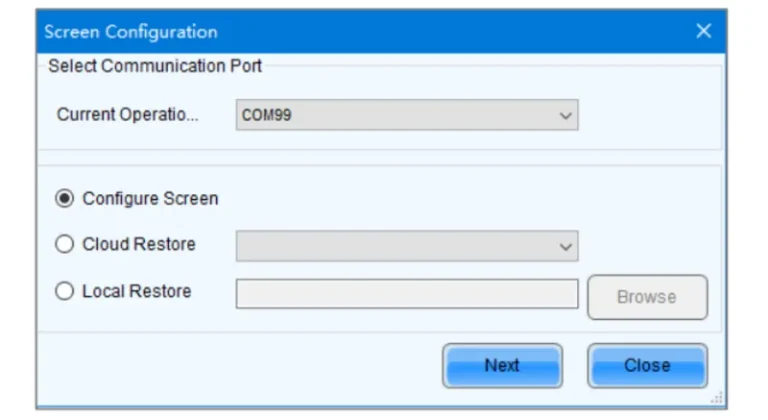
Step 3: Pick a communication port.
Step 4: Choose Configure Screen and hit Next.
Step 5: On the Screen Configuration page, select Save System Configuration File to display the dialog box.
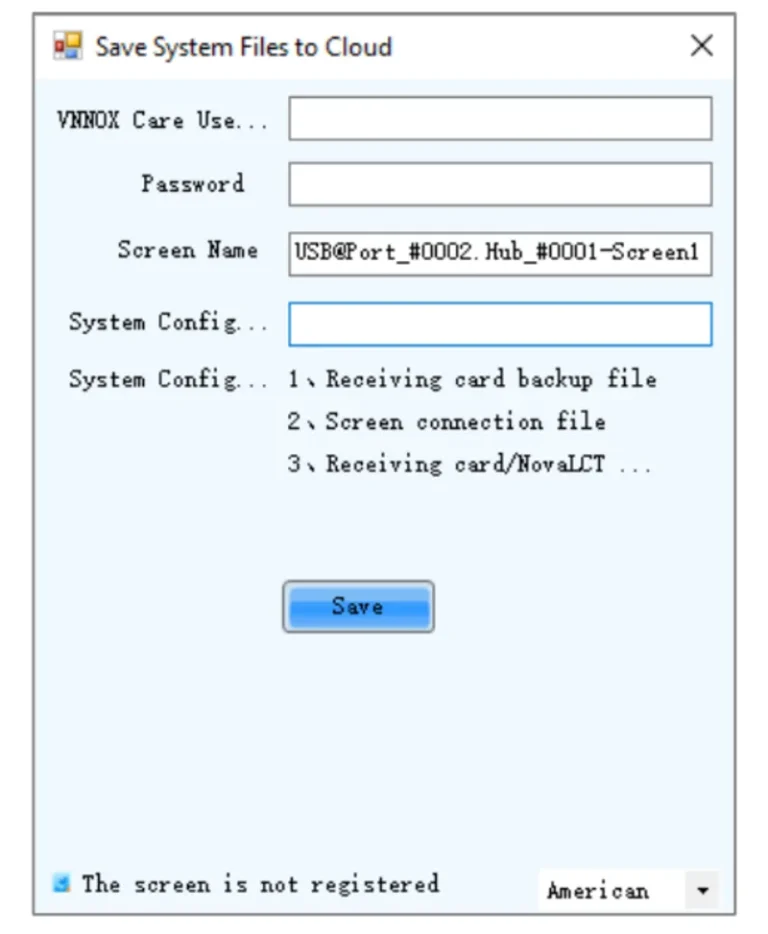
Step 6: Type in your VNNOX Care username and password, assign a screen name and system configuration file name, and choose a server node on the bottom right.
Step 7: Once settings are complete, select Save.
Step 8: Close the prompt box after a successful save.
5.5.2 View and Configure Monitoring
The use of a monitoring card precludes simultaneous hub monitoring and smart module usage.
Step 1: Select Tools > Monitoring from the menu bar to access the monitoring page. Alternatively, right-click the desktop taskbar and choose Open MonitorSite.
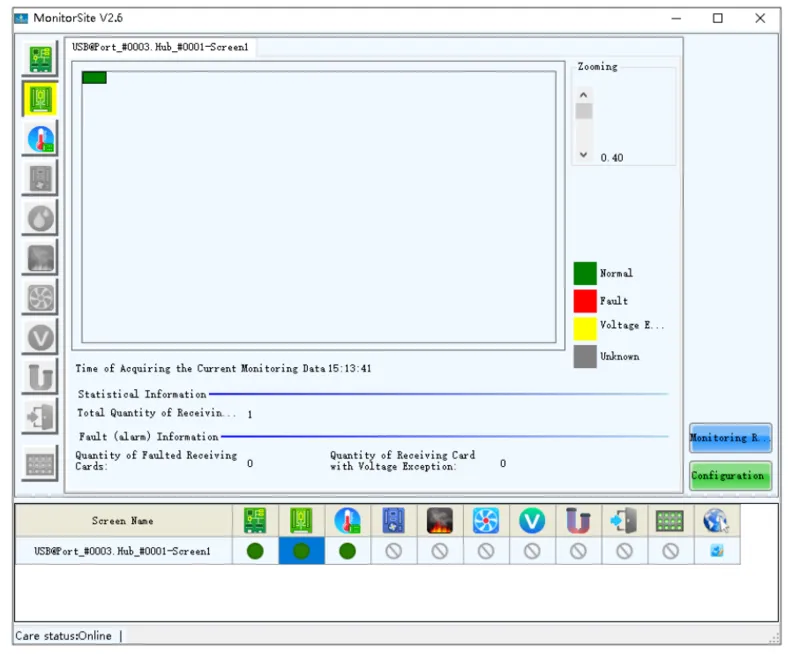
Step 2: Click on the monitoring item found on the left or at the bottom of the page to inspect detailed monitoring data.
Step 3: Hit Configuration to adjust monitoring settings, including Refresh Period, Hardware Settings, Alarm, Monitoring Control, Email, and Email Log.
5.5.3 More Operation Guides
NovaLCT-Mars Screen Configure
Performance Settings and Receiving Card Configuration Files
6. NovaLCT VS SmartLCT
NovaLCT and SmartLCT are both software solutions from NovaStar designed for configuring LED displays, but they cater to different user needs and skill levels.
- NovaStar NovaLCT
✓ More Professional: Geared towards industry professionals like manufacturers, developers, and technical support engineers.
✓ Comprehensive Features: Provides a complete array of tools for LED display management, such as brightness and chroma tuning, calibration, and screen setup.
✓ Reliability: Esteemed as the industry benchmark for its dependability and extensive features.
✓ Windows-Based: Exclusively compatible with Windows OS.
✓ Advanced Use: Ideal for intricate configurations and calibrations.
✓ Professional Users: Best suited for users well-versed in LED display tech.
✓ NovaStar Products: Recommended when utilizing NovaStar’s synchronous control systems and multimedia players.
- NovaStar SmartLCT
✓ User-Friendly: Crafted for users with less technical experience, featuring an intuitive graphical user interface.
✓ Creative Design: Facilitates 360° rotation and inventive screen layouts.
✓ Uniformity Across Batches: Modifies coefficients to harmonize display uniformity, addressing variances from different production batches.
✓ Dual Hot Backup: Guarantees consistent data flow and display stability.
✓ Simplified Configuration: Optimal for straightforward and visually guided screen setup.
✓ Intuitive Interface: Favored by those who seek an easy-to-navigate user experience.
✓ Creative Features: Incorporates features like 360° rotation for adaptable visual presentations.
7. FAQs
What is NovaLCT used for?
NovaLCT is the official configuration software for NovaStar LED control systems. It runs on Windows and handles screen setup, receiving card configuration, brightness adjustment, color calibration, and hardware monitoring. Most NovaStar controller users need it for initial screen setup and ongoing maintenance.
What is the difference between NovaLCT and SmartLCT?
NovaLCT is the standard configuration tool for NovaStar synchronous and asynchronous control systems. SmartLCT is a newer, simplified version designed for faster setup workflows on compatible hardware. NovaLCT supports a wider range of hardware and provides more advanced configuration options. If your project uses older NovaStar controllers, NovaLCT is the better choice.
What is the NovaLCT Media Player login password?
The default login password for NovaLCT Media Player mode is "admin". If the password has been changed and you no longer have access, you will need to contact the original system integrator or reset the device through the hardware. NovaStar does not provide a universal password recovery method through the software itself.
Do I need to install the NovaLCT driver separately?
In most cases, NovaLCT installs the required serial port driver automatically during setup. If your PC does not detect the connected hardware after installation, download NovaLCT Driver 1.0.0.2 separately and install it manually. This is common on systems running Windows 10 or Windows 11 where the driver is blocked by default security settings.
Which NovaLCT user manual should I download — Synchronous or Multimedia Player?
Choose based on your control system type. If your LED screen is connected to a PC or video processor and displays content in real time, use the Synchronous Control System manual. If your screen runs content stored on a local device, such as a NovaStar Taurus player, use the Multimedia Player manual. When in doubt, check your controller model. Synchronous controllers include the MSD and MCTRL series, while multimedia players include the TB and Taurus series.
What Windows versions does NovaLCT support?
NovaLCT runs on Windows 7, Windows 10, and Windows 11. Windows 10 64-bit is the most commonly used environment. The software does not support macOS or Linux. Before installing, temporarily disable antivirus software, as some security tools may incorrectly flag the installer.
What is NovaLCT-MARS?
NovaLCT-MARS is a dedicated module within NovaLCT for managing NovaStar MCTRL series controllers in MARS (Multi-function Advanced Redundancy System) configurations. It handles redundancy settings, backup switching, and system monitoring for large-scale LED installations that require high reliability. Not all NovaLCT versions include the MARS module, so check your controller documentation for compatibility.
8. Conclusion
NovaStar NovaLCT is a core software tool used for LED screen configuration, control, and system management. Throughout this guide, we have outlined what NovaLCT is, its main functions, supported application types, and how it is used across both synchronous and asynchronous control systems.
By understanding the role of Nova LCT within different LED display environments, users can better identify where the software fits into their overall screen setup and maintenance workflow. Whether working on initial configuration, system adjustment, or ongoing monitoring, NovaLCT remains a widely adopted tool in professional LED display projects.