Huidu XiaoHui Cloud Platform: LED & LCD Display Management Guide
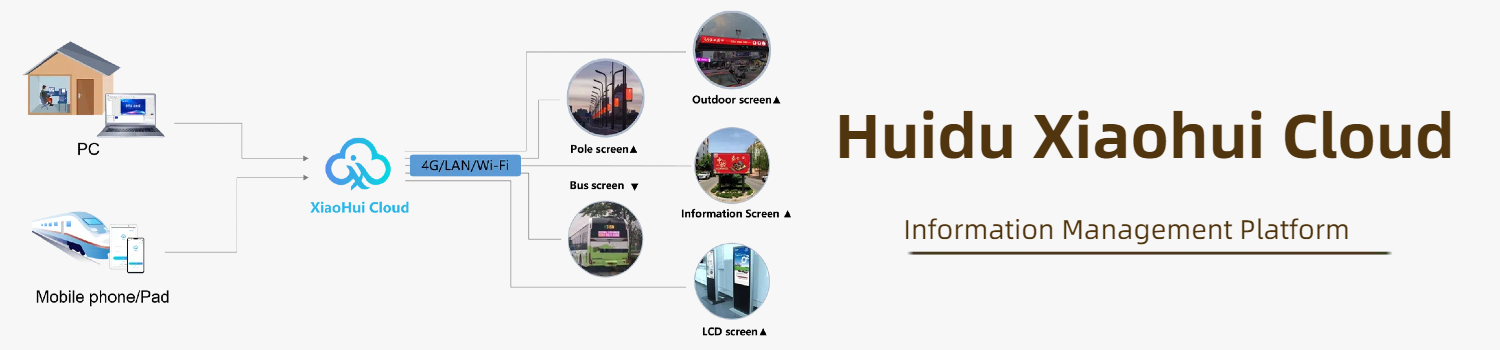
The Huidu XiaoHui Cloud Platform is a web-based display management system that lets you control LED and LCD screens remotely. No software installation needed — just log in from any browser, push content, and monitor your devices in real time.
It supports wired, 4G/5G, and Wi-Fi connections, works across both LED and LCD screens, and scales from a single display to large networks. In 2024, the platform passed two independent security audits, making it a reliable choice for industries like public transit, outdoor advertising, and retail.
This guide covers the platform’s key features, how it works, and how to get started.
Table of Contents
1. Xiaohui Cloud Platform Introduction
The Huidu XiaoHui Cloud Platform is built around the XiaoHui Information Release System. It gives you centralized control over LED and LCD screens through a standard web browser — no dedicated software required.
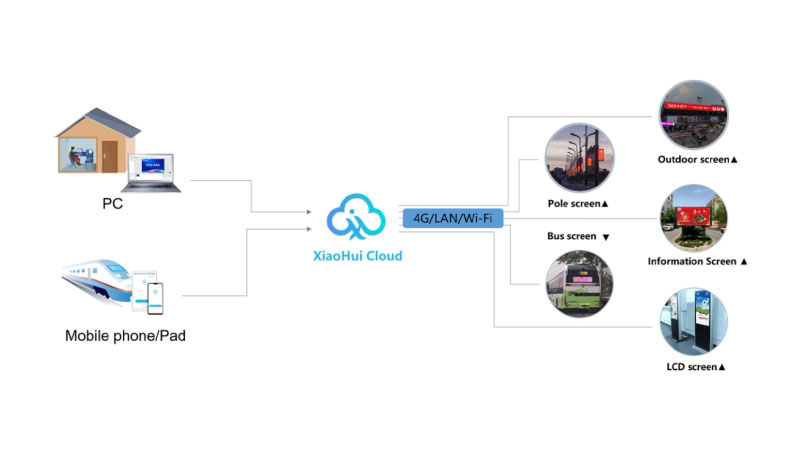
Screens connect via wired network, 4G/5G, or Wi-Fi. Once online, you can manage them from a computer, tablet, or phone. This makes it practical for teams that need to update content across multiple locations without being on-site.
The platform supports cluster management, meaning you can group devices and push content to all of them at once. It also handles both LED and LCD screens within the same account, so you don’t need separate systems for different display types.
XiaoHui Cloud is currently used across a wide range of industries — outdoor advertising, public transit, retail stores, smart city infrastructure, and more.
2. Outstanding Features
XiaoHui Cloud covers the full range of what a display management platform needs — from content security to multi-device control. Here’s what it offers.
- Security
Security is one of the platform’s stronger points. All data in transit is protected with SSL encryption. On the storage side, the system runs remote hot backup and keeps full logs, so you can recover data if something goes wrong.
Content goes through a two-step review process — AI screening first, then manual checks. Sensitive device interfaces are locked down through interface blocking and application whitelisting.
The platform holds Tier-3 Internet Information Security Certification and passed two independent security audits in 2024, covering remote security testing and penetration testing.
- LED & LCD Support in One Account
Most platforms are built for either LED or LCD. XiaoHui Cloud handles both. You can publish content to different display types from the same account without switching systems.
- No Software Installation
The platform runs on a B/S architecture, so you access it through a browser. No installation, no updates to manage on your end — just log in and go.
- Free Server Hosting
XiaoHui Cloud provides free server hosting on both domestic and international platforms. You don’t need to set up or maintain your own server.
- Content Format Support
The platform supports a wide range of content types — images, videos, text, clocks, tables, web pages, and live weather data. Everything is managed through a visual editor, so you can arrange and preview content before publishing.
- Cluster & Group Management
You can group devices and push content to all of them at once. Additional tools include multi-screen sync, timed playback, remote power control, and resume playback after interruptions.
3. Main Pages and Functions
The Xiaohui Cloud Information Release System is built on a B/S architecture, and it includes several key modules: Home, Devices, Programs, Source, Statistics, Log, and Settings.
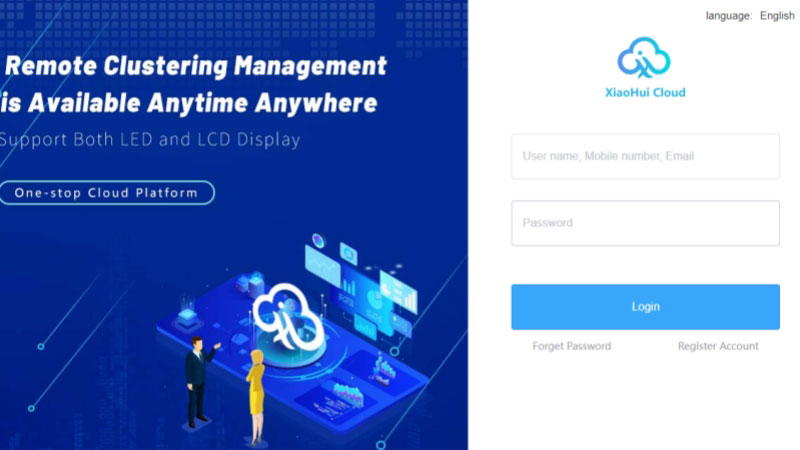
✔ Login Page
The login page supports multiple languages. You can switch languages directly from here before signing in.
✔ Home Page
The Home page gives you a quick overview of everything happening across your account — device status, active tasks, scheduled programs, uploaded materials, and user login records. It’s a good starting point to check if anything needs attention before you start working.
✔ Devices
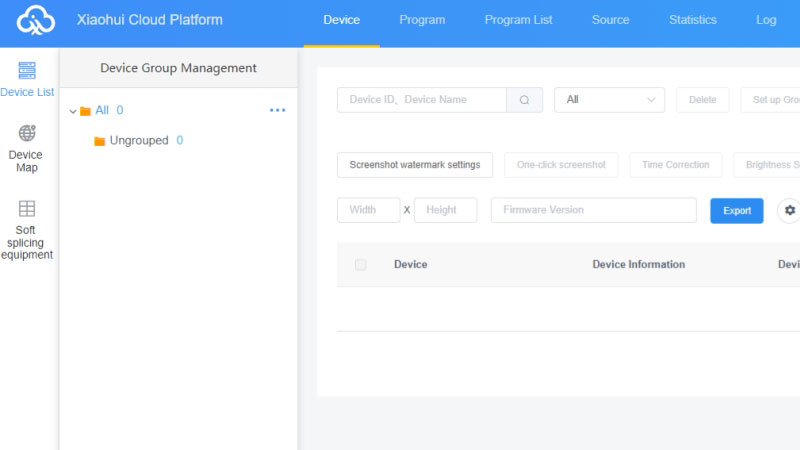
This is where you manage all connected screens. You can group devices, check which ones are online or offline, and make adjustments like brightness control, time calibration, and firmware updates — all without touching the physical screen.
Each device has a details page showing its current content, publishing history, and online/offline logs.
✔ Programs
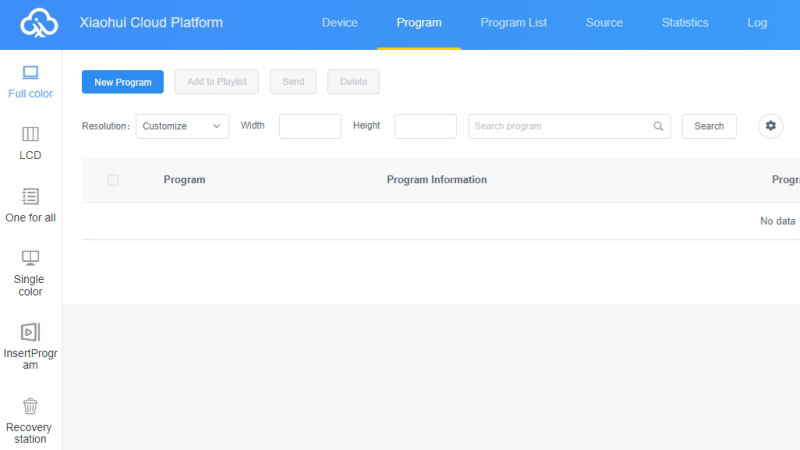
The Programs module is where you create and manage content. You can build individual programs or organize them into playlists, then preview and publish directly from here.
The program list also shows publish history, playback control settings, and GPS-targeted playback — useful if you need different content playing at different locations automatically.
✔ Source
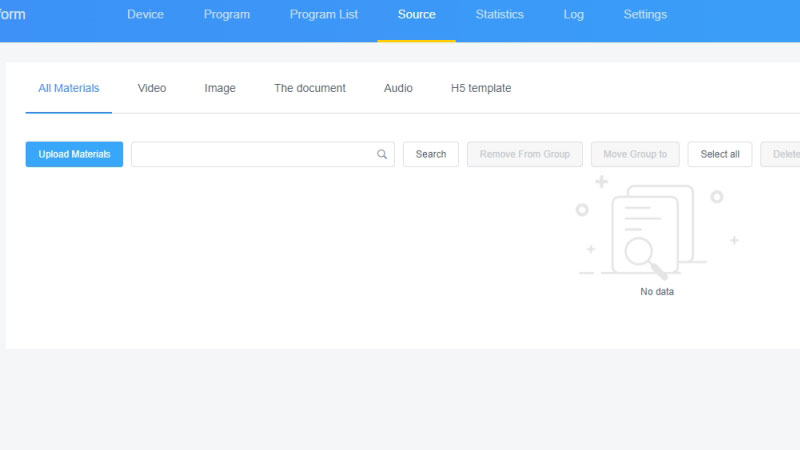
Source is your media library. You can upload videos, images, GIFs, Word files, PPT presentations, and spreadsheets. Materials that are pending review also sit here before they go live.
✔ Statistics
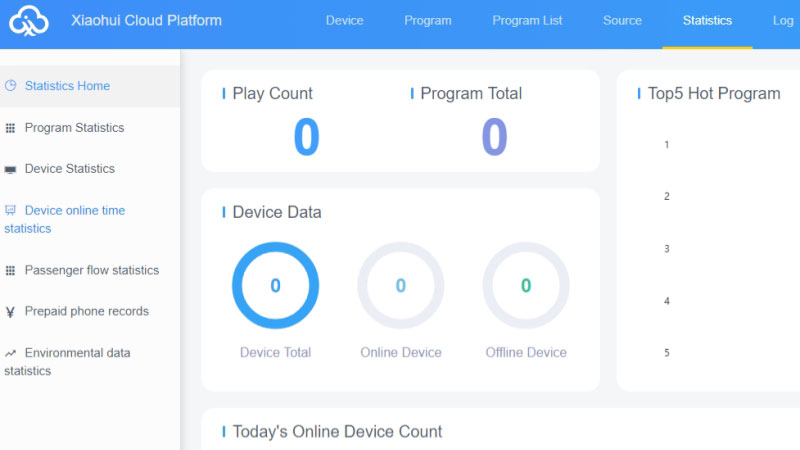
The Statistics module shows program performance, device activity, and foot traffic data. Useful if you need to report on how your displays are performing.
✔ Log
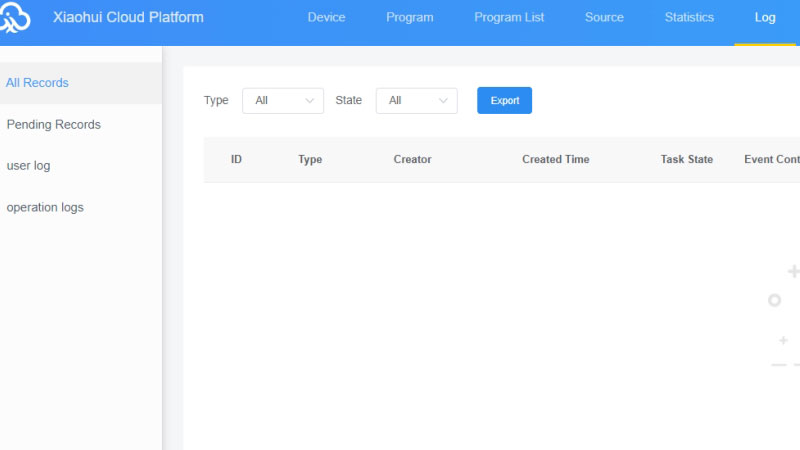
Log tracks everything — program publishing history, current task statuses, and any programs that were flagged during content review.
✔ Settings
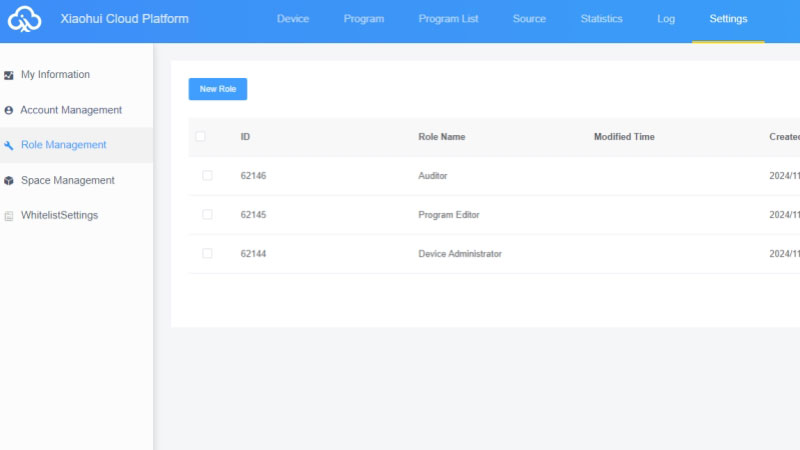
Settings covers user account management, contact information, and role assignments for sub-users. If you’re managing a team with different access levels, this is where you set that up.
4. How to Use Xiaohui Cloud
Getting started with XiaoHui Cloud takes just a few steps. Here’s how to set it up and send your first program.
4.1 A Step-by-Step Guide of XiaoHui Cloud
Step 1: Enter username and password.
Step 2: The device is online.
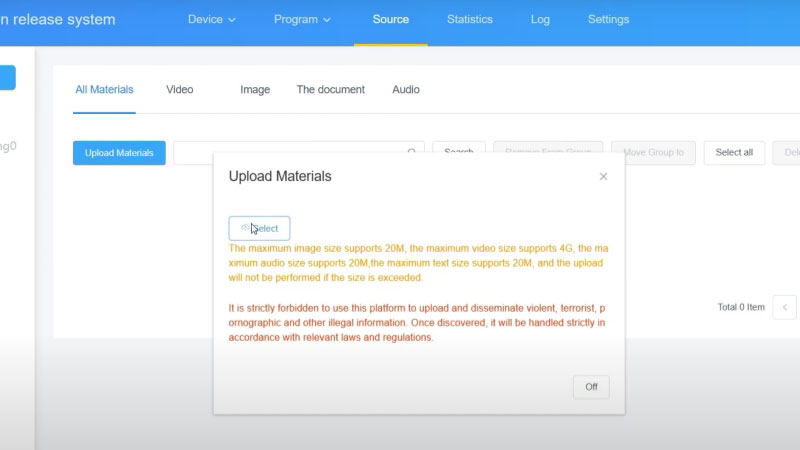
Step 3: Click “Source” → “Upload Materials”.
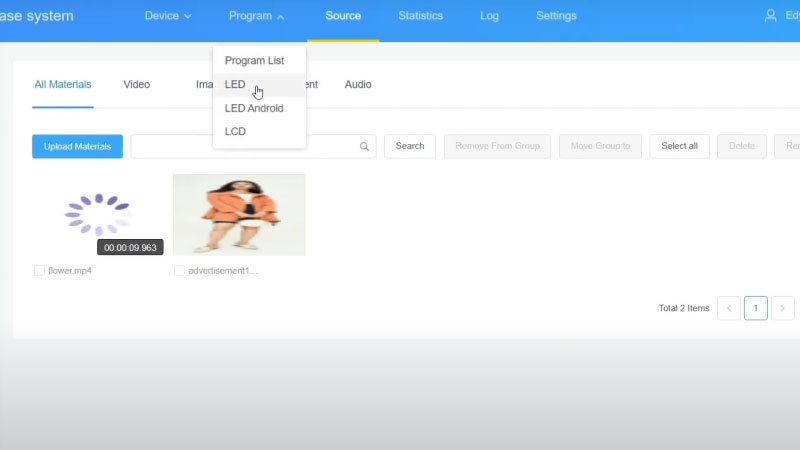
Step 4: Click “Program” → “LED”. Create a new program.
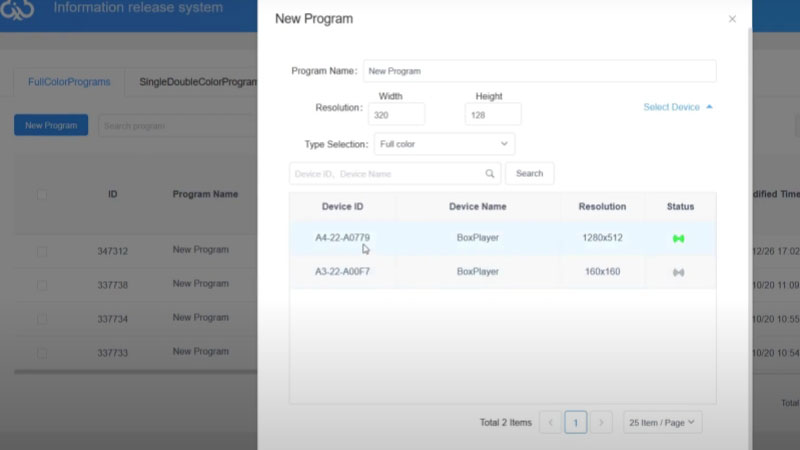
Step 5: Select device.
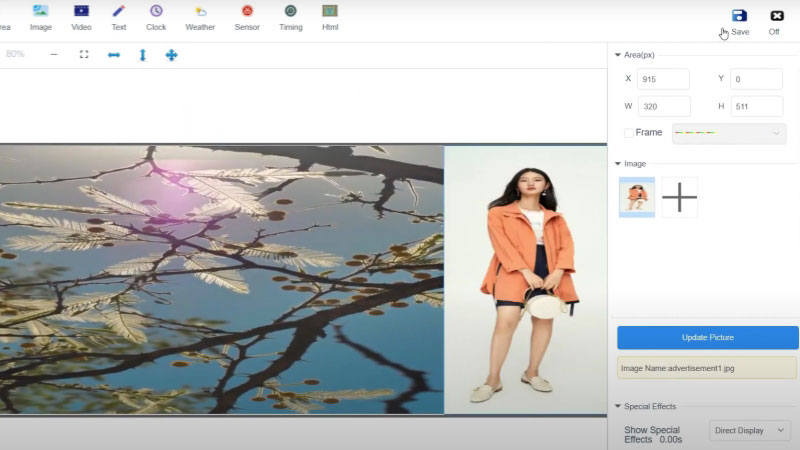
Step 6: Add a video area, click “+” sign too add video, and add a image area, then adjust the areas, save them off.
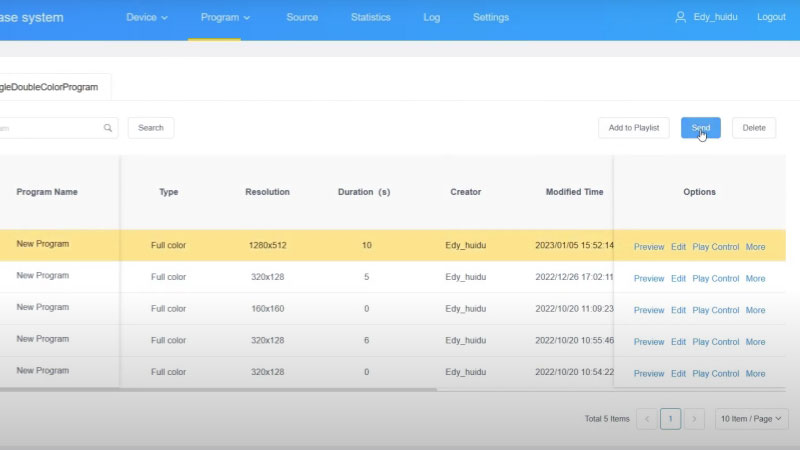
Step 7: Choose the program then click “Send”.
Step 8: Select the “Device” → “Update Mode”.
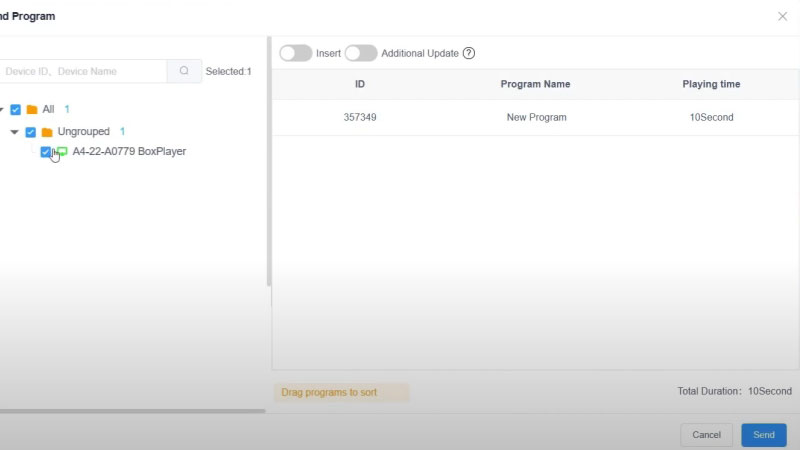
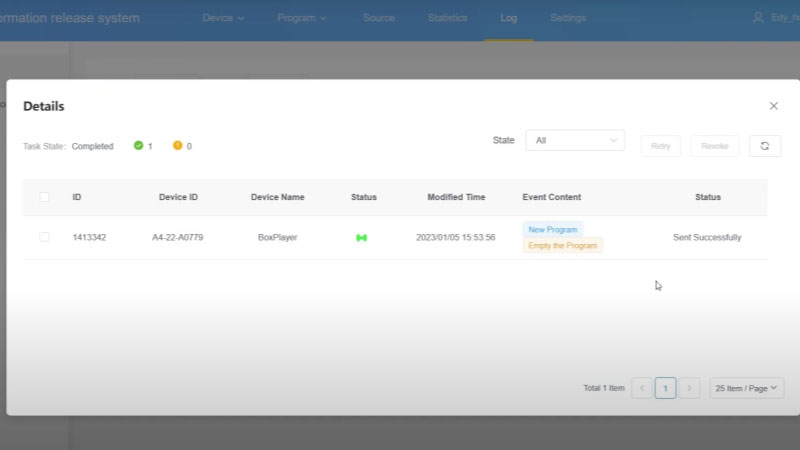
Step 9: Send and Click “Log”.
Step 10: Sent the program successfully.
4.2 How to Use LCD Android Board
When we need to remotely update the display screen and send programs, we need to use the Xiaohui cloud platform to operate.
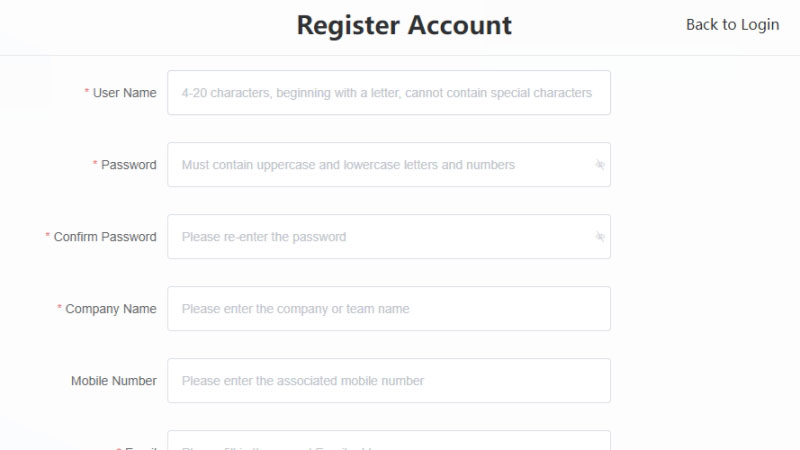
Step 1: First visit the Xiaohui cloud platform through the browser to register an account, filling the correct registration Information.
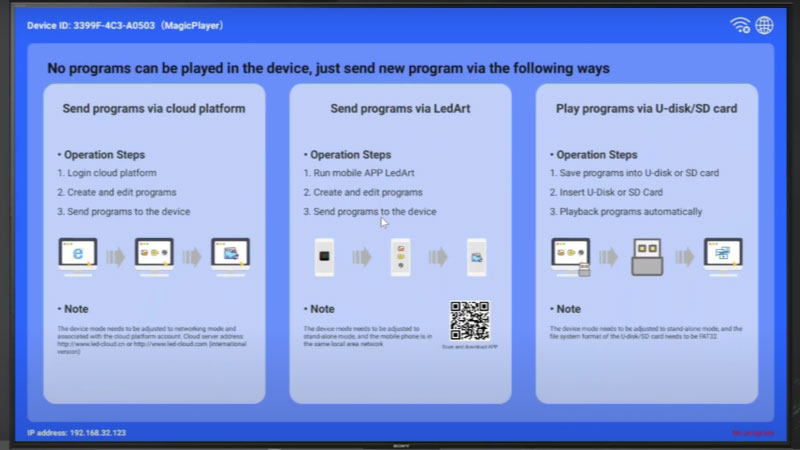
Step 2: After registration is Complete, open the MagicPlayer software, use the remote control to click the “Menu Button” or click on any corner of the display 4 times with the mouse.
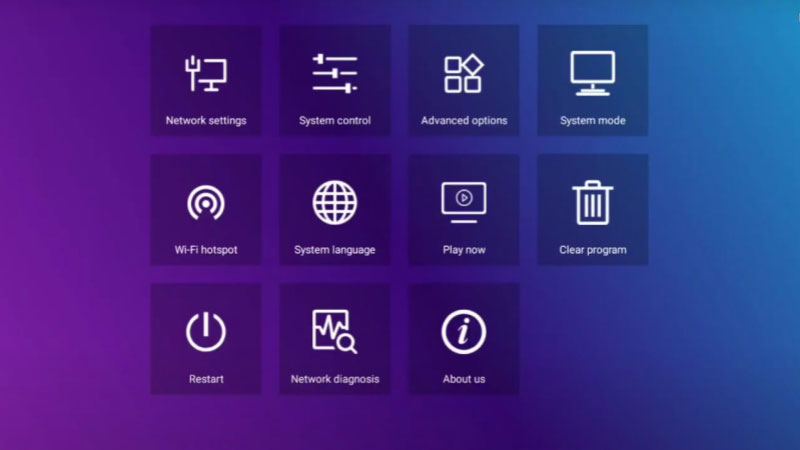
Step 3: Enter the MagicPlayer menu interface.
- First we need to connect the Android board to an external network, click “Network”, Network cable to connect directly to the device or connect to WiFi.
- Next click “System Mode”, set the system mode to “Cloud networking”.
- Check the server address and enter the registered username, click “preservation”.
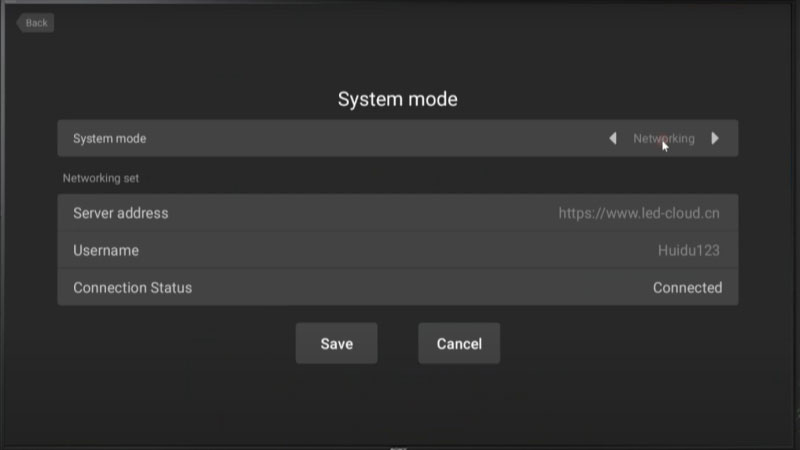
Step 4: Back to Xiaohui cloud platform, you can view the bound devices in the device list. Green means the device is online.
Step 5: Before sending the program, we need to upload the source to the Xiaohui cloud platform.
First, Click “Source” → “Upload Materials”, click on program when you’re done up loading.
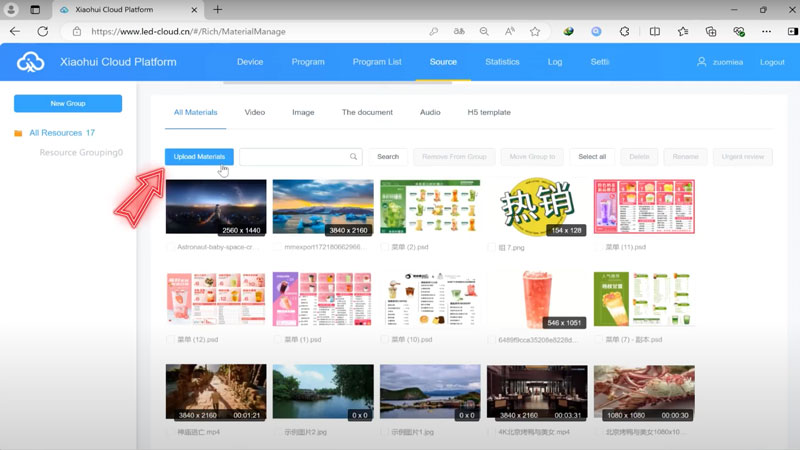
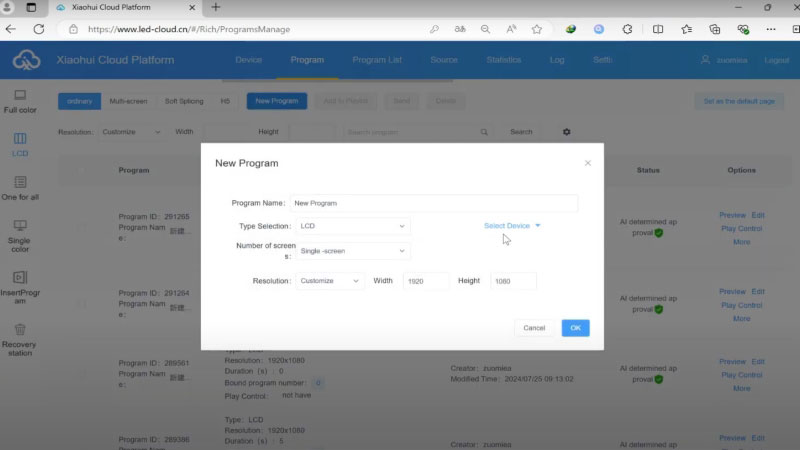
Step 6: Click “LCD Program” → “New Program”, setting the program resolution, program resolution needs to match the device resolution.
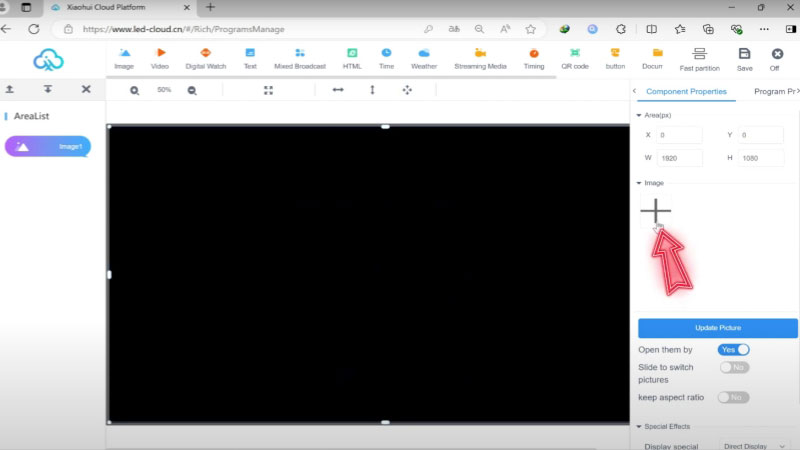
Step 7: Enter the program editing interface. Xiaohui cloud platform supports adding image, videos, text and other programs.
You can drag and drop the program playback area to change the playback position, click the “+” button on the right to add material, then click “Save” and “Off”.
Step 8: Check the program and click “Send”
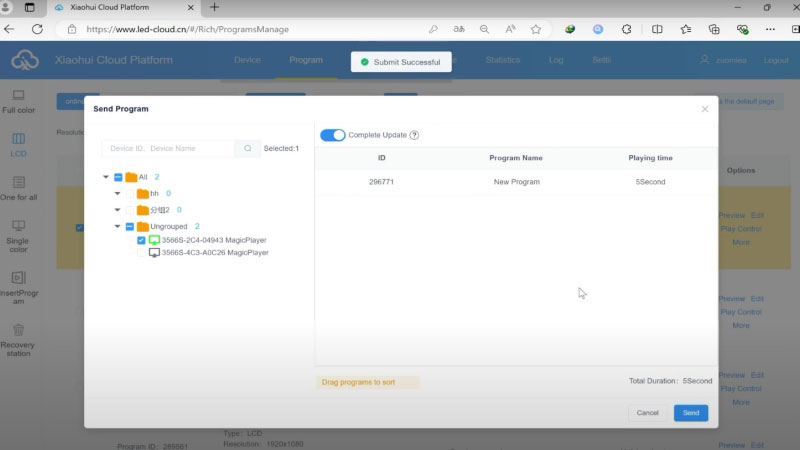
Step 9: Check the device
- “Additional Update”: Add the program to the original program list of the device.
- “Complete Update”: After the program is released, the original programs in the device will be deleted and only the program in the current list will be retained.
Step 10: Finally, click “Send”.
- You can check the program delivery status in the “Log”. Click “Details”.
- After the program is released, programs can be shown on the display.
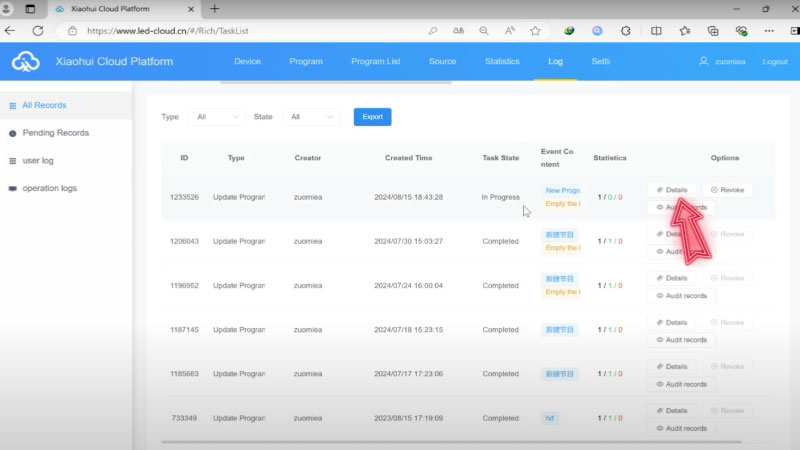
4.3 What should I do if the video task status is stuck on "Waiting for Transcoding"?
If your video task status remains in the “Waiting for Transcoding” state, there are several steps you can take to resolve the issue.
Wait for the Process to Complete
Sometimes, transcoding can take a while depending on the file size and server load. It’s important to be patient and allow the system to complete the process, which may take some time.
Compress the Video File Size
If the video file is large, it can slow down the transcoding process. You can use compression software to reduce the file size, which can help speed up the transcoding.
Improve Network Connection
A slow or unstable network connection can cause data transfer issues during upload, which may result in delays or failed transcoding. Make sure your network connection is stable and strong to reduce the chances of errors during the upload and transcoding process.
5. Huidu LED Cloud Solutions
XiaoHui Cloud works across many real-world display environments. Below are two common deployment scenarios.
5.1 Passenger Information Display Solution
This solution targets transit environments like bus stations and subways. It connects a station announcement system with display terminals, so both passenger info and ads can run on the same screen.
Here’s how it works. As a vehicle approaches the next station, the announcement system sends station data to the display terminal. The screen then updates automatically — no manual input needed.
Meanwhile, the terminal runs ads alongside the station information. You can choose between full-screen or split-screen mode depending on your setup.
All ad content is managed through XiaoHui Cloud. So when you need to update what’s playing, you do it remotely from one place — no need to visit each location.
5.2 Smart In-Vehicle Display Solutions
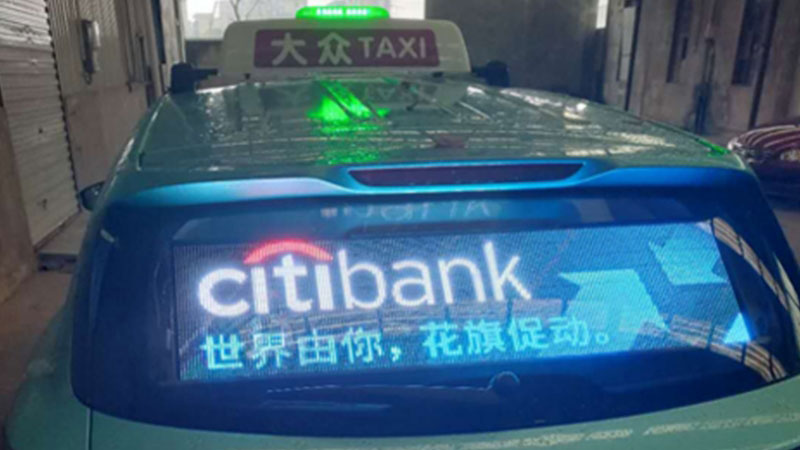
Buses, taxis, and other public transport vehicles are always on the move. That makes on-site content updates impractical.
XiaoHui Cloud solves this by keeping vehicle-mounted displays connected via 4G/5G. When you need to update content, you push it remotely through the platform. The screens update without any on-site work, and passengers always see current information.
6. Huidu Software Download
For users seeking to get the most out of the Huidu Xiaohui Cloud platform, accessing the right software and resources is essential. At LedInCloud, we provide a comprehensive range of software tools designed to enhance the management and functionality of your digital displays, all available for free on our Huidu Software Download page.
On our dedicated download page, you’ ll find the latest versions of all Huidu software, including essential applications like Huidu HDPlayer, Xiaohui Cloud user manuals.
7. Conclusions
In summary, the Huidu Xiaohui Cloud platform offers a powerful, user-friendly solution for managing digital displays across various industries. Whether you’re controlling a network of LED or LCD displays, updating content remotely, or monitoring performance in real time, Xiaohui Cloud simplifies every aspect of display management.
For those seeking to get the most out of the Xiaohui Cloud platform, be sure to visit our LED Screen Cloud Platform or Register, where you can access the latest software tools, updates, and resources.