NovaStar VX400 All-in-One Controller: Specs, Manual & Price Guide
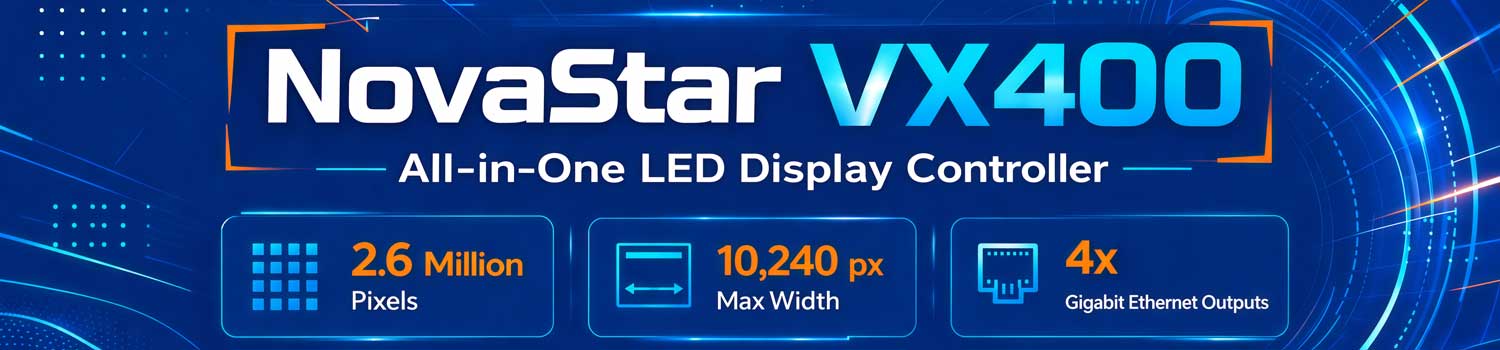
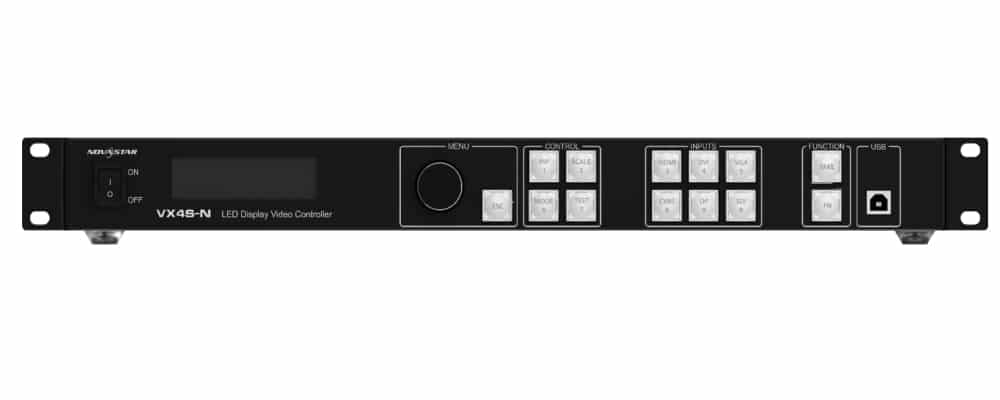
The NovaStar VX400 is a 2.6-million-pixel all-in-one LED display controller. It directly replaces the older VX4S-N.
This page gives you the exact technical specs, pricing details, and official download links for the NovaStar VX400 manual and software.
Table of Content
1. What Is the NovaStar VX400?
2. NovaStar VX400 Manual, Datasheet & Software Download
3. NovaStar VX 400 Key Specifications
4. Input & Output Connections
5. Compatible Software: NovaLCT & V-Can
6. VX400 Setup & Configuration Guide
7. VX400 vs VX400 Pro vs VX4S-N
8. NovaStar VX400 Price
9. Applications & Use Cases
10. FAQ
11. Conclusion
1. What Is the NovaStar VX400?
The VX400 NovaStar combines a video processor and a sending card into one unit. Therefore, you do not need external sending boxes. This saves rack space and simplifies your wiring.
Here are the core capabilities you need to know:
- Loading Capacity: Its 4 Gigabit Ethernet ports drive up to 2.6 million pixels combined.
- Max Resolution: It easily handles custom screen sizes, supporting a maximum width of 10,240 pixels and a height of 8,192 pixels.
- 3 Working Modes: You can run the Nova VX400 as a Video Controller, a Fiber Converter, or in Bypass mode.
Compared to older standard models, this controller features stepless output scaling and lower latency. So, your live video stays smooth without noticeable delay. You can check the complete input and output details in the NovaStar VX400 datasheet below.
2. NovaStar VX400 Manual, Datasheet & Software Download
Finding the right documentation saves a lot of time during installation. If you are setting up the device for the first time, you definitely need the NovaStar VX400 manual PDF. It explains the menu operations and hardware connections in detail.
✔ NovaStar VX400 User Manual (PDF)
✔ NovaStar VX400 Specification
Most configuration issues happen because of outdated software. So, always keep your NovaStar VX400 software updated to the latest version. This ensures your PC recognizes the controller immediately via the USB cable.
3. NovaStar VX 400 Key Specifications
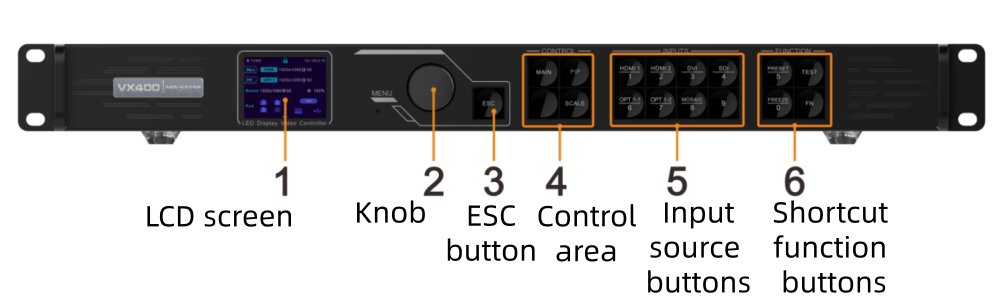
Many engineers prefer the NovaStar VX 400 because it packs a lot of power into a small 1U chassis. It handles custom resolutions easily, so you don’t need extra video processors.
Below is the technical data summarized from the official NovaStar VX400 datasheet.
| Feature | Specification Details |
| Max Loading Capacity | 2.6 million pixels |
| Max. Output Width | 10,240 pixels |
| Max. Output Height | 8,192 pixels |
| Input Connectors | 1x HDMI 1.3, 1x DVI (HDMI 1.3), 1x 3G-SDI |
| Output Ports | 4x Gigabit Ethernet ports |
| Working Modes | Video Controller, Fiber Converter, Bypass |
| Max Scaling | Stepless output scaling supported |
| Audio | HDMI / Mini-SDI input and output |
Besides the raw numbers, this controller is very flexible. For instance, if you have a very long screen at a concert, the 10,240-pixel width limit allows you to drive the whole display without buying a second unit. So, it is a very cost-effective choice for rental or fixed projects.
4. Input & Output Connections
The back panel of the VX400 NovaStar is simpler than it looks. The layout separates video inputs from data outputs logically. Therefore, you can quickly find the right port even during a busy event setup.
Below is a detailed breakdown of all the ports you will find on the device:

| Port Type | Quantity | Key Details & Function |
| HDMI 1.3 (Input) | 1 | Supports up to 1920×1200@60Hz. Best for laptops and media players. |
| DVI (Input) | 1 | Handles 1920×1200@60Hz. Actually, it uses the same protocol as HDMI. |
| 3G-SDI (Input) | 1 | Supports 1920×1080@60Hz. It locks into place, so it is very reliable for live stages. |
| Ethernet Output | 4 | These ports drive the LED wall. Together, they handle 2.6 million pixels. |
| HDMI (Monitor Out) | 1 | For your local monitor. It shows exactly what is playing on the LED screen. |
| USB Type-B | 1 | Connects to your PC. This is how the NovaStar VX400 software talks to the card. |
| USB Type-A | 1 | Used for cascading. You can link multiple VX400 units for giant displays. |
Besides these ports, the unit also features a 3.5mm audio jack. This allows you to output sound directly from your HDMI source.
Many technicians prefer the SDI input for long-distance signals. Because SDI cables are more stable, they prevent signal drops during a show. But for standard office setups, the HDMI port is usually enough. So, always check your source cable before starting the NovaStar VX400 configuration.
5. Compatible Software: NovaLCT & V-Can
For the VX400 NovaStar, you only need to focus on two tools. Choosing between them depends on whether you are “building” the screen or “running” a show.
5.1 Why you need NovaLCT (The Setup Tool)
NovaLCT is the essential “engineering” software. You cannot skip this because it tells the hardware how to drive your LED tiles.
✔ What it does: It creates the data road map for your cabinets. You use it to set the resolution, configure the receiving cards, and save parameters to the hardware.
✔ When to choose it: Use this during the initial installation or when you replace a broken cabinet.
✔ The Goal: To make the LED wall light up as one single, unified display.
5.2 Why you need V-Can (The Control Tool)
NovaStar V-Can is a user-friendly management platform. Actually, it is designed for people who want to change what is on the screen without touching the technical settings.
✔ What it does: It manages video layers and input switching. You can use it to create “Presets” (scenes).
✔ When to choose it: Use this during a live event to switch from an HDMI laptop to an SDI camera feed with one click.
✔ The Goal: To manage the visual content smoothly during a presentation or show.
6. VX400 Setup & Configuration Guide
Getting the VX400 up and running isn’t complicated. But there are a few steps you need to follow in the right order — especially if it’s your first time working with NovaStar hardware.
Here’s how to do it properly.
6.1 How to Configure VX400 with NovaLCT
NovaLCT is the main software for NovaStar VX400 configuration. You’ll use it to set up the screen layout, send cabinet files, and manage Ethernet port settings.
Before you start, connect the VX400 to your control PC using either an Ethernet cable or USB cable. Then open NovaLCT and log in under User > Advanced Synchronous System User Login.
6.1.1 Quick Configuration (for regular screens)
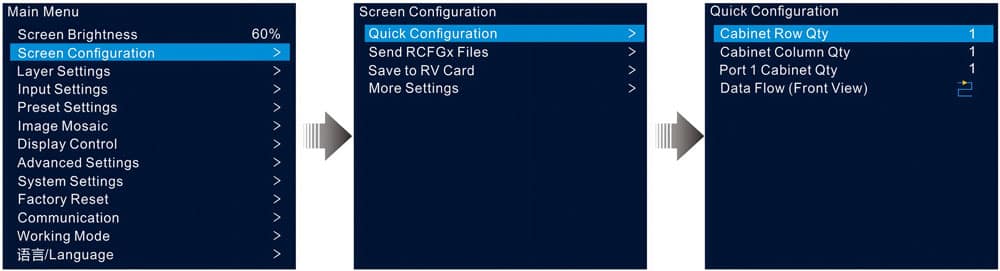
If your LED screen uses cabinets from the same batch with the same resolution, Quick Configuration is the fastest way to get set up.
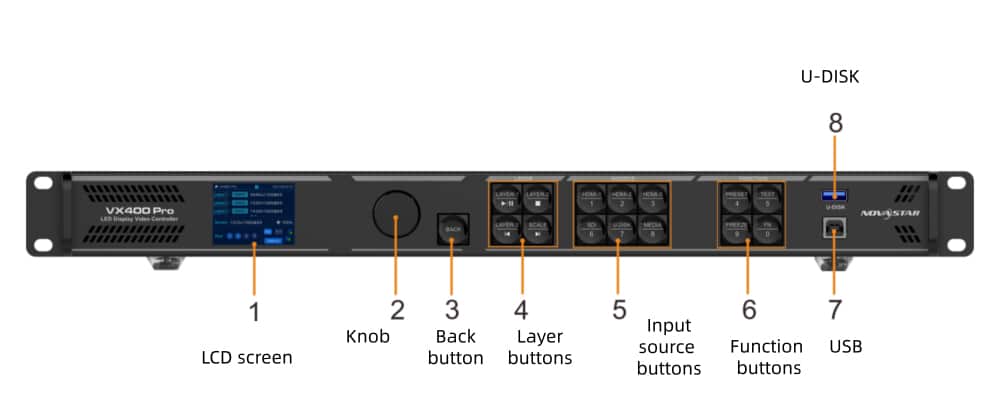
Step 1: On the VX400 front panel, press the knob to enter the main menu.
Step 2: Go to Screen Configuration > Quick Configuration.
Step 3: Set Cabinet Row Qty and Cabinet Column Qty to match your screen layout.
Step 4: Set Port 1 Cabinet Qty — the number of cabinets driven by Ethernet port 1.
Step 5: Select Data Flow (Front View) and choose the physical cable direction.
Step 6: Watch the screen in real time. If the image looks correct with no overlapping, press the knob to save.
One thing to note: cabinets loaded by port 1 must be equal to or more than port 2, port 2 more than port 3, and so on. Each port’s pixel count can’t exceed 650,000.
6.1.2 Sending a Cabinet Configuration File
If a cabinet fails to light up after powering on, you’ll need to push a configuration file (.rcfgx) to the receiving cards.
Step 1: In NovaLCT, go to Tools > Controller Cabinet Configuration File Import.
Step 2: Click Add Configuration File and select your .rcfgx file.
Step 3: Click Save the Change to HW to store it on the device.
Step 4: Then on the VX400 menu, go to Screen Configuration > Send RCFGx Files and select the file to push it to all receiving cards.
After sending, go to Screen Configuration > Save to RV Card so the config survives a power cycle.

6.2 VX400 Ethernet Port Backup Settings
The VX400 supports two types of backup. Understanding the difference matters before you start wiring.
6.2.1 Device Backup vs. Port Backup — what's the difference?
• Device Backup uses two VX400 units. One is the primary, one is the backup. If the primary unit fails or loses its Ethernet cable, the backup takes over automatically with no black screen.
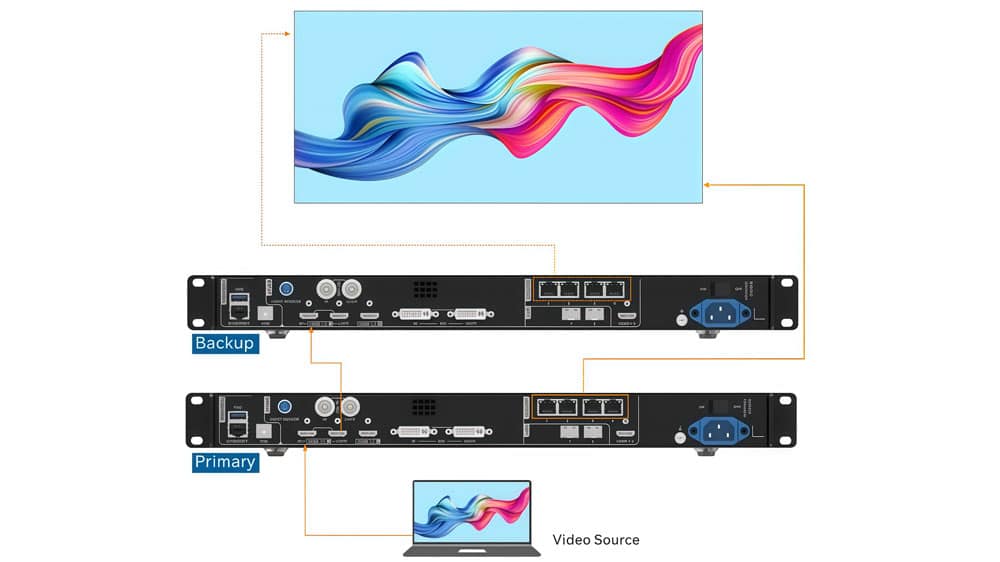
• Device Backup uses two VX400 units. One is the primary, one is the backup. If the primary unit fails or loses its Ethernet cable, the backup takes over automatically with no black screen.

6.2.2 Setting up Device Backup
Step 1: On the primary VX400, go to Advanced Settings > Device Backup.
Step 2: Set it to Primary.
Step 3: Repeat on the second unit and set it to Backup.
Keep in mind: both units must load the same number of cabinets per port, and the data flow direction on the backup unit must be reversed compared to the primary.

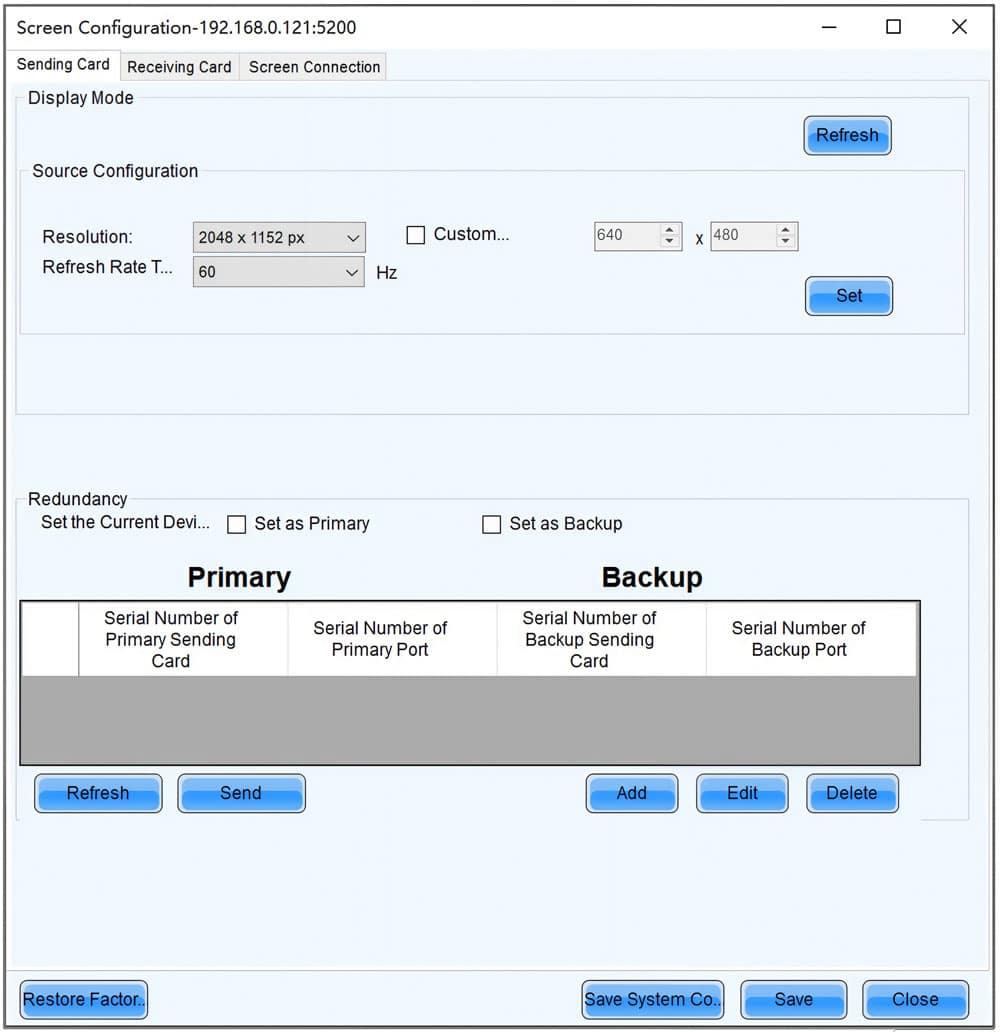
6.2.3 Setting up Ethernet Port Backup
This one is done through NovaLCT, not the front panel.
Step 1: Open NovaLCT and go to Screen Configuration.
Step 2: Select the Sending Card tab and find the Redundancy section.
Step 3: Click Add and enter the serial number of the primary port and its corresponding backup port.
Step 3: Click Add again to confirm, then repeat for any other ports you want to back up.
Step 4: Click Send to apply the settings.
6.2.4 Testing the Backup
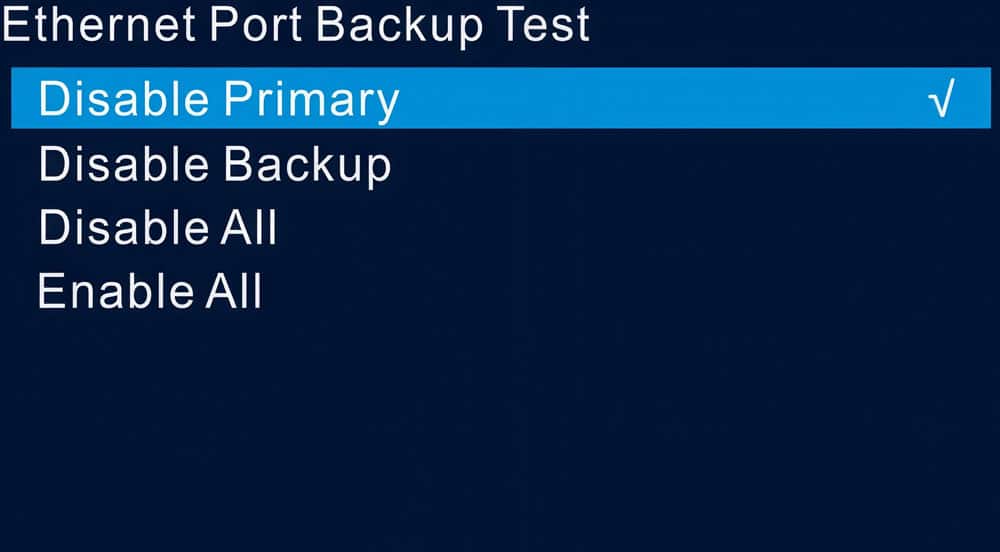
Once backup is configured, you can test it without unplugging any cables. Go to Advanced Settings > Ethernet Port Backup Test on the VX400 menu.
From there you can disable the primary port, the backup port, or all ports individually — and check if the fallback works as expected. Hit Enable All when you’re done testing.
7. VX400 vs VX400 Pro vs VX4S-N
Many clients get confused by these three models. They look similar on the outside, but their internal video processing engines are very different. To save you time, we put all the core technical differences into the comparison table below.
7.1 Detailed Comparison Table
| Feature | VX4S-N (Old Standard) | VX400 (Current Standard) | VX400 Pro (High-End Upgrade) |
| Max Loading Capacity | 2.3 million pixels | 2.6 million pixels | 2.6 million pixels |
| Max Input Resolution | 1920×1200@60Hz | 1920×1200@60Hz | 4096×2160@60Hz (4K via HDMI 2.0) |
| Main Video Inputs | HDMI, DVI, VGA, CVBS | HDMI 1.3, DVI, 3G-SDI | HDMI 2.0, HDMI 1.3, 3G-SDI |
| Max Supported Layers | 2 Layers | 2 Layers | 6 Layers |
| OSD (On-Screen Display) | No | No | Yes (Supports custom text, time, and weather) |
| 10G Optical Ports | No | No | Yes (2x Fiber outputs) |
| Best Application | Old screen maintenance | Normal 1080p LED displays | Complex live stages & high-end rental |
7.2 How to Make the Choice
First, you can forget about the VX4S-N. Its hardware is outdated, so we do not recommend buying it for any new LED projects today.
You don’t need to overspend if you just have a simple screen. The standard VX400 NovaStar handles 90% of daily LED projects perfectly. But if you need 4K input handling or multiple layers, upgrade to the Pro.
8. NovaStar VX400 Price
The price of a NovaStar VX 400 can vary depending on your region and the shipping method.
We have simplified the buying process. You don’t need to wait for sales emails anymore. Register LedInCloud, you can access our automated pricing system.
- Self-Service Quote: Get the latest wholesale price for the VX400 and VX400 Pro in seconds.
- Free Software Downloads: Get the latest, stable versions of the NovaStar VX400 software and V-Can without searching through official archives.
9. Applications & Use Cases
NovaStar VX400 is one of the most versatile controllers on the market. Because it combines a sending card and a video processor, it fits perfectly into many different scenarios. Here are the most common ways our clients use this device.

9.1 Fixed Installations: Schools and Retail
Most permanent screens only need a reliable 1080p feed. The VX400 is the standard choice for high school gymnasiums, church sanctuaries, and flagship retail stores.
✔ Why it works: It is easy to hide in a rack, and once you finish the NovaStar VX400 configuration, it runs automatically every time you turn on the power.
✔ Key Benefit: The internal scaling ensures that your PC wallpaper or presentation always fits the LED wall perfectly without black bars.
9.2 Corporate Meeting Rooms
In a professional boardroom, you often need to switch between different presenters quickly.
✔ The Setup: You can connect a dedicated room PC to the HDMI port and a guest laptop to the DVI or SDI port.
✔ Why it works: Using the front-panel buttons, you can switch sources instantly during a meeting. Actually, the seamless switching technology prevents the screen from flickering or going black between transitions.
9.3 Live Events and Small Stages
For small concerts or product launches, the Nova VX400 handles the pressure of live video.
✔ The Setup: Technicians often use the 3G-SDI input for long-distance camera feeds from the back of the room.
✔ Why it works: You can use the “Layer” function to put a small PIP (Picture-in-Picture) window of the speaker over a background loop. Besides, the low-latency mode ensures the video on the screen stays in perfect sync with the live audio.
9.4 Ultra-Wide Digital Signage
Sometimes, an LED screen is not a standard shape. For example, a long ribbon screen in a sports stadium or a tall pillar in a shopping mall.
✔ Why it works: The VX400 supports a maximum output width of 10,240 pixels.
✔ Key Benefit: You can create ultra-wide content without needing multiple controllers or complex daisy-chaining. This simplifies your NovaStar VX400 software setup and reduces the chance of synchronization issues.
10. FAQ
Does the standard VX400 support 4K input?
No, it does not. The standard VX400 handles a maximum input of 1920×1200@60Hz. If your project requires a true 4K@60Hz signal via HDMI 2.0, you should choose the VX400 Pro model instead.
How many pixels can one VX400 drive?
The device supports a total loading capacity of 2.6 million pixels. More importantly, it can handle an ultra-wide output of up to 10,240 pixels.
Why is my computer not detecting the controller?
Most of the time, the issue is the USB cable. Ensure you are using a data-sync cable rather than a simple charging cable. If the problem persists, check your PC's "Device Manager" to verify the NovaStar driver is active, or try restarting the NovaStar VX400 software.
Can I run 3D content on the VX400?
The standard model lacks built-in 3D processing. However, the VX400 Pro includes a dedicated 3D connector. If 3D displays are a core requirement for your stage, the Pro version is the only way to go.
Where can I download the latest firmware and software?
You can find all stable versions of NovaLCT and V-Can in LedInCloud. We keep these files updated to ensure they remain compatible with the latest hardware revisions.
11. Conclusion
The NovaStar VX400 is the industry-leading LED display controller for 1080p projects. It successfully bridges the gap between high-end video processing and simple, 4-port output stability.
To check the current VX400 price and download exclusive configuration templates, register on LedInCloud – LED Screen Cloud Platform today. Join our community to simplify your technical workflow and get expert support for every LED project.