

NovaStar NovaLCT Download | All Software Versions, Manuals
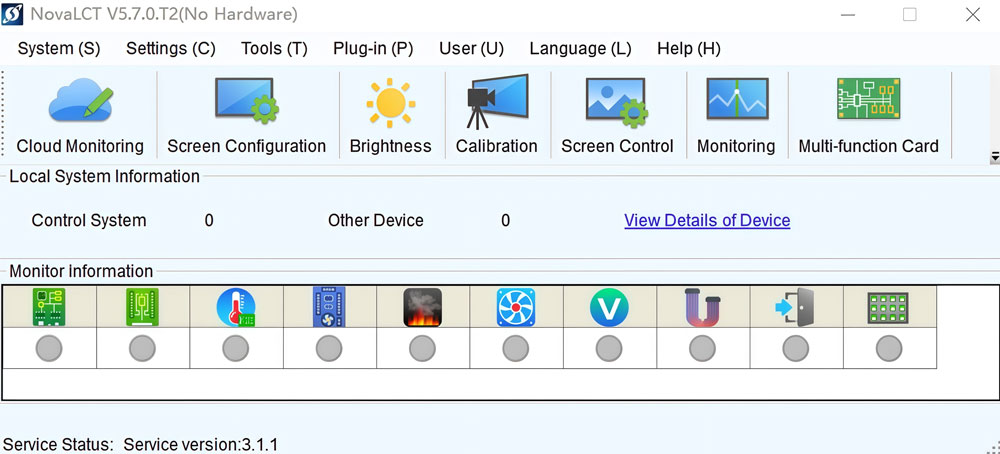
NovaLCT download refers to the Windows-based LED display configuration software developed for NovaStar control systems. The software is installed on a computer and works with receiving cards, monitoring cards, and other control hardware used in LED display systems.
On this page, NovaLCT software download is provided together with related resources, including different versions, user manuals, and supporting Windows files. These files are commonly used during initial system setup, screen maintenance, or configuration recovery.
Table of Contents
1. NovaLCT Free Download – All Available Files
This section provides direct access to all NovaLCT download resources currently available on our website.
The files listed below are organized by version and file type, including NovaLCT software packages, official user manuals, and required Windows drivers or framework files.
All resources come from the original NovaStar NovaLCT release packages and are intended for Windows-based systems.
1.1 NovaLCT Software Download
1.2 NovaLCT User Manuals Download
| Manual Name | System Type | Related Version | Format | Download |
| Configuration Tool User Manual | Synchronous Control System | V5.4.8 | Download | |
| Multimedia Player | Download | |||
| Synchronous Control System | V5.5.0 | Download | ||
| Multimedia Player | Download | |||
| Synchronous Control System | V5.6.0 | Download | ||
| Multimedia Player | Download | |||
| Synchronous Control System | V5.8.0 | Download | ||
| Multimedia Player | Download | |||
| Synchronous Control System | V5.8.1 | Download | ||
| Multimedia Player | Download |
1.3 NovaLCT Drivers and Windows Framework Files
2. Which NovaLCT Software Version Should You Download?
Choosing the right NovaLCT version matters, especially when you are working on an existing LED screen project. NovaLCT is closely tied to control hardware, firmware, and system architecture. Because of this, newer is not always better.
Below are a few practical guidelines that can help you decide which NovaLCT version to download.

- For Existing LED Screen Projects
If you are maintaining or adjusting an LED screen that is already installed, the safest option is to use the same NovaLCT version originally used for configuration.
In many real-world projects:
- The receiving cards were configured with a specific NovaLCT version
- The firmware was loaded using that version
- Screen parameters were saved under that software environment
Switching to a different NovaLCT version may cause configuration mismatches or require firmware reloading. For routine maintenance, brightness adjustment, or screen inspection, keeping the original version is usually the more stable choice.
- For New Installations or System Upgrades
For new LED screen installations, users typically select a newer NovaLCT version from the download list.
Newer versions usually include:
- Updated device recognition
- Improved compatibility with newer control hardware
- Refined user interface behavior
That said, the NovaLCT version should still match the control system and hardware model being used. Before installation, it is recommended to confirm the supported software version in the hardware documentation.
3. System Requirements Before Nova LCT Download
Before downloading NovaLCT software, it is important to confirm that the operating environment meets the basic requirements for LED screen configuration work. NovaLCT is designed for technical setup and maintenance tasks and runs on Windows-based systems.
3.1 Operating System
NovaLCT is developed for Microsoft Windows.
All software versions and related files provided on this page are intended for use on Windows PCs.
There is currently no native NovaLCT version for macOS. If you are working on a Mac computer, a Windows system is required for software installation and screen configuration.
3.2 Hardware and Connection Environment
NovaLCT does not require high-end computer hardware. In most projects, a standard office or industrial laptop is sufficient. However, a stable connection environment is necessary during configuration and testing.
Typical preparation includes:
- A Windows PC or laptop used for on-site setup
- Available USB or network ports for control system connection
- Stable power supply during configuration work
For large screens or complex systems, a dedicated configuration computer is often used to avoid interruptions.
3.3 User Permissions and System Settings
Installing NovaLCT and related driver files may require administrator permissions on the Windows system.
Before downloading and installing the software, it is recommended to:
- Confirm that software installation is allowed on the system
- Temporarily disable system restrictions that may block driver installation
- Close unnecessary background programs during setup
These checks help reduce installation issues and device recognition problems later.
3.4 Network and Project Environment
In some projects, NovaLCT is used in a local network environment. Before downloading the software, make sure the computer can connect to the same network segment as the LED control system when required.
This is particularly relevant when:
- Configuring screens through network connections
- Monitoring or adjusting screen parameters remotely
- Working with multiple control devices in one system
A clear understanding of the project environment helps streamline the configuration process after installation.
4. FAQs
Q1. Is NovaLCT free to download?
Yes. NovaLCT is provided as a free software tool for LED screen configuration and maintenance.
You can download the software, user manuals, and related driver files directly from this page.
Q2. Can I install multiple NovaLCT versions on one computer?
Yes. Many technicians keep multiple NovaLCT versions on the same PC for different projects.
To avoid confusion:
- Install different versions in separate folders
- Do not overwrite files from other versions
- Use the matching manuals and driver files for each version
This approach is common when maintaining screens installed at different times.
Q3. Why is my hardware not detected after installing NovaLCT?
This usually relates to driver or framework files.
If NovaLCT does not recognize connected control hardware:
- Check whether a Windows driver or framework file is provided for your NovaLCT version
- Install the driver that matches the same version you are using
- Confirm that the hardware connection method (USB or network) is correct
In many cases, installing the correct driver resolves the issue.
Q4. Is there a NovaLCT download for macOS?
No. NovaLCT is designed for Windows operating systems.
There is currently no native macOS version available.
If you are using a Mac, a Windows computer is required for LED screen configuration with NovaLCT.
Q5. Do I need to download the user manual separately?
Yes. User manuals are provided as separate PDF files.
It is recommended to download:
- The manual that matches your NovaLCT version
- The manual that matches your system type (Synchronous Control System or Multimedia Player)
Keeping the correct manual helps avoid version-related confusion during configuration or maintenance.
Q6. Are older NovaLCT versions still useful?
Yes. Older NovaLCT versions are commonly used for:
- Maintaining existing LED screen projects
- Replacing hardware in systems configured years ago
- Avoiding compatibility issues with older control hardware
As long as the version matches the project requirements, older versions remain practical.
5. Conclusion
NovaLCT is a core software tool used for LED screen configuration and maintenance. On this page, you can find all available NovaLCT download resources, including software versions, official user manuals, and related driver files.
If you are not sure which NovaLCT version or file is appropriate for your project, you may contact LedInCloud – LED Screen Cloud Platform for technical clarification. Our team can help confirm version compatibility and point you to the correct download resources.