

NovaStar Firmware Update: Free Download & Step-by-Step Guide
NovaStar firmware update is one of the most routine maintenance tasks for LED display systems.
This guide walks you through the full process — from checking your current version to completing the upgrade in NovaLCT. It covers receiving cards like the A5s Plus and MRV series, and controllers like the VX1000, VX4S, and VX6S.
Whether you need a NovaStar firmware download or want to run a NovaStar receiving card firmware update step by step, this page has everything you need.
1. What Is NovaStar Firmware and Why Update It
NovaStar firmware is a package of system control commands. These commands control how the hardware behaves. Every sending card and receiving card ships with a default firmware package pre-installed at the factory. Without it, the device simply won’t run.
1.1 Why do firmware updates matter?
There are three main reasons to keep your firmware current.
First, updates fix known bugs. If your system has stability issues or unexpected behavior, a firmware upgrade often resolves them.
Second, new firmware versions add features. Some functions — like advanced calibration modes or cloud monitoring support — only become available after an upgrade.
Third, display consistency depends on firmware. When receiving cards in the same system run different firmware versions, you may notice visible differences between display panels. Updating all cards to the same version eliminates that problem.
1.2 Standard firmware vs. customized firmware
NovaStar firmware comes in two types.
Standard firmware is the official release. It’s available for free download from LedInCloud – LED Screen Cloud Platform or NovaStar’s official website. For most projects, this is the version you need.
Customized firmware is different. It’s built for special use cases — functions that the standard version doesn’t cover. If your system is already running customized firmware, don’t upgrade without checking with your display manufacturer or NovaStar technical support first. Switching to a standard package can cause compatibility issues.
2. How to Check Your Current Firmware Version
Before you run any update, check what firmware version your system is currently on. This tells you whether an upgrade is actually needed, and helps you avoid loading the wrong package.
You do this inside NovaLCT. Here’s how:
Step 1: Open NovaLCT software.
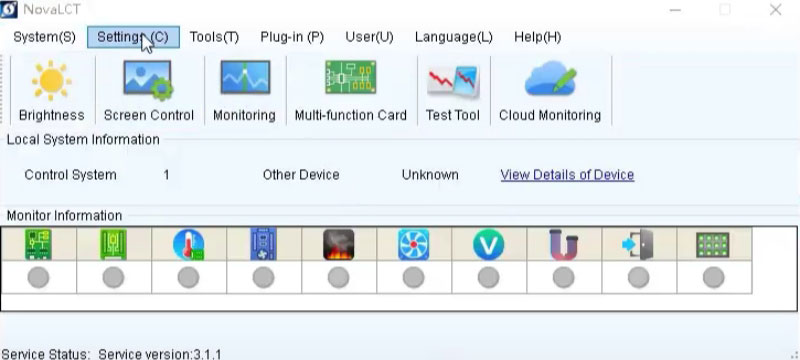
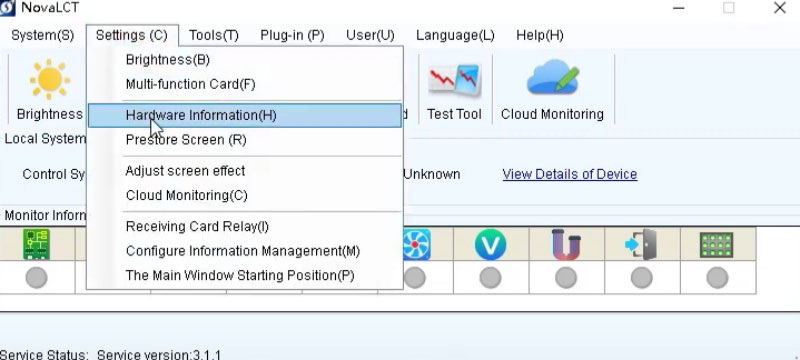
Step 2: Go to Settings and select Hardware Information.
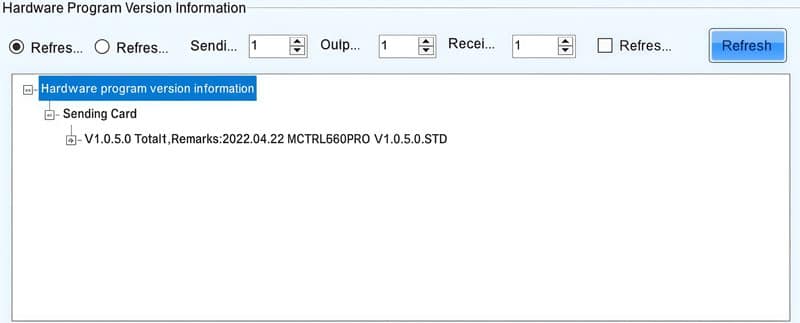
Step 3: Click on Refresh under Hardware Program Version Information.
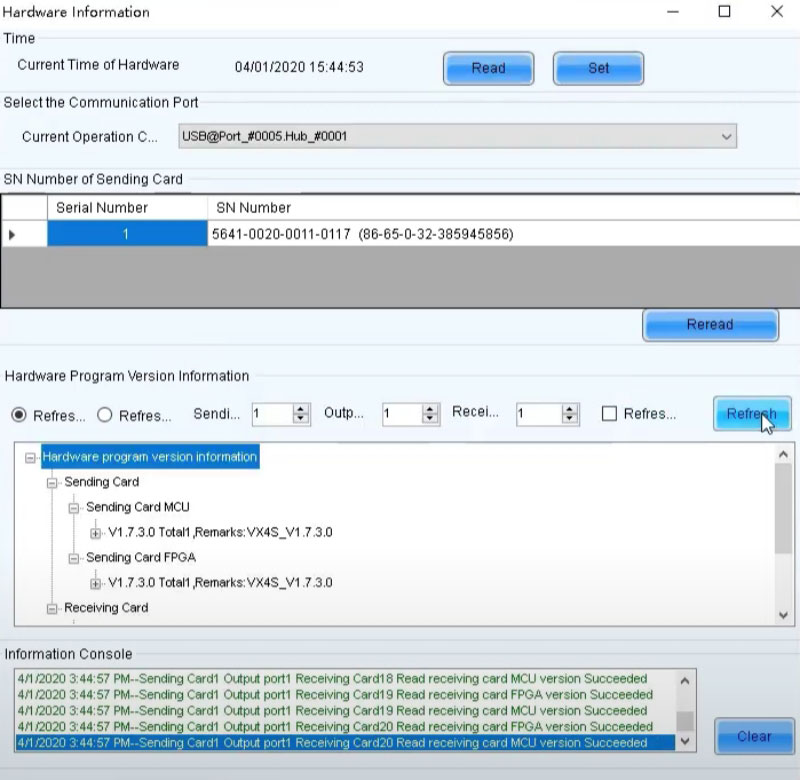
Step 4: The software will display the current firmware versions of the sending and receiving cards. For example, a sending card like VX4s might be running version 1.7.3.0 STD, while a receiving card like MRV300 could be on version 4.4.0.0 STD.
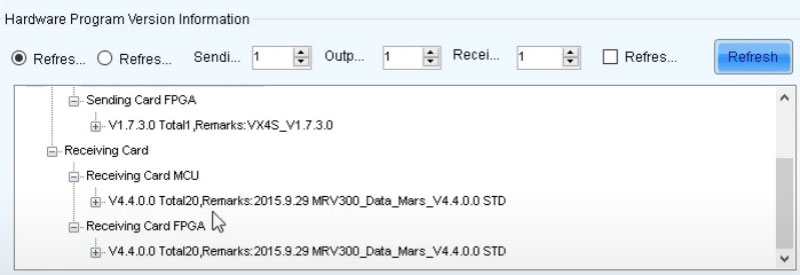
The “STD” label means it’s a standard firmware version. If you don’t see STD, the device may be running customized firmware — in that case, check with your display manufacturer before doing anything.
You can also choose between Refresh All and Refresh Specified. Refresh All pulls the version information from every card in the system. Refresh Specified lets you check individual cards if you only need to look at part of the setup. If your module includes an MCU, there’s a separate Refresh Module MCU option to check that version as well.
Write down or screenshot the version numbers before you move on. It’s useful for comparison after the update, and it saves time if something goes wrong.
3. How to Download NovaStar Firmware
NovaStar firmware is free to download. For the most common products, you can grab the firmware directly below.
Always match the firmware to your exact device model before downloading. If you’re not sure which version you’re currently on, check Section 2 first.
3.1 NovaStar Video Controllers & Sending Cards firmwares
3.2 NovaStar Receiving Cards firmwares
Firmware packages come in compressed formats — .zip, .img, .nuzip, or .7z. Save the file to your desktop before starting the update. Don’t extract it manually. NovaLCT handles that automatically during the update process.
3.3 Need a different model?
Not every model is listed here. Visit our NovaStar Software page to browse and download firmware for all NovaStar products, including the full MRV series, DH series, and Armor series receiving cards.
4. How to Update NovaStar Receiving Card Firmware
There are two ways to run a NovaStar receiving card firmware update: cloud update and local update. Cloud update is faster if your control PC has internet access. Local update works offline and gives you more control over which package you load. Both methods use NovaLCT.
Method 1: Cloud Update
This is the quicker option. NovaLCT connects to NovaStar’s servers and automatically matches the right firmware for your receiving card. You don’t need to download anything manually first.
Here’s how to do it:
Step 1: Open NovaLCT. Go to User in the menu bar and select Advanced Synchronous System User Login. The default password is admin.
Step 2: On the main interface, type admin or 123456 to open the Program Loading window.
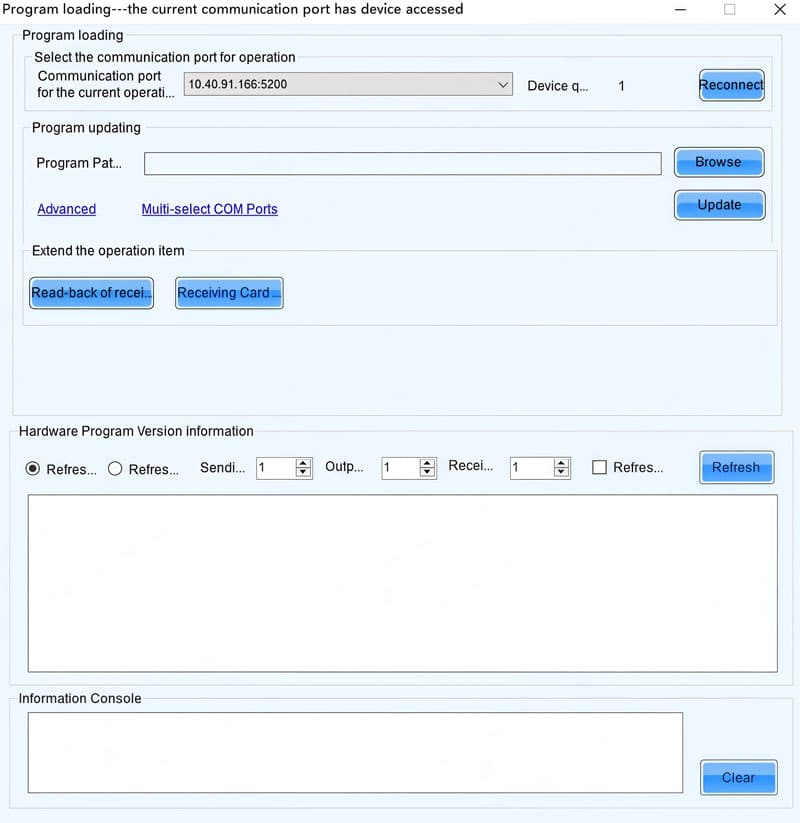
Step 3: Select your communication port. If the sending card isn’t connecting, click Reconnect.
Step 4: Click Refresh to view the current firmware version of your receiving cards.
Step 5: In the Extend the Operation Item area, click Receiving Card Cloud Update.
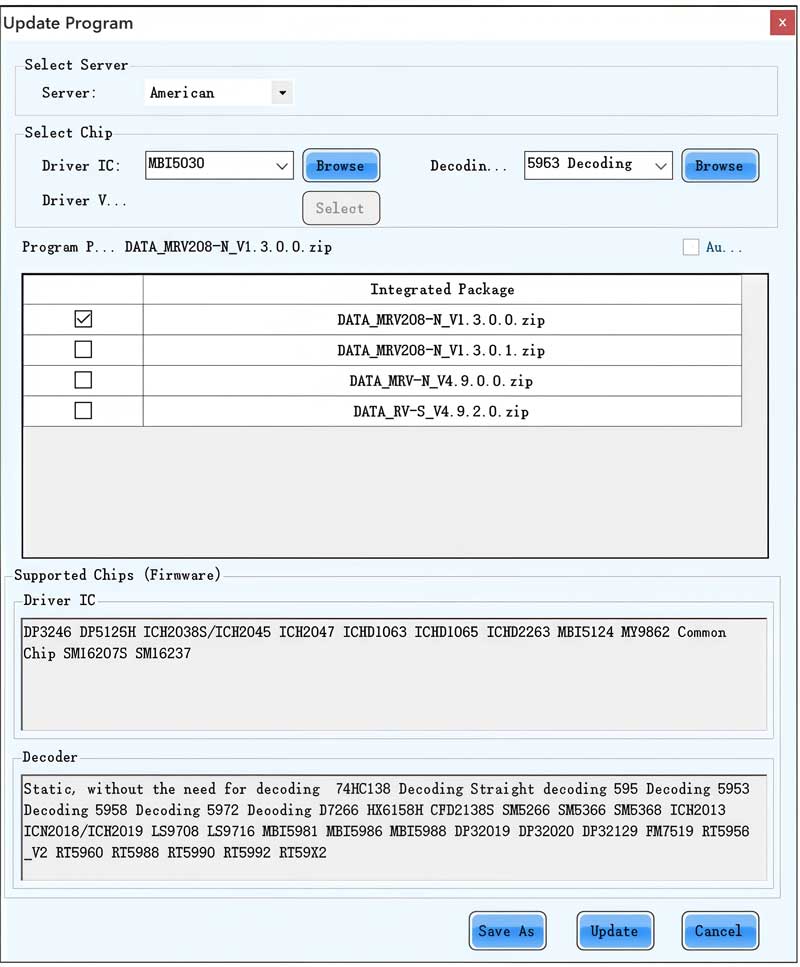
Step 6: Select a server based on your location — options include China, USA, Australia, Europe, and India.
Step 7: Choose your driver IC, decoding method, and driver version. NovaLCT will automatically match and display the available firmware package.
Step 8: Check the package file and click Update.
Step 9: Once the update is done, click OK. Then click Refresh again to confirm the new version.
You can also click Save As to keep a local copy of the downloaded package. That’s useful if you need to update other cards offline later.
Method 2: Local Update
Use this method if your PC doesn’t have internet access, or if you already have the firmware package downloaded. Before starting, make sure the correct package is saved on your desktop or in a folder you can easily find.
Follow these steps:
Step 1: Open NovaLCT and log in as Advanced Synchronous System User (password: admin).
Step 2: Type admin or 123456 to open the Program Loading window.
Step 3: Select your communication port.
Step 4: Click Refresh to check the current firmware version.
Step 5: Click Browse and select your firmware package file (.img, .zip, .nuzip, or .7z). If you’re using an integrated package that covers multiple receiving card models, select the correct driver IC, decoding method, and driver version. You can either use Auto Match to let NovaLCT pick the right file, or uncheck it and select manually.
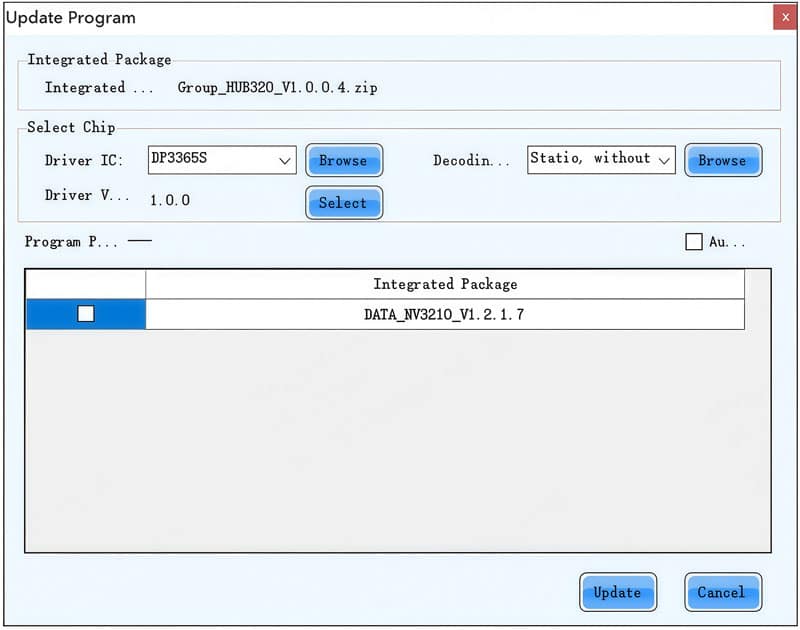
Step 6: Click Advanced, choose the items you want to update, and click OK.
Step 7: Click Update.
Step 8: A popup will ask whether to update all receiving cards or a specific one. Choose all receiving cards when the entire screen needs the update or you’re fixing a known issue. Choose a specific receiving card when only part of the system needs attention. Click OK.
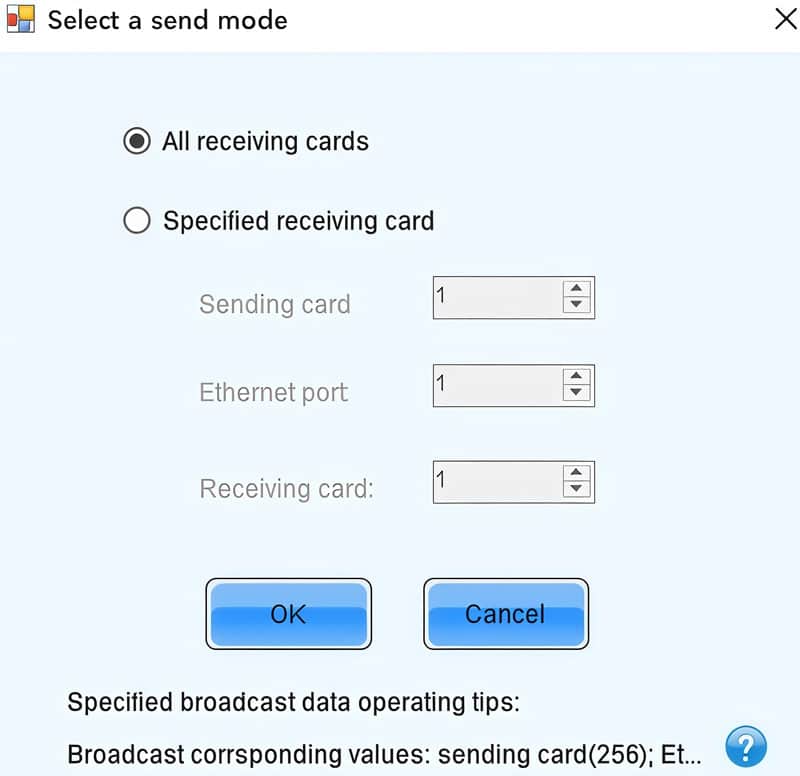
Step 9: Wait for the update to finish, then click OK.
Step 10: Click Refresh to verify the new version is showing correctly.
This process applies to all NovaStar receiving cards, including the A5s Plus, MRV208, MRV208-1, MRV412, MRV412-N, and DH series cards like the DH7508 and DH7512-S.
Reading Back Firmware from a Receiving Card
In certain models, such as the Axs series, DH series, MRV206, MRV266, MRV328, MRV316, and MRV366, you can read back the data package from the receiving card. This can be useful for synchronizing multiple receiving cards with the same firmware version. Here’s how to do it:
Step 1: In the data package upgrade window, select Receiving Card Program Read Back.
Step 2: Choose the location of the receiving card you wish to read back and click OK.
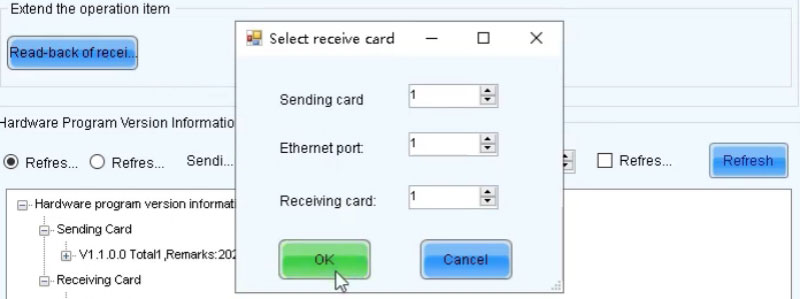
Step 3: The software will automatically read the firmware package from the receiving card and save it to your desktop.
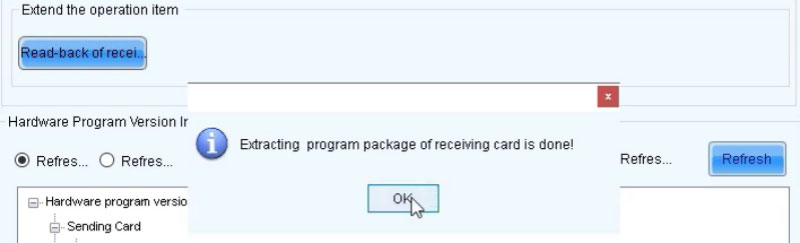
Step 4: You can then use this firmware package to update other receiving cards, ensuring they all have the same firmware version.
5. How to Update NovaStar Sending Card / Controller Firmware
Sending card firmware updates are done locally through NovaLCT. Unlike receiving cards, there’s no cloud update option — so have the firmware package ready on your PC before you start.
Steps:
Step 1: Download and decompress the firmware package onto your desktop.
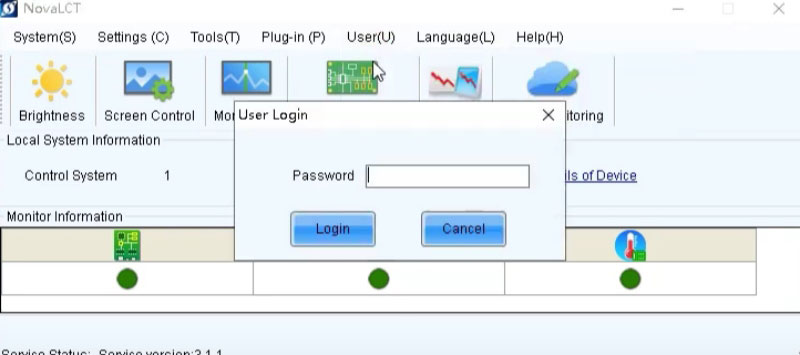
Step 2: Open NovaLCT software and log in as an Advanced Synchronous System User (use the password “admin“).
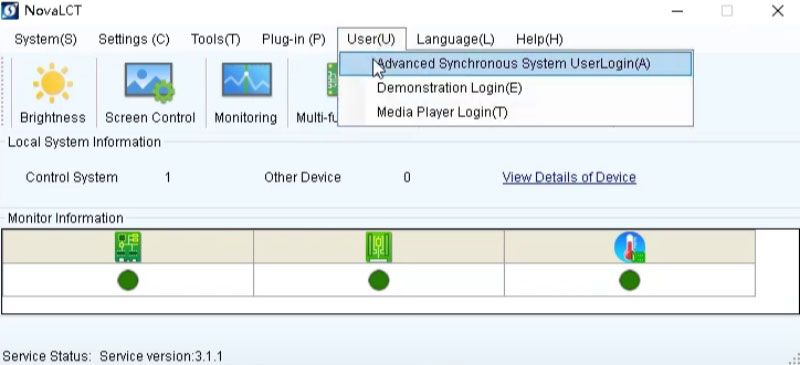
Step 3: In the main interface, enter the update password (admin) to access the upgrade window.
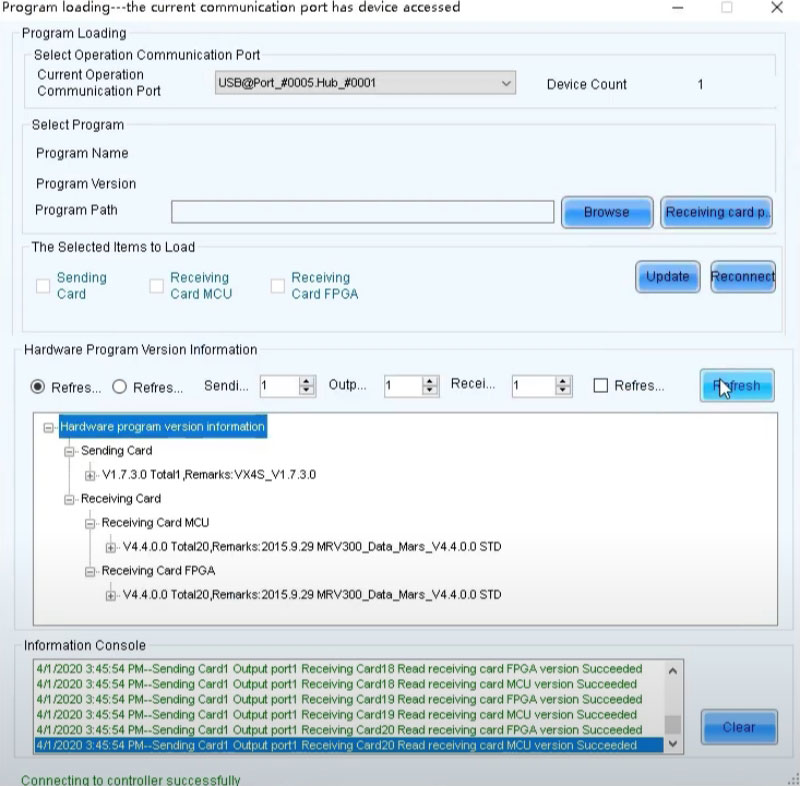
Step 4: Click Load and select the folder with the decompressed firmware files.
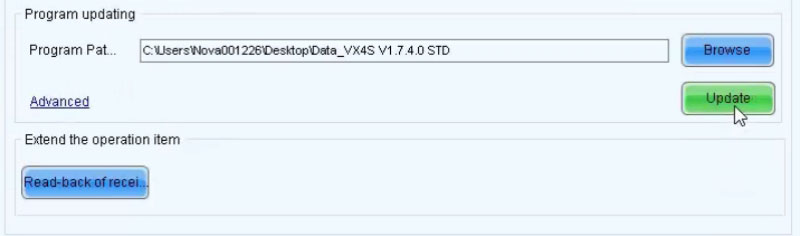
Step 5: Press Update and wait for the software to complete the upgrade automatically.
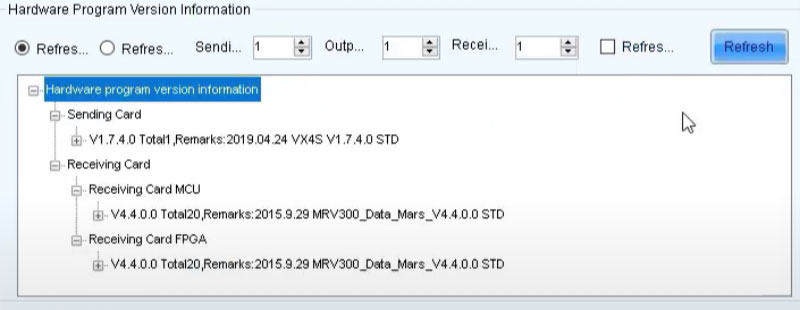
Step 6: After the update, click Refresh to confirm that the sending card’s firmware is updated (e.g., to V1.7.4.0).
Learn more intuitively from this video:
6. Troubleshooting
Most firmware update issues come down to a few common causes. Here are the ones that come up most often.
6.1 The Program Loading window doesn't open
This usually means you’re not logged in with the right account type. You need to be logged in as Advanced Synchronous System User — a standard user login won’t give you access to the firmware update tools. After logging in, type admin or 123456 on the main interface to open the Program Loading window.
6.2 Cloud update isn't working
The cloud update feature requires an active internet connection on your control PC. If it fails to connect or can’t find a matching package, check your network first. If the connection is fine but the auto match returns no results, try selecting the driver IC, decoding method, and driver version manually instead of relying on Auto Match.
6.3 Not sure which firmware package to select
Use the Auto Match function in NovaLCT. After selecting your driver IC and decoding method, Auto Match will automatically identify the correct package from the list. If you’re doing a local update, make sure the package matches your exact device model — check the model name in Hardware Information before loading anything.
6.4 Receiving cards in the same system are running different firmware versions
This can cause visible display inconsistencies. The quickest fix is to use the read-back feature. Extract the firmware package from one card, then apply it to the others. This brings all cards to the same version. Read-back is supported on Axs series, DH series, MRV206, MRV266, MRV316, MRV328, and MRV366.
6.5 You're running customized firmware
Don’t update it without checking first. Switching from customized firmware to a standard package can break compatibility with your setup. Contact LedInCloud or NovaStar technical support before making any changes.
7. FAQs
Do I need to update the sending card and receiving card firmware at the same time?
No. They're completely independent processes. You can update the receiving card firmware without touching the sending card, and vice versa. If only part of your system needs a fix or a new feature, update that part only.
Can I update NovaStar firmware without an internet connection?
Yes. Use the local update method. Download the firmware package to your PC first, then load it manually through NovaLCT. The cloud update option requires internet, but local update works fully offline.
How do I confirm the firmware update was successful?
After the update finishes, click Refresh in the Program Loading window. The version number shown in Hardware Information should reflect the new firmware. If the number hasn't changed, the update didn't go through — try running it again.
What file formats does NovaLCT accept for firmware packages?
NovaLCT accepts .img, .zip, .nuzip, .rar, and .7z. You don't need to extract the file manually before loading it.
Can I update a single receiving card without updating the rest of the screen?
Yes. In Step 8 of the local update process, NovaLCT gives you the option to update all receiving cards or a specific one. Choose the specific receiving card option if only one card needs attention.
What does STD mean in a NovaStar firmware version number?
STD stands for standard version — it means the device is running the officially released firmware. If you don't see STD next to the version number, the device may be on customized firmware. In that case, check with your display manufacturer before making any changes.
I have customized firmware installed. Can I switch to a standard version?
Not without checking first. NovaStar recommends staying on customized firmware once it's installed. Switching to a standard package without consulting your display manufacturer or NovaStar technical support can cause compatibility issues.
8. Conclusions
NovaStar firmware update is a routine part of maintaining any LED display system. For receiving cards, the cloud update option in NovaLCT is the fastest route — it matches and installs the right package automatically. For sending cards and controllers like the VX1000, VX4S, and VX6S, local update gets the job done in just a few steps.
Still have questions? Contact LedInCloud — we work with NovaStar products every day and can help you find the right firmware for your setup.