

One Box, Two Jobs — The NovaStar TB40 Multimedia Player Explained
The NovaStar TB40 is a multimedia player built for full-color LED displays. It handles both playback and signal sending in one unit — no separate sending card required.
This page covers the full TB40 specs, panel layout, supported media formats, a direct comparison with the TB30, and official download links for the manual and software. If you’re evaluating the TB40 or already own one, you’ll find what you need here.
1. What Is the NovaStar TB40?
The TB40 sits in the middle of NovaStar Taurus lineup — above the TB30 in pixel capacity, and below the TB50/TB60 in scale. It’s aimed at mid-to-large LED display projects that need more than basic async playback.
What sets it apart from simpler players is the HDMI input. That means the TB40 supports sync mode — it can take a live video signal and drive the display in real time. Most entry-level players in this category don’t offer that.
It’s a common choice for fixed installations, retail screens, chain store display networks, and roadside digital signage.
2. Appearance & Panel
The Nova TB40 has a front panel for physical controls and a rear panel for all the main connections. Here’s a quick walkthrough of both.
2.1 Front Panel
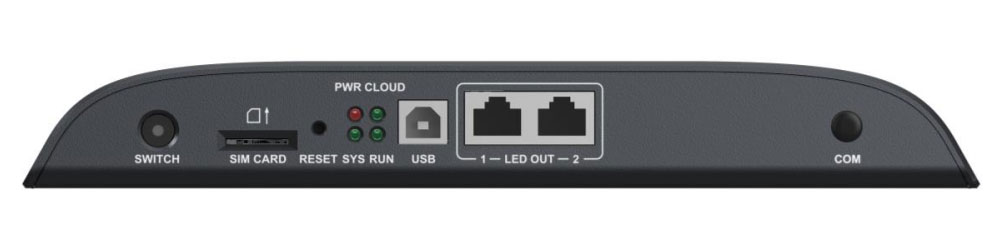
The front panel is simple. The most important button is SWITCH — it toggles between sync and async mode. Solid light means sync, no light means async. If your display goes blank unexpectedly, check this first.
The two LED OUT ports carry the signal to your display. Both run as primary by default, but one can be set as backup if needed.
To reset the device, hold the RESET button for 5 seconds.
2.2 Rear Panel
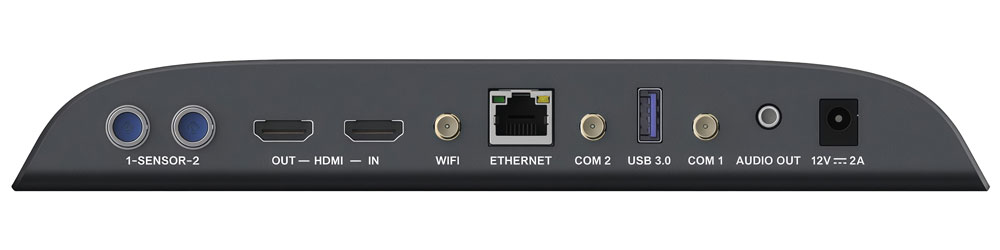
The rear is where most connections are. A few things worth noting:
The HDMI ports (one in, one out) are what separate the TB40 from the NovaStar TB30. The output supports HDMI Loop — useful for local preview on a monitor. The input is used in sync mode for live video sources.
The USB 3.0 port handles playback, firmware upgrades, and storage expansion. FAT32 and NTFS both work, but keep individual files under 4GB on FAT32.
The AUDIO OUT is fixed at 48kHz. If you’re using a NovaStar multifunction card, your audio files need to match that sample rate.
2.3 Indicator Lights
Four LEDs tell you the device status at a glance — PWR, SYS, CLOUD, and RUN.
CLOUD is the most useful one. Solid green = online. Flashing every 2 seconds = connected to VNNOX. Off = no internet.
RUN flashing every 0.5s means FPGA is running normally. Flashing every 4s means no video source detected.
3. NovaStar TB40 Specifications
Here’s a full breakdown of the Nova Star TB40’s technical specs.
| Parameter | Value |
| Input Power | DC 12V, 2A |
| Max Power Consumption | 18W |
| Recommended Supply Power | 25W |
| RAM | 1GB |
| Internal Storage | 32GB |
| Operating Temperature | –20°C to +60°C |
| Operating Humidity | 0% to 80% RH, non-condensing |
| Storage Temperature | –40°C to +80°C |
| Storage Humidity | 0% to 80% RH, non-condensing |
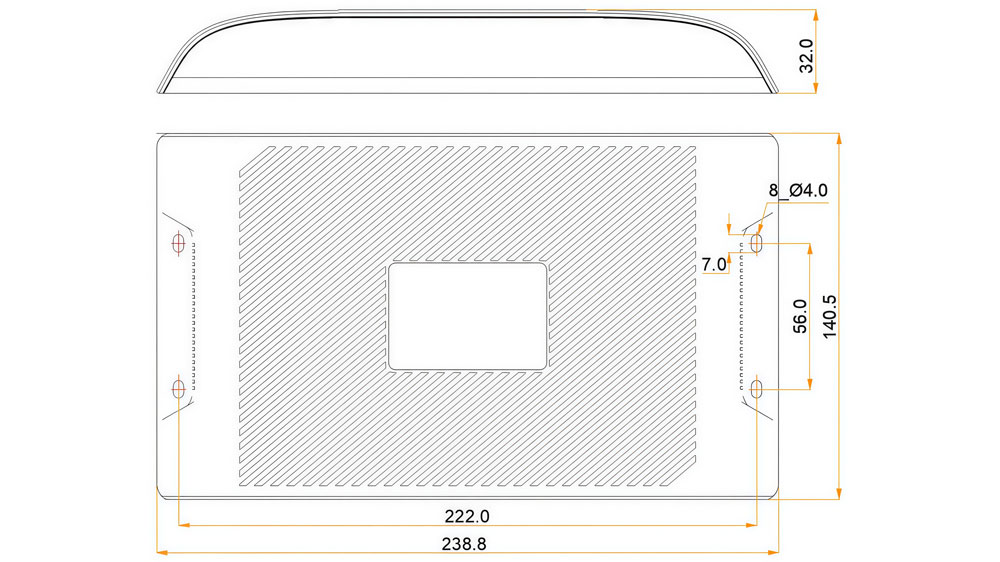
| Dimensions | 238.8 × 140.5 × 32.0 mm |
| Net Weight | 459.7g |
| IP Rating | IP20 |
| Operating System | Android 11 |
| Certifications | CQC, SRRC, RoHS |
IP20 means no water resistance. Keep it away from moisture and direct rain.
4. TB40 Features & Performance
The TB40 covers the core needs of most LED display projects — playback, sync control, remote management, and network flexibility.
- Playback Capacity
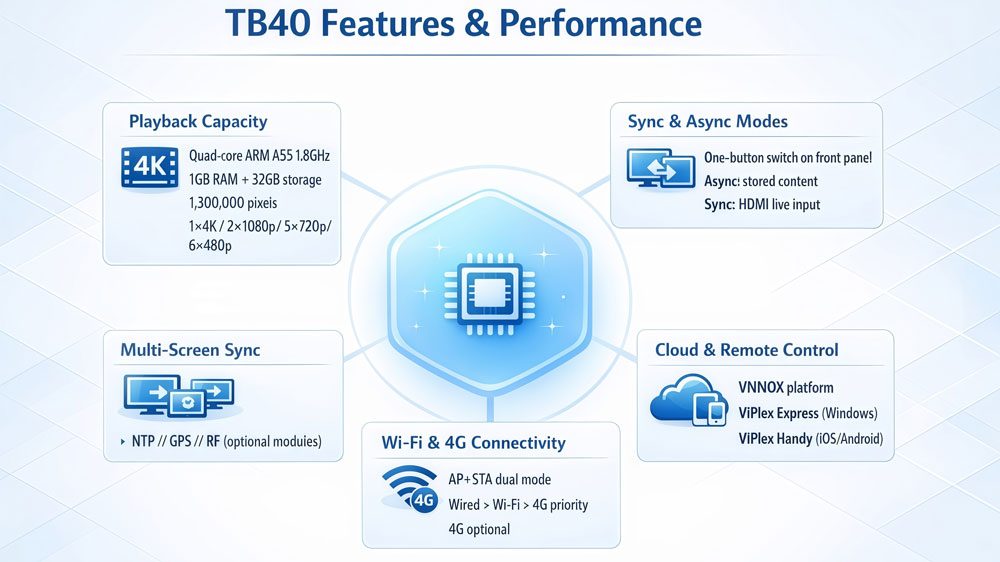
The TB40 NovaStar runs on a quad-core ARM A55 processor at 1.8GHz, with 1GB RAM and 32GB internal storage. It supports 4K video decoding and handles up to 1,300,000 pixels per output.
In terms of simultaneous video playback, it supports:
✔ 1× 4K
✔ 2× 1080p
✔ 5× 720p
✔ 6× 480p or 360p
One thing to keep in mind: videos with resolutions between 2K and 4K are automatically processed as 4K. So if you’re loading 2.5K or 3K content, the device treats it as 4K — and that counts against your 4K playback slot.
- Sync & Async Mode
The TB40 supports both modes, and you switch between them with the SWITCH button on the front panel.
In async mode, it plays from internal storage or a USB drive — no external source needed. In sync mode, it takes a live video input via HDMI and drives the display in real time. This is useful for presentations, live events, or any setup where the content changes on the fly.
- Multi-Screen Synchronization
For projects where multiple displays need to play in perfect sync, the TB40 supports three timing methods: NTP, GPS, and RF. NTP works over any standard internet connection. GPS and RF both require optional add-on modules.
- Wi-Fi & 4G Connectivity
The TB40 supports Wi-Fi AP and STA simultaneously. In AP mode, devices connect directly to the TB40’s hotspot. In AP+STA mode, the TB40 stays connected to a router while still broadcasting its own hotspot.
4G is available as an optional add-on — not included by default. When multiple connections are active, the device follows this priority: Wired > Wi-Fi > 4G.
- Cloud & Remote Control
The TB40 connects to NovaStar’s VNNOX platform for remote content publishing, playback scheduling, and display monitoring. Two software tools handle day-to-day control:
- ViPlex Express — Windows desktop app for content publishing and screen configuration
- ViPlex Handy — iOS/Android app for quick on-site adjustments
Both work over LAN, Wi-Fi, or 4G.
5. Supported Media Formats
Before loading content onto the TB40 NovaStar, it’s worth checking whether your files are compatible. Below is what the device supports.
5.1 Video Formats
| Codec | Max Resolution | Max Frame Rate | Max Bit Rate | Containers |
| H.264 | 4096×2304 | 30fps | 80Mbps | MP4, AVI, MKV, MOV |
| H.265/HEVC | 4096×2304 | 60fps | 100Mbps | MP4, MKV, MOV |
| MPEG4 | 1920×1088 | 30fps | 38.4Mbps | MP4, AVI, MKV, MOV |
| VP8 | 1920×1088 | 30fps | 38.4Mbps | MKV, WEBM |
| VP9 | 4096×2304 | 60fps | 60Mbps | MKV, WEBM |
For 4K content, H.265/HEVC is the better choice. It handles 4K at 60fps with a higher bit rate ceiling than H.264, which tops out at 30fps for the same resolution.
5.2 Image Formats
| Format | Max Resolution | Notes |
| JPEG | 4096×2304 | Supports SRGB and Adobe RGB |
| BMP | 4096×2304 | — |
| GIF | 1920×1088 | Max 30fps at 1280×720; max 10fps at 1920×1088 |
| PNG | 4096×2304 | — |
| WEBP | 4096×2304 | — |
GIF is the only format with a resolution cap below 4K. If you’re using animated GIFs at full HD, expect the frame rate to drop to 10fps maximum.
6. NovaStar Taurus TB40 vs TB30
Both the NovaStar Taurus TB40 and TB30 are from NovaStar’s Taurus series, and they share more than you’d expect — same processor, same RAM, same storage, and identical playback capacity. But a few differences can make or break a project.
| Feature | TB40 | TB30 |
| Max Pixel Loading | 1,300,000 | 650,000 |
| HDMI In / Out | Yes | No |
| Sync Mode (live HDMI input) | Yes | No |
| Multi-Screen Sync Playback | Yes (NTP / GPS / RF) | Yes (NTP / GPS / RF) |
| LED Output Configuration | 2 primary, or 1+1 backup | Fixed 1 primary + 1 backup |
| Processor | Quad-core ARM A55 @1.8GHz | Quad-core ARM A55 @1.8GHz |
| RAM / Storage | 1GB / 32GB | 1GB / 32GB |
| Playback Capacity | 1×4K / 2×1080p / 5×720p / 6×480p | 1×4K / 2×1080p / 5×720p / 6×480p |
| Power Input | DC 12V, 2A | AC 100–240V, 50/60Hz |
| Power Switch | No | Yes |
| Net Weight | 459.7g | 1228.9g |
| Dimensions | 238.8×140.5×32.0mm | 274.3×139.0×40.0mm |
| Certifications | CQC, SRRC, RoHS | CQC, FCC, CE, UL, IC, KC, SRRC, RoHS + more |
The pixel loading gap is the most obvious difference. The TB40 handles twice what the TB30 can. For larger displays, that alone settles the decision.
HDMI is the other key factor. The TB30 has no HDMI ports at all — no live input, no loop-out preview. If your project involves live video or real-time content, the TB40 is the only option between the two.
Worth noting: both devices support multi-screen synchronization. That’s about syncing multiple units to play the same content at the same time — and it works the same way on both, via NTP, GPS, or RF.
The TB30 does have one clear advantage: certifications. FCC, CE, UL, IC, KC — the list is much longer. If your market requires those, the TB30 is the safer choice.
Go with the TB40 if your display exceeds 650,000 pixels or you need HDMI and sync mode.
Go with the TB30 if your project is smaller and regional certifications like FCC or CE are a requirement.
7. Nova TB40 Price
The NovaStar Taurus TB40 is priced at around $158.30. That said, the final price depends on your region, order quantity, and whether you need optional add-ons like the 4G module or RF module.
For an accurate quote, register LedInCloud – LED Screen Cloud Platform directly. We’re an authorized NovaStar distributor and can help with pricing, compatibility, and setup.
8. NovaStar TB40 Manual & Software Download
Here are the official TB40 resources available on LedInCloud.
For easy access to the latest software and user manuals for the NovaStar products, we recommend visiting our NovaStar Software. Here, you can find all the necessary resources and have a straightforward way to download essential documents and updates.
9. FAQ
What is the maximum pixel loading of the NovaStar TB40?
The TB40 supports up to 1,300,000 pixels. The maximum output width and height are both 4096 pixels.
What video formats does the TB40 support?
The TB40 supports H.264, H.265/HEVC, MPEG4, VP8, and VP9. For 4K content, H.265/HEVC is recommended because it supports up to 4K@60fps with a 100Mbps bit rate.
Does the TB40 support 4K video playback?
Yes. The TB40 supports decoding up to 4096×2304 resolution. H.265 supports 4K playback at 60fps, while H.264 supports up to 30fps at the same resolution.
What's the difference between sync mode and async mode?
In async mode, the TB40 plays content from internal storage or a USB drive. In sync mode, it receives live video input through HDMI and drives the LED display in real time. Users can switch between modes using the SWITCH button on the front panel.
How do I reset the TB40 to factory settings?
Press and hold the RESET button on the front panel for 5 seconds to restore the TB40 to factory settings.
What is the default Wi-Fi SSID and password for the TB40?
The default SSID format is "Model + last 8 digits of SN". The default password is printed on the SSID label attached to the device.
Can the TB40 play content without a network connection?
Yes. In async mode, the TB40 can play content directly from internal storage or a USB drive without a network connection. A network connection is only required for remote content publishing or VNNOX access.
What file systems does the TB40 USB port support?
The USB 3.0 port supports FAT32 and NTFS. Storage devices can be up to 128GB, and individual files must be smaller than 4GB when using FAT32.
10. Conclusion
The NovaStar TB40 is a solid choice for mid-to-large LED display projects. It covers 1.3 million pixels, decodes 4K, and supports both sync and async playback — all in a unit that weighs under 500g.
If you’re still deciding between the TB40 and TB30, go back to two questions: how many pixels does your display have, and do you need HDMI? Those two answers will point you in the right direction.
Have questions about the TB40? Contact LedInCloud for pricing and setup support. You can also grab the official manual and firmware from the download section above.