
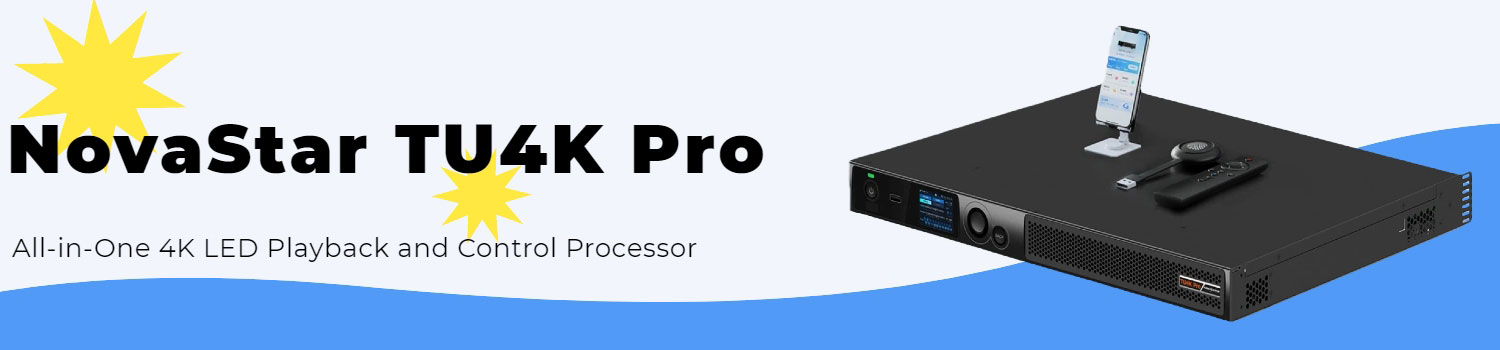
NovaStar TU4K Pro: What It Does, How It Works, and When to Use It
The NovaStar TU4K Pro has become one of the more practical all-in-one LED controllers for medium and large LED displays. Many people know it because of its 4K handling and simple operation, but the device actually covers more ground than a basic player or sender.
Before diving into its detailed features, it helps to understand what this model is built for and how it fits into real LED projects.
Table of Contents
1. About the NovaStar TU4K Pro
The NovaStar TU4K Pro is a 4K playback-and-control processor designed for everyday LED display projects. It brings several functions into one device, including media playback, signal switching, image processing, and LED sending.
This all-in-one design makes the TU4K Pro a practical option for meeting rooms, showrooms, retail screens, and other installations that need a stable and simple 4K controller.
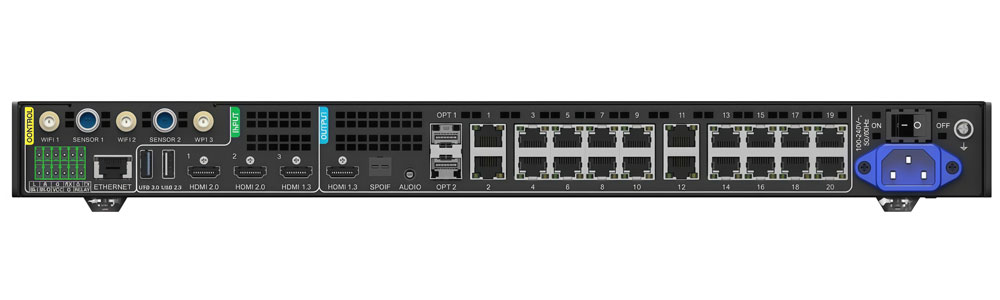
To help you get a clear overview, the table below summarizes its main interfaces and what they are used for.
1.1 Core Inputs and Outputs
| Category | What It Includes | How It Is Used |
| Inputs | HDMI inputs, USB port, built-in Android system | Play from laptops, media players, USB files, or built-in apps |
| Outputs | 20 Ethernet ports, 2 optical ports, HDMI monitoring output | Drive LED cabinets, support long-distance fiber, preview the current signal |
| Connectivity | LAN, Wi-Fi, Bluetooth (remote pairing) | Device configuration, wireless casting, mobile control, easy navigation |
- Inputs
The TU4K Pro supports several common content sources.
It includes multiple HDMI inputs for laptops and external players. A USB port allows direct playback from storage devices, which is useful for simple looping content or local presentations. The integrated Android system can also run videos, images, or apps without external hardware.
- Outputs
The device offers 20 Ethernet outputs, used to send processed image data to receiving cards inside the LED cabinets. This is the main method for driving medium and large LED walls.
For longer cable runs or large-scale setups, the TU4K Pro includes 2 optical outputs, which work with fiber systems. An HDMI monitoring output is also available so users can preview what the device is sending before it reaches the LED screen.
- Connectivity Options
The TU4K Pro supports both wired and wireless control.
A LAN port is available for stable configuration and daily operation, especially in fixed installations. Built-in Wi-Fi allows wireless casting and mobile setup, which is convenient for quick adjustments. Bluetooth is included for pairing with the remote controller, making navigation and menu control easier.
1.2 NovaStar TU4K Pro Price
The TU4K Pro sits in the mid-range category within the TU Series.
Pricing varies by region and project requirements. Users who want an exact quote or want to compare it with the TU20 Pro and TU15 Pro can register LedInCloud to access real-time pricing and product information.
2. Main Features
The NovaStar TU4K Pro focuses on simple setup, smooth control, and reliable playback. Below is a clear look at the core features that matter in actual use.
2.1 Intelligent Configuration
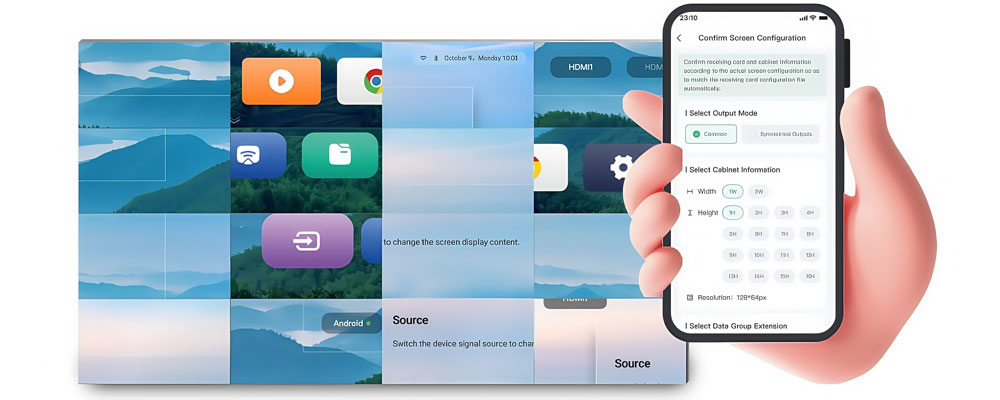
The TU4K Pro is built to make the first setup as simple as possible. Most of the work can be handled with a phone instead of a laptop or extra tools.
- Fast Setup With a Phone
You open the app, connect to the controller, and start the scan. The TU4K Pro detects the LED receiving cards, finds the right configuration files, and applies them on its own. For a standard LED wall, this process usually finishes within a few minutes.
- Quick Cabinet Recognition
The controller includes an offline recognition algorithm. It reads the cabinet layout and links the screen automatically, even when the device is not connected to the cloud.
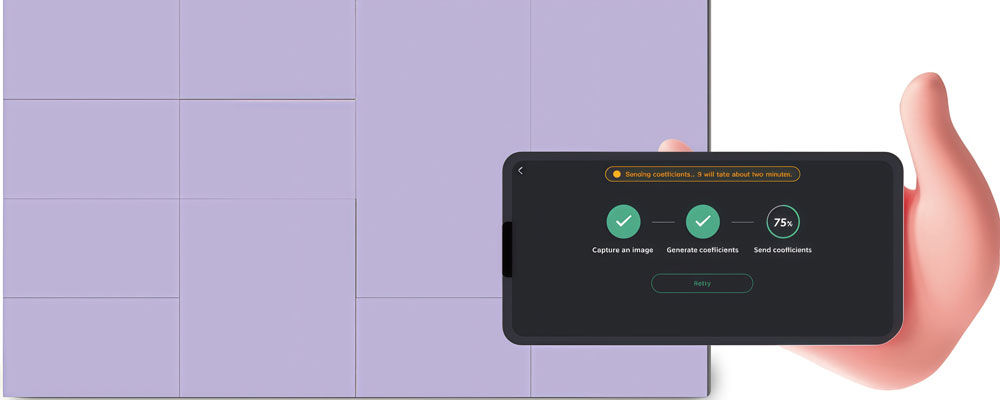
- Simple Phone-Based Calibration
Basic calibration does not require special equipment. You take a photo with your phone, and the system clears the scan lines and aligns the modules.
2.2 User Interaction and Daily Control
NovaStar redesigned the interaction layer on the TU4K Pro. Both the on-screen menu and the physical interface are easier to use than older models.
- Cleaner Interface
The system uses a simpler visual structure and smoother transitions. Key options—such as source switching, brightness, and picture adjustment—are easier to reach.
- Quick OSD Access
The OSD menu can be called up with a single action. This helps during live playback when you must adjust brightness, scale, or source without interrupting the content.
- Touch-Assisted Control
The system includes a touch-assist sidebar. It provides shortcuts for tasks like split-screen control, input switching, and local playback.
2.3 Playback and Program Management
The TU4K Pro supports several playback paths. You can display content from a USB drive, internal storage, mobile mirroring, or cloud-based management.
2.4 Wireless Mirroring and Multi-Source Display
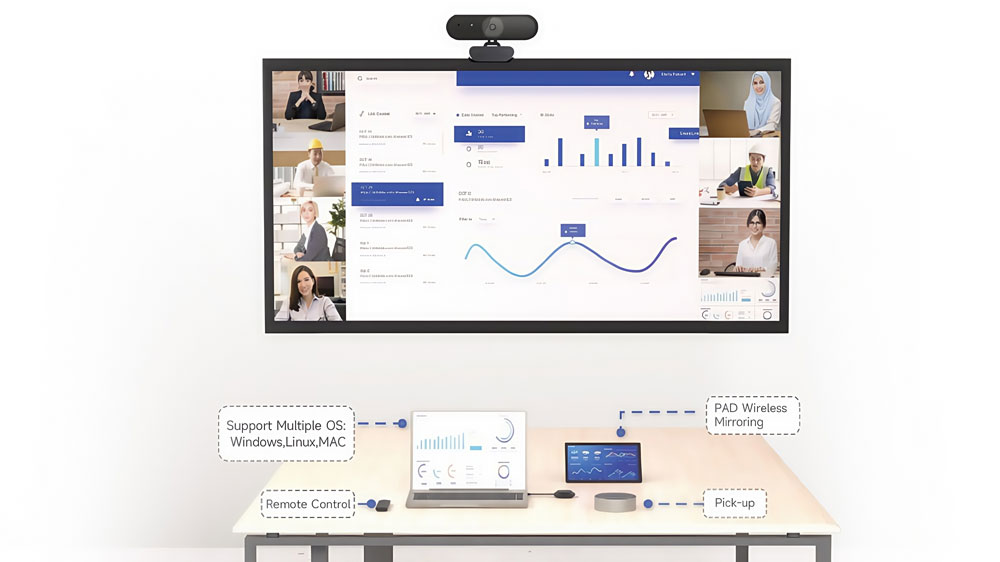
Wireless mirroring is one of the TU4K Pro’s main strengths.
- Stable Wireless Mirroring
The device supports multiple mirroring modes for phones and laptops.
In stable network conditions, it can stay connected for long periods—more than 72 hours without dropping. Latency stays below roughly 80 ms, which is suitable for meetings, documents, and general presentations.
- Up to Nine-Way Split Screen
The controller supports multi-window layouts. You can mirror several devices at the same time and arrange them into a nine-part grid.
2.5 Real-Time Monitoring and Maintenance
The TU4K Pro provides tools for monitoring and troubleshooting.
- 24/7 Screen Status Monitoring
The system tracks brightness, temperature, connectivity, and communication status. It reports abnormal conditions early so users can respond before a failure occurs.
- Fault Diagnosis
When an issue happens, the device provides an alarm and a short description. It helps locate the problem within the cabinet chain, receiving cards, or modules.
- Cloud Backup
Configuration files can be stored in the cloud. If the device is reset or replaced, the system can recover the configuration with one click.
2.6 Hardware and Software Integration
The TU4K Pro combines several roles into one device:
- LED display controller
- Media player
- Android host for conferencing apps
- Network publishing endpoint
- Wireless mirroring receiver
It has multiple expansion ports and supports flexible connection layouts. Users can switch between sources quickly and use the controller as the central node for most LED display tasks.
3. Where It Works Best
The TU4K Pro fits a wide range of LED projects, especially when users want a clean setup and reliable daily control. Below are the scenarios where it performs the best.
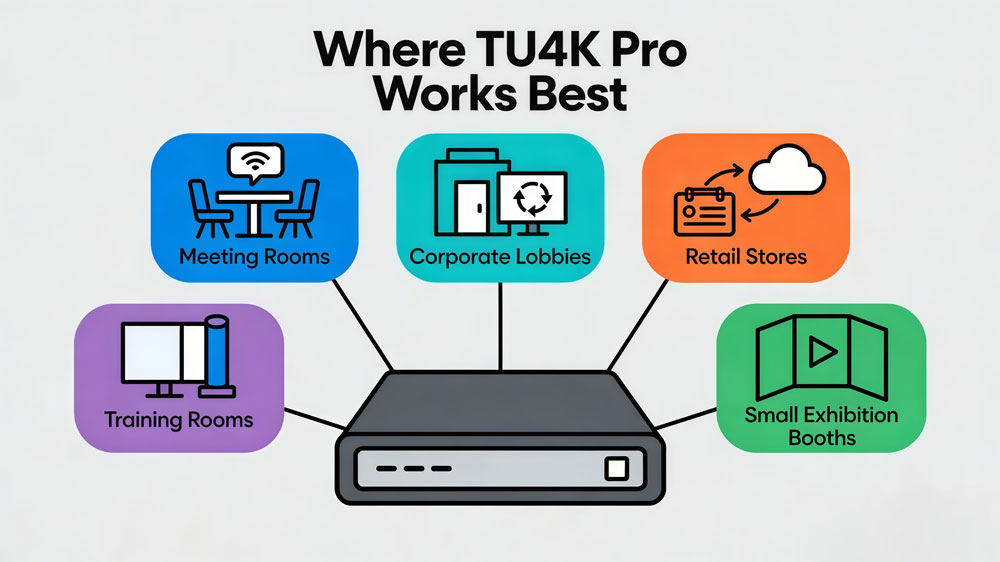
Meeting and Conference Rooms
The controller works well in meeting spaces because it supports wireless mirroring, low-latency display, and apps like Zoom and Teams.
Most users can walk into the room, connect their phone or laptop, and start presenting without extra hardware.
Corporate Lobbies and Reception Areas
For fixed content such as welcome messages or looped videos, the USB playback and internal storage make updates very simple.
You plug in a drive, update the files, and the screen plays them automatically.
Retail Stores and Shopping Malls
VNNOX cloud publishing helps retail locations update promotions quickly.
Chain stores can push content to multiple sites at once, which reduces on-site labor.
Training Rooms and Classrooms
The multi-window layout and smooth mirroring allow several users to share screens at the same time.
This works well for group discussions or side-by-side comparisons.
Small Exhibition Booths
When exhibitors need a quick setup without a full control system, the TU4K Pro is useful.
It plays videos, switches sources easily, and supports basic calibration without special tools.
4. Installation and Setup Experience
This section walks through the basic steps, from the first power-on to getting content on the screen.
If this is your first time using the device, follow the process below.
① First Power-On
When you turn on the TU4K Pro for the first time, the device guides you through a simple setup wizard.
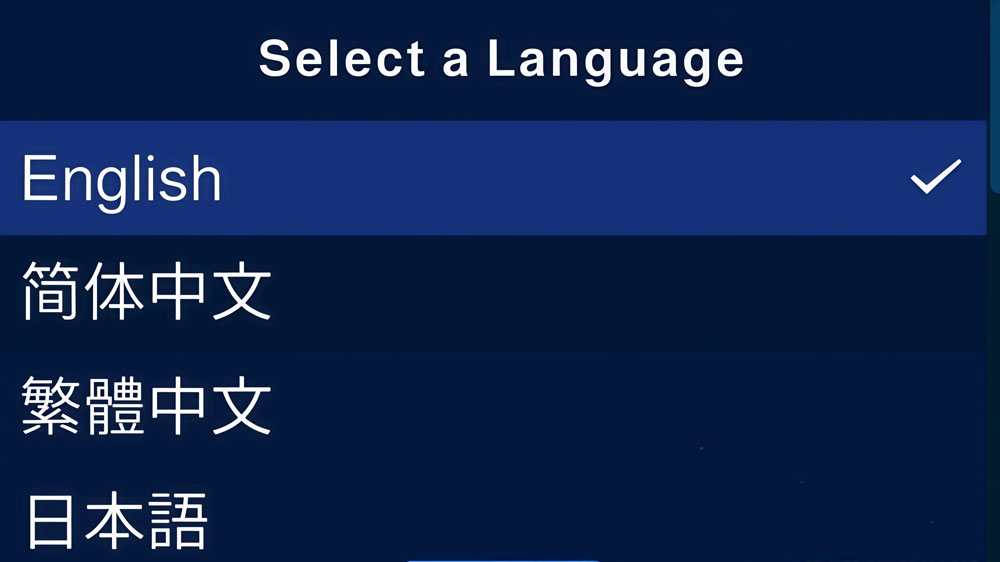
- Step 1: Choose Your Language
Select the system language from the list.
This only takes a few seconds but helps make the following steps easier.
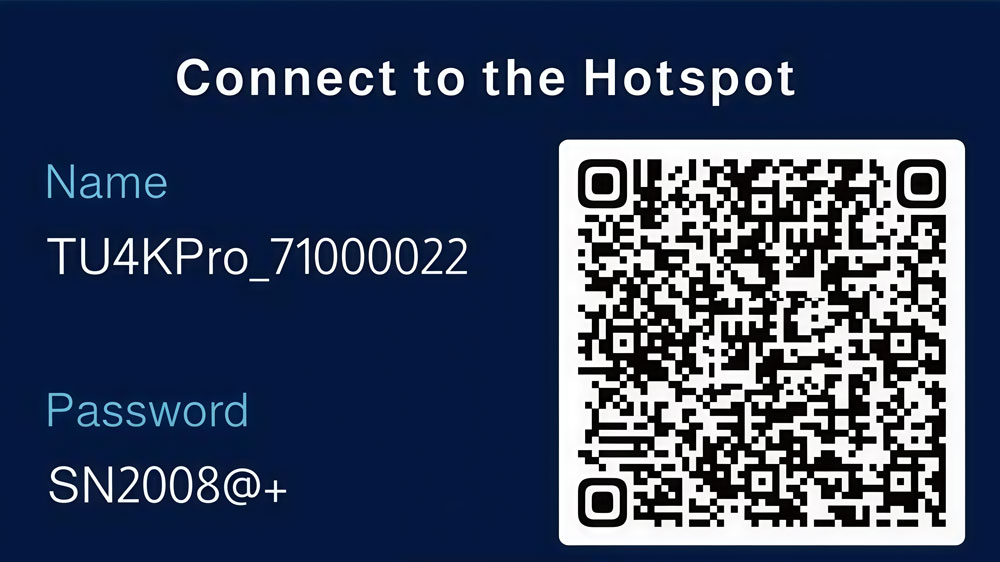
- Step 2: Connect to the Device's Hotspot
The device will display its own Wi-Fi hotspot name and password. You must connect your smartphone or computer to this hotspot to proceed with the setup. This is a mandatory step for the initial configuration.
- Step 3: Rename the Device
Give the controller a clear name—such as “Meeting Room LED Wall” or “Lobby Screen.” This helps identify the device in the app or cloud platform later.
Note: The hotspot name will update automatically to match the new device name.
② Pairing the Remote Control
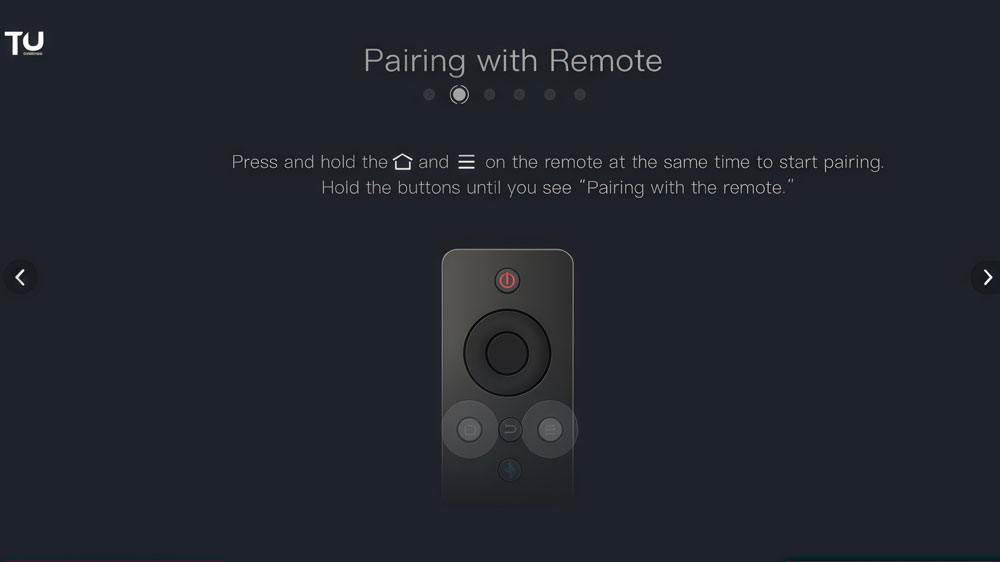
The remote control communicates through Bluetooth.
Point the remote at the device’s infrared sensor and hold down the Menu and Home buttons simultaneously until the Pairing with the remote prompt appears on screen. Once connected, you can control playback, switch inputs, or open the OSD menu quickly.
③ Using the Mobile App for Screen Configuration
Most users configure the screen using their phone.
- Step 1: Open the App and Connect
Use the VNNOX Care app for screen configuration. Connect your phone to the device’s hotspot, open the app, and tap Connect to Hotspot.
- Step 2: Automatic Receiving Card Detection
The VNNOX Care app scans and identifies the connected receiving cards and cabinets. You do not need to search for files or match card models manually.
- Step 3: Apply the Configuration
After confirming the layout in the app, the configuration is sent to the TU4K Pro, which then applies it to the screen. For standard screens, this usually finishes in minutes.
④ Cabinet Recognition and Basic Calibration
The VNNOX Care app can recognize the cabinet layout and connection topology using its camera.
- Photo-Based Topology Recognition
When setting up a screen or verifying connections:
- Open the topology tool in the VNNOX Care app
- Take a clear photo of the powered-on full screen
- The app processes the image to map the physical cabinet connections
This is a powerful tool for quickly establishing or verifying screen layout, which simplifies the initial setup process.
⑤ Adding Content
Once the screen is configured, you can display content in several ways.
- Option 1: USB Drive
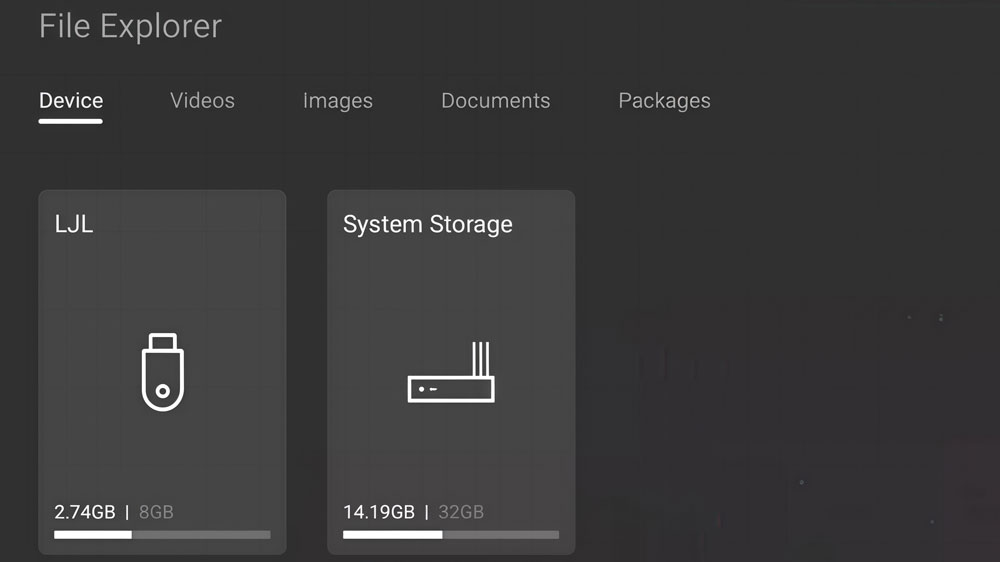
Insert a USB drive into the front or rear USB port. The file system can be accessed via the File Explorer app on the device. You can play media directly or import files into the internal storage.
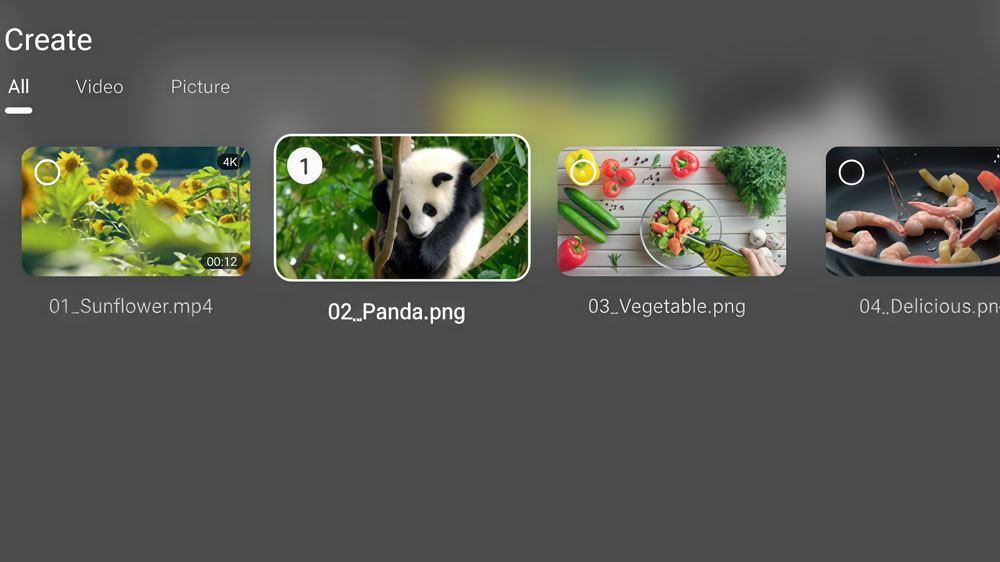
- Option 2: Internal Storage & Media Player
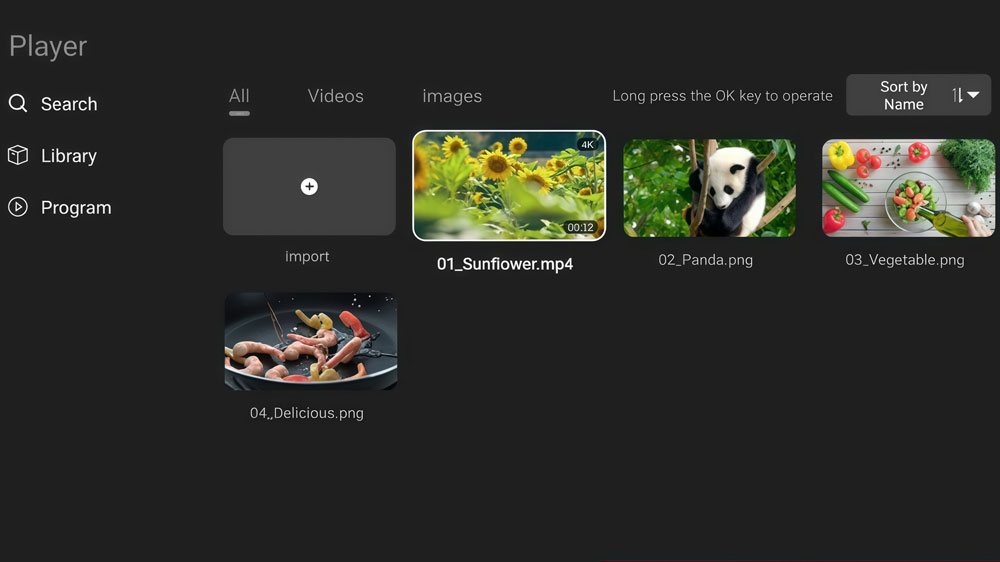
Upload content through the network or from a USB drive to the device’s internal storage. Use the built-in Media Player app to create, manage, and play programs. You can control playback using the remote or mobile app.
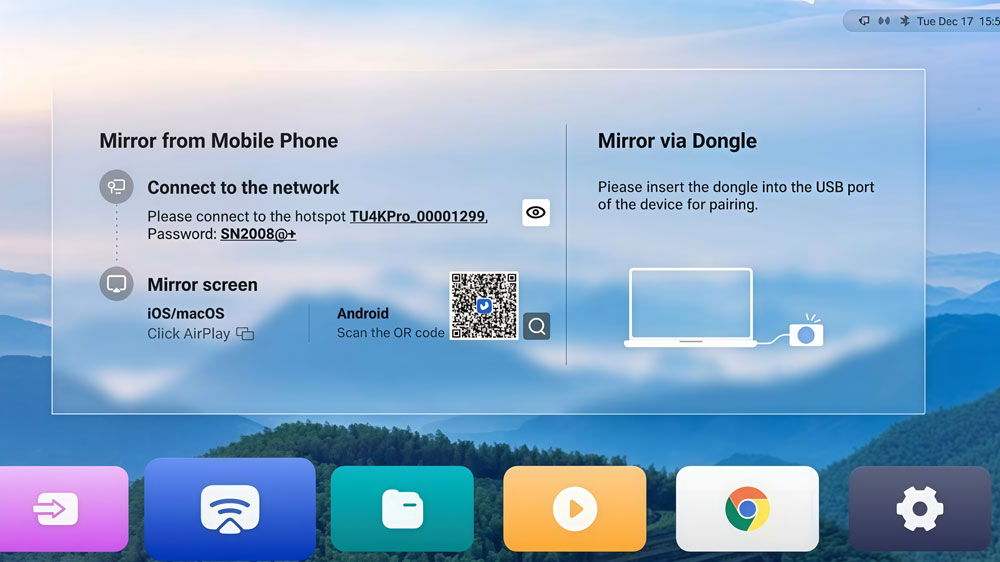
- Option 3: Wireless Mirroring
Phones and laptops can mirror their screens wirelessly. For best performance with 4K content, it’s recommended to use a 5GHz Wi-Fi network. The connection is stable for slides, documents, and general presentations.
- Option 4: Cloud Publishing (VNNOX)
For users managing multiple screens, cloud publishing is efficient. You create a program online in the NovaStar VNNOX and send it to the TU4K Pro remotely.
⑥ Managing Inputs
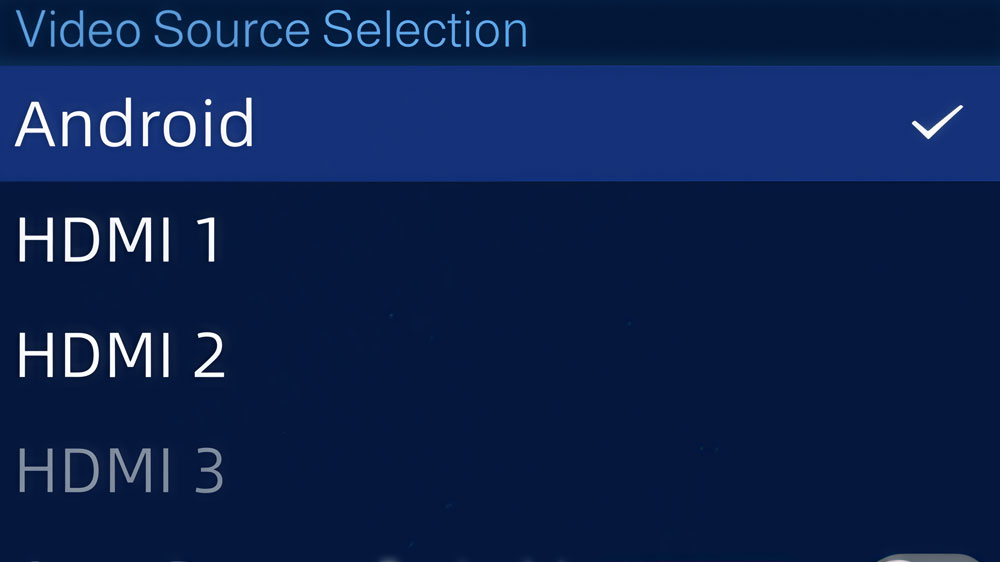
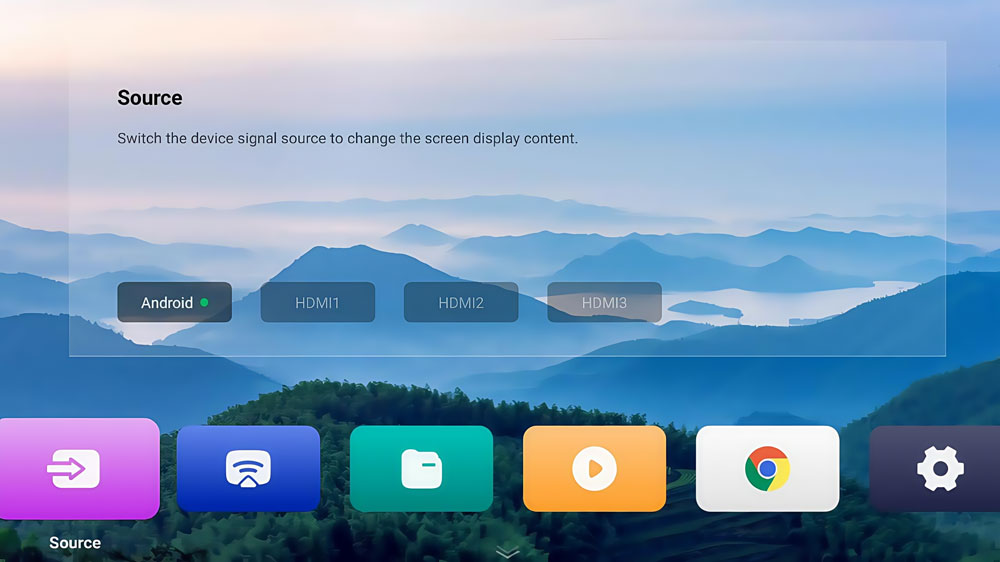
The TU4K Pro accepts Android (internal), HDMI, and USB media sources.
You can switch between active signal sources using:
- The remote control
- The front LCD menu (Video Source Settings)
- The mobile app (ViPlex Handy)
- The Assistive Touch sidebar on screen (when enabled)
⑦ Using the On-Screen Menu (OSD)
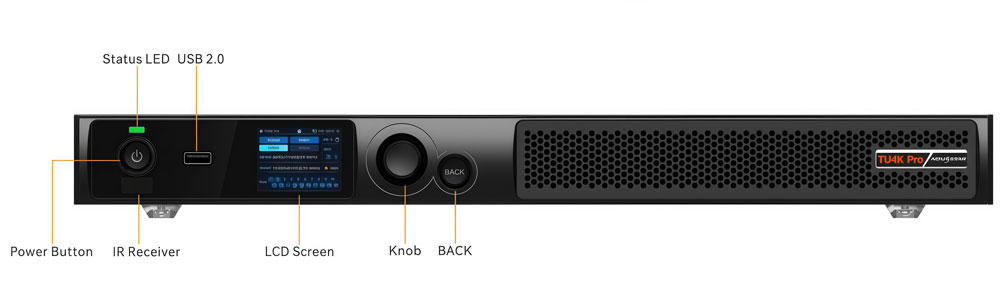
The front LCD menu provides quick access to essential features:
- Screen Brightness
- Volume
- Video Source Selection
- Display Control (Normal/Freeze/Blackout/Test Pattern)
- Network Settings
The menu is accessed by pressing the front knob and navigated by rotating it, allowing for adjustments without occupying the main display.
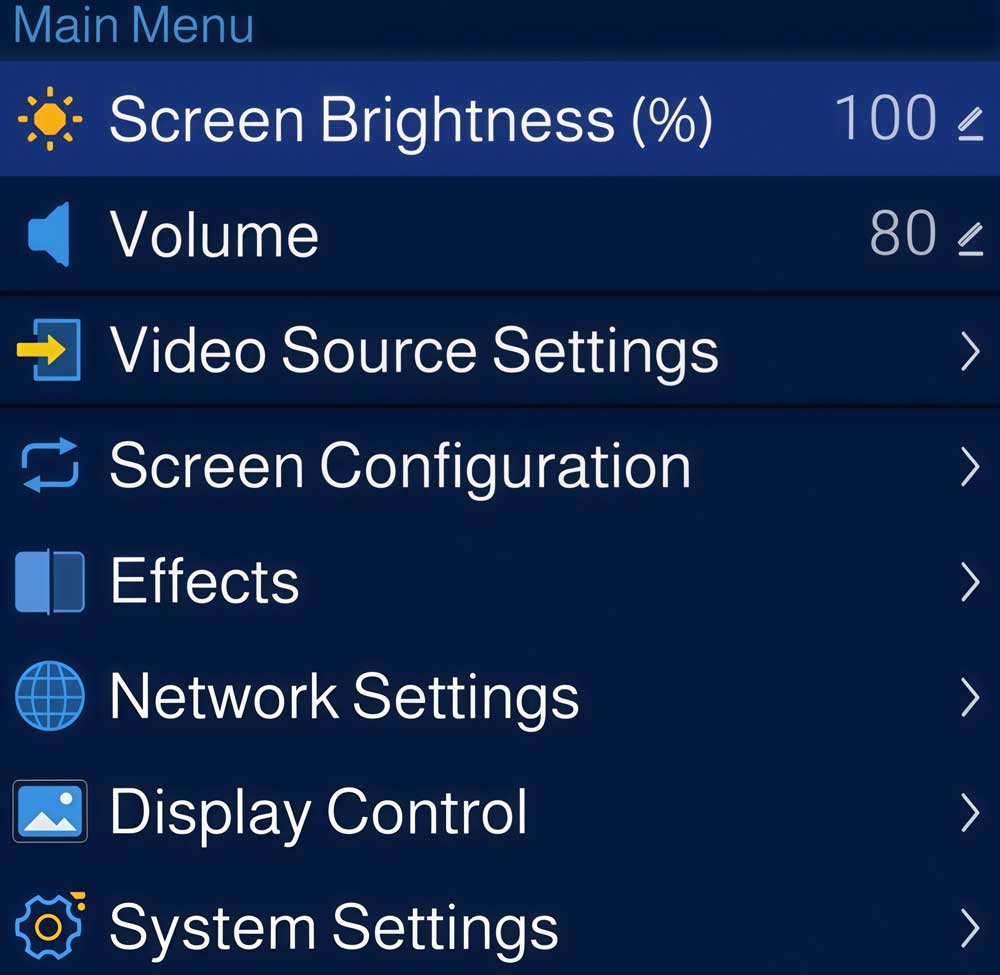
The front LCD menu provides quick access to essential features:
- Screen Brightness
- Volume
- Video Source Selection
- Display Control (Normal/Freeze/Blackout/Test Pattern)
- Network Settings
The menu is accessed by pressing the front knob and navigated by rotating it, allowing for adjustments without occupying the main display.
⑧ Basic Troubleshooting
The TU4K Pro includes tools to help locate common issues.
- Real-Time Status
You can view cabinet connection status, network state, and signal information on the front LCD home screen or in the mobile apps.
- Diagnostics & Logs
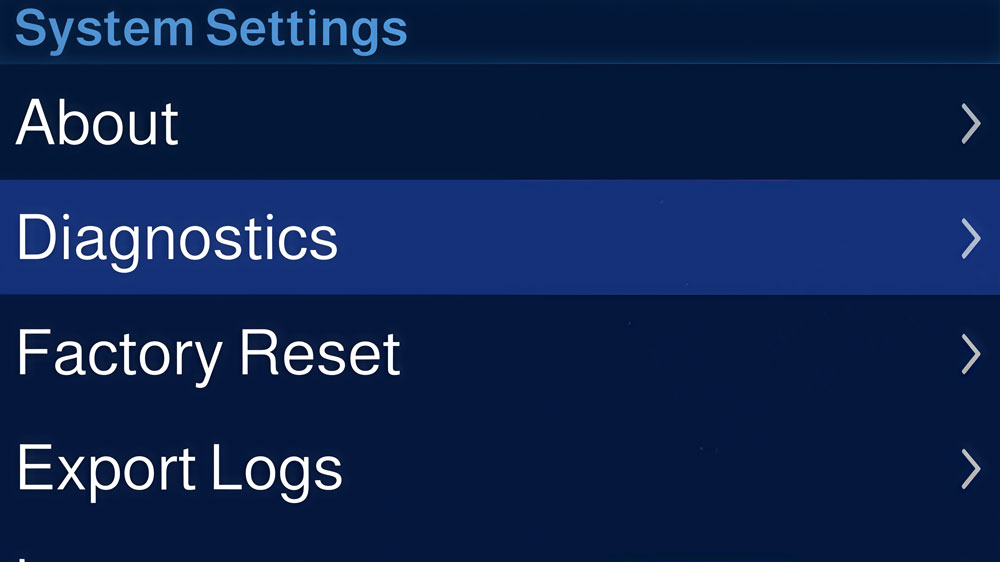
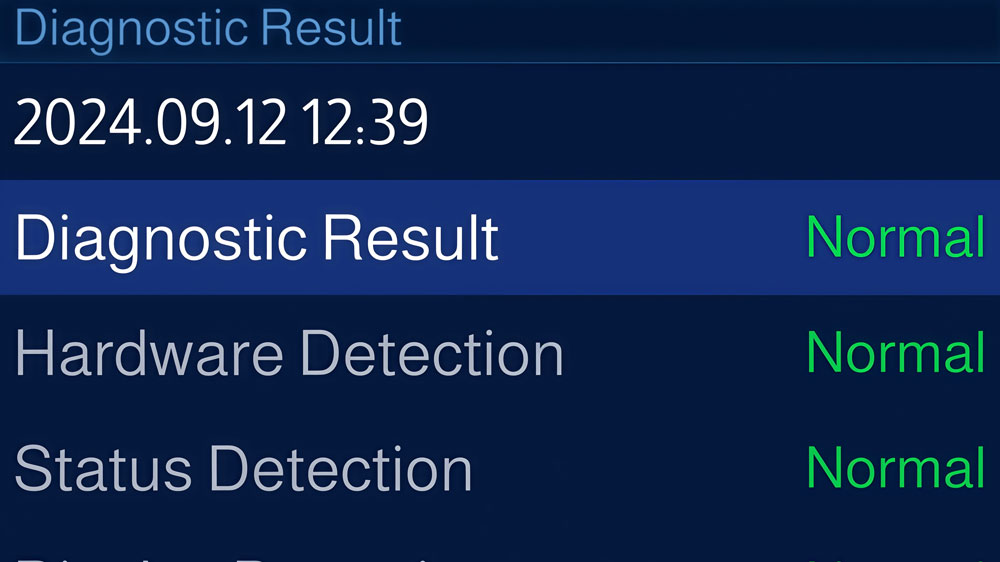
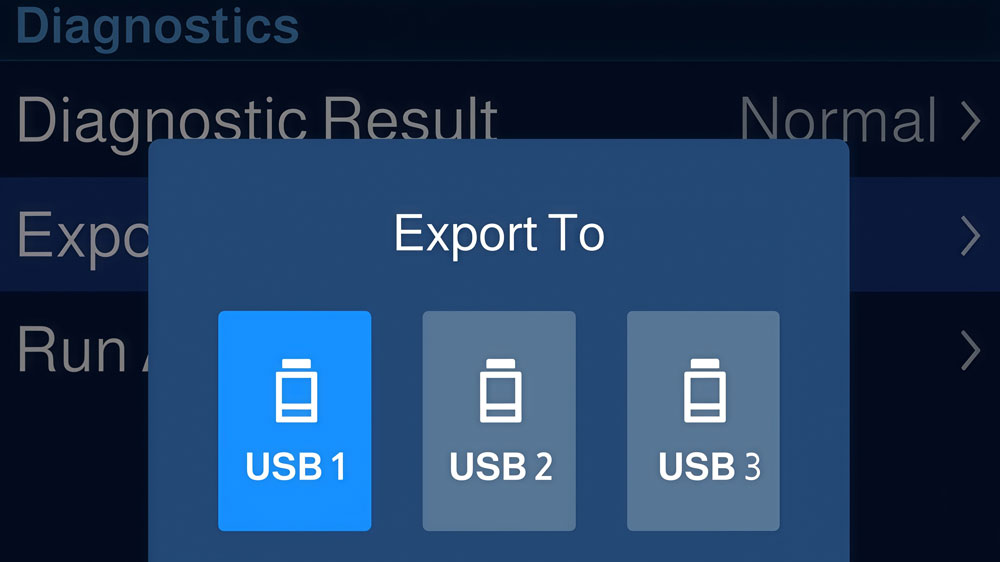
From the LCD menu under System Settings > Diagnostics, you can run a system check. Detailed logs can be exported to a USB drive via System Settings > Export Logs for technical support.
- Configuration Backup
The screen configuration can be saved to the device hardware (LCD Menu > Screen Configuration > Save to Hardware) and is also managed through the VNNOX ecosystem for backup and restore.
⑨ Final Check Before Use
Before using the screen for presentations or playback, confirm the following:
- Input signals are detected and selected
- Screen brightness is set appropriately for the environment
- The correct picture mode is selected for your content
- If using wireless, the network connection is stable
- Any scheduled programs are loaded and cued correctly
Once everything is confirmed, the TU4K Pro is ready for daily use.
5. NovaStar TU4K Pro vs TU20 Pro vs TU15 Pro
Choosing between the TU4K Pro, TU20 Pro, and TU15 Pro can be confusing if you only look at names.
Below is a clear comparison based on NovaStar’s official specifications. This section helps you quickly understand how these three models differ in performance, loading capacity, interfaces, and daily use experience.
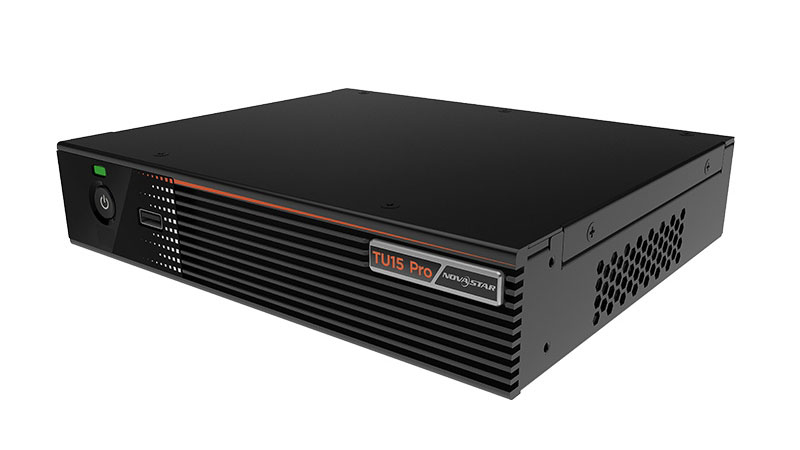
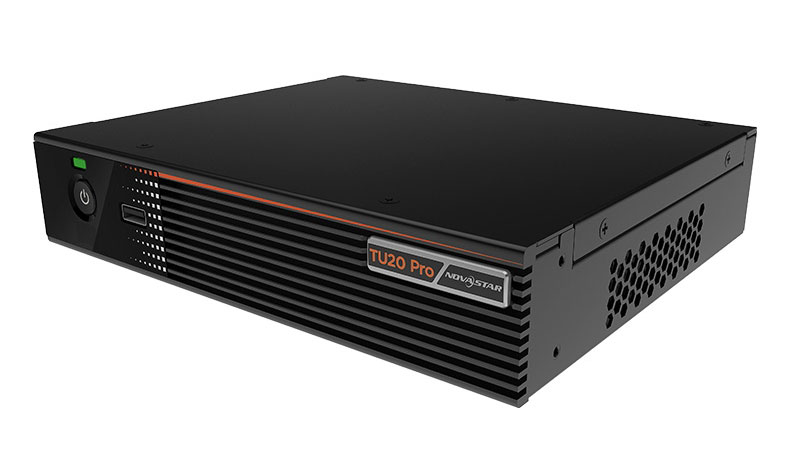
5.1 Product Comparison
| Category | NovaStar TU15 Pro | NovaStar TU20 Pro | NovaStar TU4K Pro |
| Product Positioning | Entry-level, for indoor LED screens | Mid-range commercial, for indoor LED screens | High-end, 4K playback & control all-in-one processor |
| Core Integration | Android System + Sending Card | Android System + Sending Card | Android System + Sending Card + Video Processor |
| Max. Pixel Load | 2.6 Million Pixels | 3.9 Million Pixels | 13 Million Pixels |
| Output Resolution Range (W×H) | 64 – 4096 × 64 – 1920 | 64 – 4096 × 64 – 1920 | 64 – 16384 × 64 – 8192 |
| Operating System | Android 11 | Android 11 | Android 13 |
| Memory (RAM) / Storage | 4 GB / 32 GB | 4 GB / 32 GB | 8 GB / 128 GB |
| Processor | Quad-core ARM A55 @ 1.8GHz | Quad-core ARM A55 @ 1.8GHz | Quad-core A73 + Quad-core A53 @ 2.2GHz |
| Video Input | HDMI 1.3 × 2 | HDMI 1.3 × 2 | HDMI 2.0 × 2, HDMI 1.3 × 1 |
| USB Ports | USB 2.0 × 3 (1 front, 2 rear) | USB 2.0 × 3 (1 front, 2 rear) | USB 3.0 × 1, USB 2.0 × 2 |
| Ethernet Output | Gigabit Port (RJ45) × 4 | Gigabit Port (RJ45) × 6 | Gigabit Port (RJ45) × 20 |
| Fiber Optic Output | Not Supported | Not Supported | 10G OPT Port × 2 |
| Audio Output | 3.5mm, SPDIF | 3.5mm, SPDIF | 3.5mm, SPDIF, HDMI eARC, Phoenix Terminal |
| Wireless Mirroring | Supported (Win/macOS/iOS/Android) | Supported (Win/macOS/iOS/Android) | Supported (Win/macOS/iOS/Android) |
| Multi-Screen Mirroring | Requires activation code (4/9-screen) | Requires activation code (4/9-screen) | Multi-screen support by default (e.g., 9-screen) |
| Display Effect Modes | Standard / Meeting / Vivid / Skin | Standard / Meeting / Vivid / Skin | Standard / Meeting / Vivid / Skin |
| Advanced Image Features | Image Quality Enhancement | Image Quality Enhancement | HDR10, Peak Brightness, AI Image Enhancement, 10-bit Output |
| Whiteboard Feature | Requires activation code | Requires activation code | Requires activation code |
| Control Methods | Remote, ViPlex Handy App, VNNOX Care | Remote, ViPlex Handy App, VNNOX Care | Remote, ViPlex Handy App, VNNOX Care, Front LCD |
| Max. Video Decoding | 4K@60Hz (H.265) | 4K@60Hz (H.265) | 8K@24/30Hz (H.265/VP9), 4K@60Hz |
| Power Supply | DC 12V 3A (External adapter) | DC 12V 3A (External adapter) | 100-240V~ (Internal PSU) |
| Typical Power Consumption | 21 W | 21 W | 53.9 W |
| Dimensions (W×D×H) | 211.7 × 185.0 × 50.6 mm | 211.7 × 185.0 × 50.6 mm | 445.0 × 381.8 × 50.1 mm |
5.2 Which One Is Right for Your LED Project?
- Choose TU4K Pro if you need:
- 4K playback and advanced processing
- Large-format displays
- Multiple input sources and high-bandwidth outputs
- Stronger mirroring and easier control workflows
- Better onboard performance for apps, conferencing, and long-hour use
- Choose TU20 Pro if you need:
- A reliable processor for mid-size screens
- Multiple HDMI inputs
- Solid decoding without the need for 4K
- Balanced cost and performance
- Choose TU15 Pro if you need:
- An affordable controller
- Small indoor LED walls
- Basic signage, simple meetings, or light media playback
6. TU4K Pro Manual and Specification Download
Below are the official resources for the NovaStar TU4K Pro. These files help you understand the hardware, configuration workflow, and supported features in detail.
If you are already using the TU4K Pro or planning a new installation, these files will give you everything you need to start quickly and operate the device with confidence.
- Need Resources for Other NovaStar Products?
If you need manuals, firmware, or software for other NovaStar controllers—such as the TU20 Pro, TU15 Pro, or any sender, receiver, or video processor—you can find all of them on our website.
Visit the NovaStar Software page to access organized downloads for the full product line, including historical versions and the latest releases.
7. FAQ
Below are some common questions users have when working with the NovaStar TU4K Pro.
Q1. Does the TU4K Pro support 4K video playback?
Yes. The TU4K Pro is designed for 4K playback and processing. Its HDMI 2.0 input also supports 4K sources, making it fit for high-resolution presentations, movies, and premium content.
Q2. Can I set up the TU4K Pro without a laptop?
In most cases, yes.
You can complete basic configuration using your phone through ViPlex Handy and manage the screen through VNNOX Care. The device also supports simple setups through on-screen menus and its remote controller.
Q3. How do I update the firmware?
You can upgrade the firmware through:
- USB drive
- Local file
- Cloud push (via VNNOX)
Q4. Does the TU4K Pro have optical outputs?
Yes. It provides two 10G optical ports, which help when driving large LED screens or long-distance installations.
Q5. Where can I download software and manuals for other NovaStar products?
You can visit our website, where we organize manuals, firmware, and tools for the entire product family.
8. Conclusion
The NovaStar TU4K Pro is built for users who want a powerful, all-in-one playback and control solution for their LED screens.
If you need a controller that delivers both performance and ease of use, the TU4K Pro gives you a solid foundation for daily operation and long-hour playback. And if you are working with other NovaStar devices, LedInCloud – our LED Screen Cloud Platform provides all the related downloads to help you manage your entire system more efficiently.