
Huidu LedArt APP: A Smarter Way to Control LED Displays
Huidu LedArt APP, a mobile app designed by Huidu Technology to revolutionize display management.
In the fast-evolving display screen control system industry, the need for more efficient and accessible solutions has become greater. Traditional computer-based control systems often come with a host of challenges, from cumbersome setups to the need for specialized knowledge. This makes managing LED and LCD displays at project sites time-consuming and complex.
As smartphones have become essential tools in daily life, they present a powerful opportunity to simplify this process. By leveraging Wi-Fi technology, Huidu Led Art allows users to control LED and LCD displays directly from their smartphones or tablets. No additional hardware is required, offering a more cost-effective and user-friendly solution for both professionals and non-experts alike.
Table of Contents
1. What Is Huidu LedArt App?
The Huidu LedArt App is a mobile control software that lets you manage LED and LCD displays through Wi-Fi using your smartphone or tablet. It’s developed by Huidu Technology and designed for users who need an easier, faster, and more portable way to manage display content.
In the traditional LED control system, users often rely on computers and data cables. Setting up or debugging a display on-site can be slow and inconvenient. With Huidu LedArt, this process becomes simple. Once installed, you can connect your phone directly to a controller and manage everything wirelessly.
The Huidu LedArt App is compatible with a wide range of Huidu control systems, including but not limited to:
- Full-color controllers such as the A, C, and D series
- Single and dual-color controllers like the W series
- LCD controllers under the M series
Because LedArt App runs on both Android (v4.0 and above) and iOS (v7.0 and above), it works with almost any modern mobile device. You don’t need a PC or extra hardware — just install the app, connect, and you’re ready to control your LED or LCD screen.
2. Key Features and Benefits
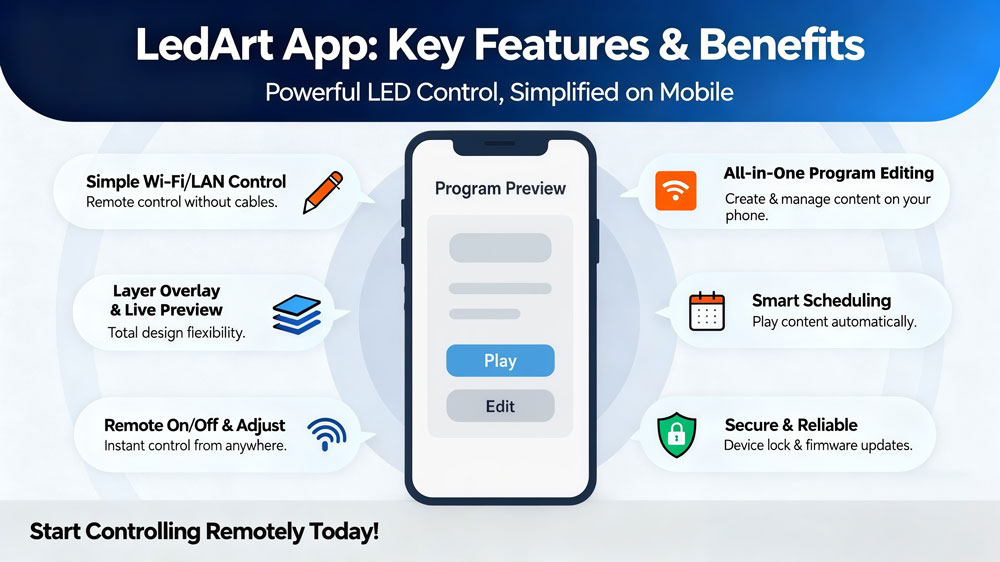
The LedArt App combines the main functions of desktop control software with the flexibility of a mobile device. Below are its core features and how they help users simplify display management.
- Simple Wi-Fi and LAN Connectivity
You can control your LED or LCD screen without cables. The app connects via Wi-Fi hotspot (AP mode) or LAN, allowing you to manage devices remotely.
- Comprehensive Program Editing
Create, edit, and manage display content directly on your phone. Add videos, images, text, or time displays — all through a clean, visual interface.
You can customize animation effects, duration, and order of playback, just like using professional LED editing software on a computer.
- Layered Design and Real-Time Preview
The app supports layer overlay, which means you can arrange different content areas freely. For example, overlay text on an image or video. This gives you complete design flexibility with live previews.
- Smart Scheduling and Playback Control
Plan and automate your content playback. You can set a program to play at specific dates, times, or days of the week. The app will automatically switch programs based on your schedule, saving time during daily operations.
- Remote Control Functions
The built-in remote panel lets you adjust brightness, volume, and playback directly from your mobile device. It also allows you to turn the display on or off and switch between programs instantly — perfect for live events or outdoor advertising.
- Secure and Reliable
Use the Device Lock function to set a password before sending programs, preventing unauthorized uploads. The app also supports firmware upgrades and screen parameter adjustments to keep your system stable and up to date.
- Compatible Across Devices
The Huidu LedArt App works on Android and iOS, supporting multiple controller types. It’s suitable for LED screens, LCD signage, and various display applications. For users who prefer desktop operation, LedArt for PC is also available on the official LedArt software download page.
3. Who Is Led Art For?
The Huidu LedArt App is designed for anyone who needs to manage LED or LCD displays more efficiently, without relying on a computer.
Here are some of the main user groups who benefit from using LedArt App and LedArt Lite:
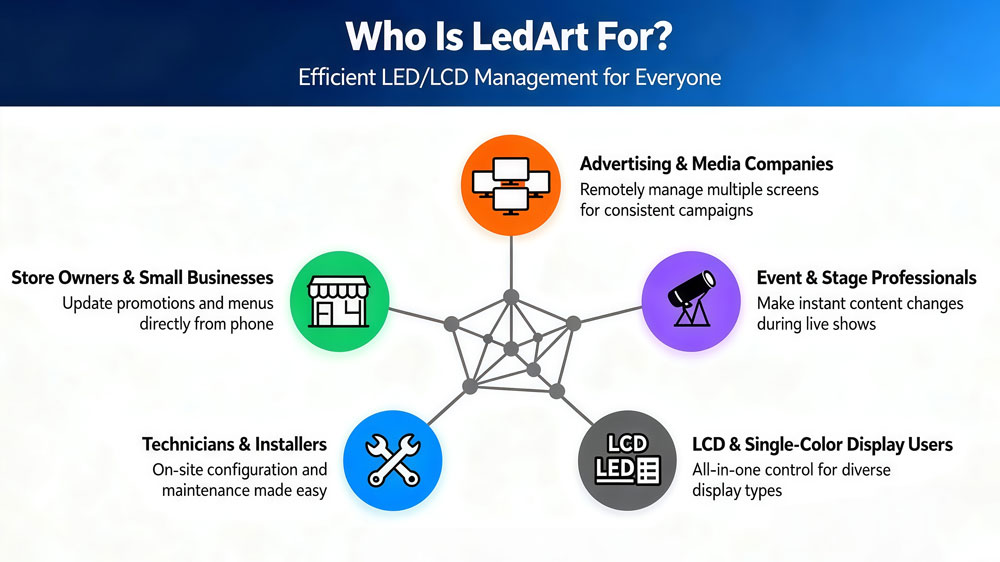
Store Owners and Small Businesses
For retail stores, restaurants, and shopping centers, digital signage plays an important role in attracting customers.
With Huidu LedArt, owners can update promotional videos, menu boards, and seasonal messages directly from their phones.
There’s no need to connect a laptop or USB flash drive. The app makes screen updates fast, even for people with no technical background.
Advertising and Media Companies
For agencies that manage multiple LED displays across different locations, LedArt App helps streamline daily operations.
Using the Wi-Fi or LAN connection, users can quickly send new programs or adjust brightness remotely.
This saves time during campaigns and ensures the same content plays consistently across all screens.
Event and Stage Professionals
During live performances, exhibitions, or rental stage setups, operators often need to make quick content changes.
With Huidu Led Art, updates can be done instantly — without stopping the show or carrying bulky computers.
The remote control functions allow on-the-fly brightness and playback adjustments, which are essential for professional event setups.
Technicians and System Installers
For LED engineers or installers, the app is an essential setup tool. It allows quick configuration of display parameters, module calibration, and front maintenance LED display checks directly on-site.
The LedArt software also supports controller firmware upgrades, time correction, and password management — everything needed for technical maintenance.
LCD Display Users
Beyond LED screens, LedArt App also supports Huidu LCD controllers (M series) used in transportation, retail kiosks, and corporate displays.
This makes it an all-in-one mobile software for controlling both LED and LCD systems.
Single- and Dual-Color Display Users
For simpler applications such as scrolling text or monochrome message boards, Led Art Lite (or Led Art Lite) provides the same stability in a lighter package.
It offers all the basic functions — text editing, timing, and program sending — without unnecessary complexity.
4. Ledart Software Free Download (Android & iOS)
The Huidu LedArt app is easily accessible for both Android and iOS users. To get started, you can download the app directly from the App Store for iOS devices or Google Play for Android devices. Simply search for “Huidu LedArt”, and you’ll be able to download and install the app for free.
LedArt (Full Function): Offers comprehensive features for managing both full-color and single/dual-color displays.
LedArt Lite: Simplified for single- and dual-color displays, providing essential tools for efficient operation.
For a more streamlined experience and to ensure you have access to all the latest updates and resources, we highly recommend visiting our Huidu Software Download page. This page hosts all Huidu software, including the LedArt app or Huidu HDPlayer, along with helpful guides, firmware updates, and other useful tools for managing your LED and LCD displays. Everything you need to optimize your LED display control system is just a click away.
5. Operation Guide: Setting Led Art App
The Huidu LedArt App gives users full control of their LED and LCD displays directly from a smartphone or tablet.
Below is a setup and operation guide for configuring and managing your screen with LedArt software.
5.1 System Requirements
Supported Controllers:
The app supports a wide range of Huidu control devices, including:
- LED Controllers: A, C, and D series for full-color displays; W series for single- and dual-color displays.
- LCD Controllers: M series, used for LCD advertising and information displays.
Mobile Device Compatibility:
- Android: Version 4.0 or higher
- iOS: Version 7.0 or higher
Communication Methods:
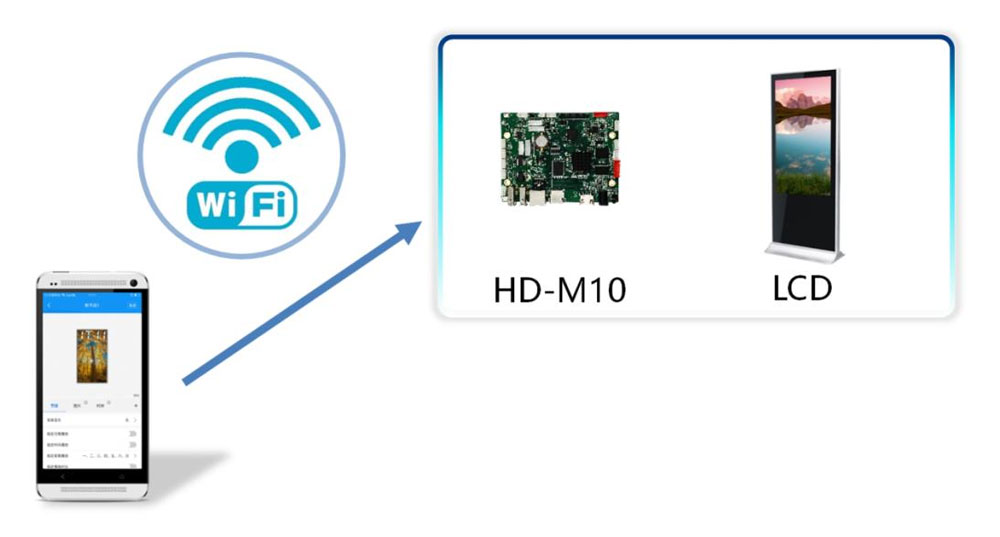
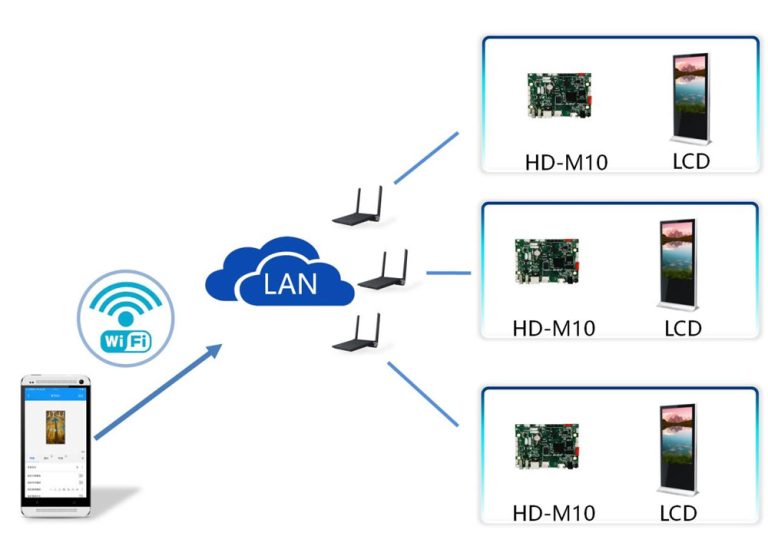
- AP Direct Connection: Connect your phone directly to the controller’s built-in Wi-Fi hotspot.
- LAN (Local Area Network): Connect both your phone and controller to the same local network using Ethernet.
5.2 APP Installation and Uninstallation
Installation: Download the “LedArt” app from the respective app store (Google Play or Apple App Store) and follow the standard installation steps.
Uninstallation: On Android, press and hold the “LedArt” app icon and drag it to the “Delete” option. On iOS, press the icon until it jiggles, then tap the “X” to remove it.
5.3 Program Editing and Distribution
5.3.1 Establishing Wi-Fi Connection
AP Mode:
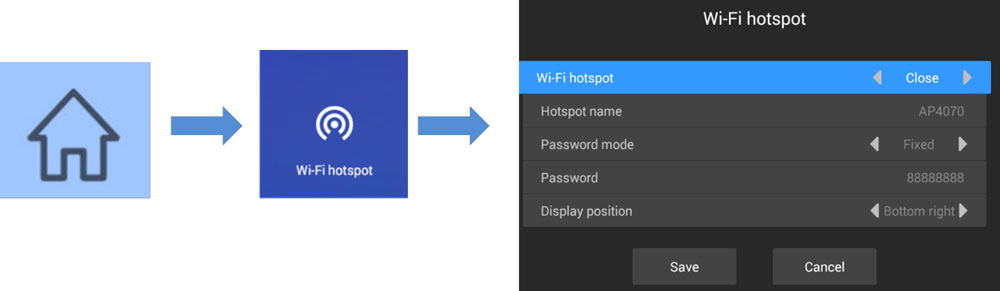
Activate the Wi-Fi hotspot on the controller using the remote control. Navigate to the menu, enable the hotspot, and connect your mobile device to it via Wi-Fi settings.
LAN Mode:
If the controller is connected via a network cable, ensure your phone is on the same network.

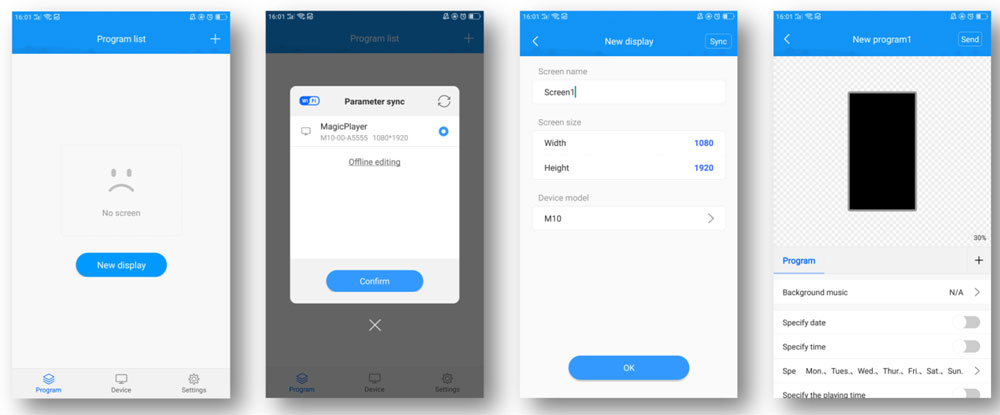
Once connected, launch the app, navigate to the “Device” section, and select “Find Machine” to link the controller.

5.3.2 Creating a New Program
Open the “Programs” section and click “New Display.” The app will detect the controller and automatically retrieve its screen dimensions.
For offline editing, input the screen’s width and height manually.
5.3.3 Adding Content
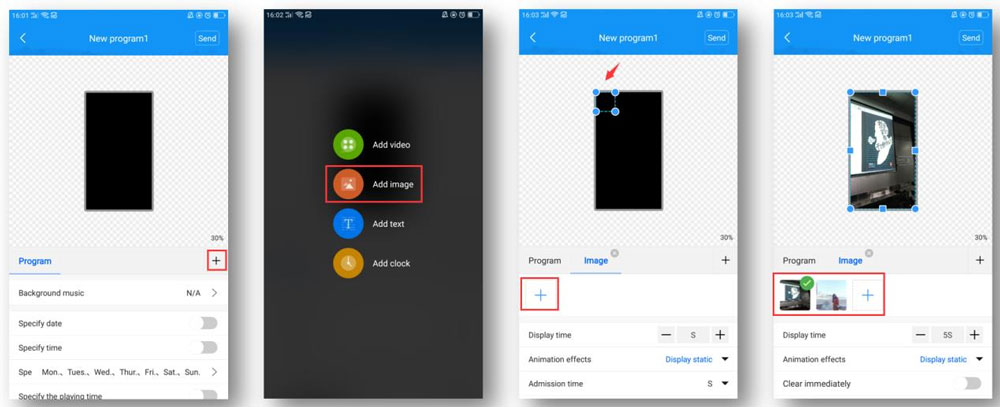
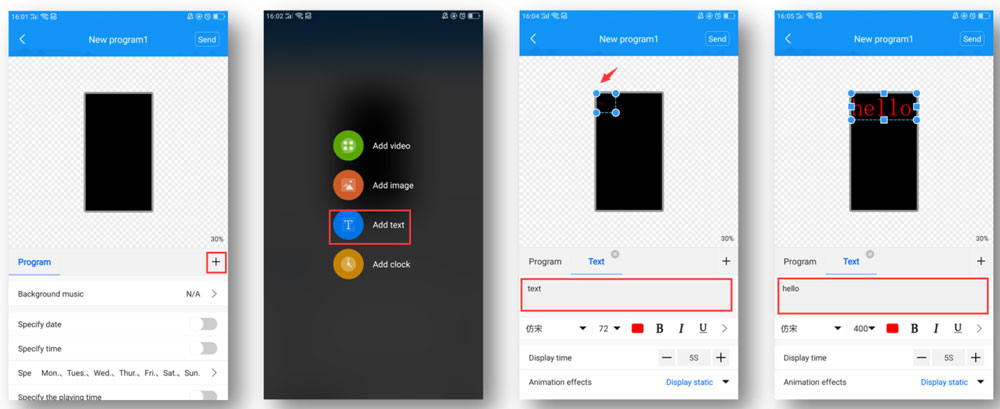
After entering the program editing interface, click the “+” on the right to adding different contents.
Videos: Add a video area, adjust its size, and insert video files. Multiple videos can be added for looping playback.
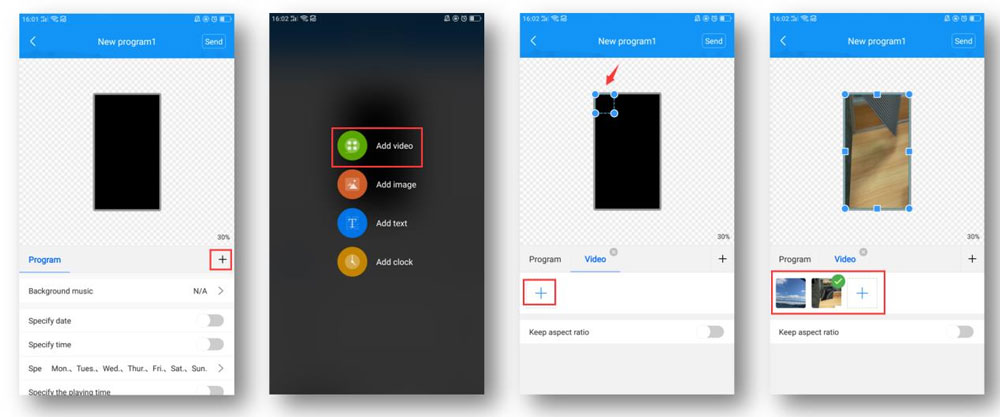
Images: Add an image area, resize it, and upload images. Customize display duration, effects, and transitions.
Text: Insert a text area, type your message, and configure font, color, size, duration, and animations.
Clock Display: Add a clock area, adjust its size, and configure options such as font color and stroke.

5.3.4 Layer Management
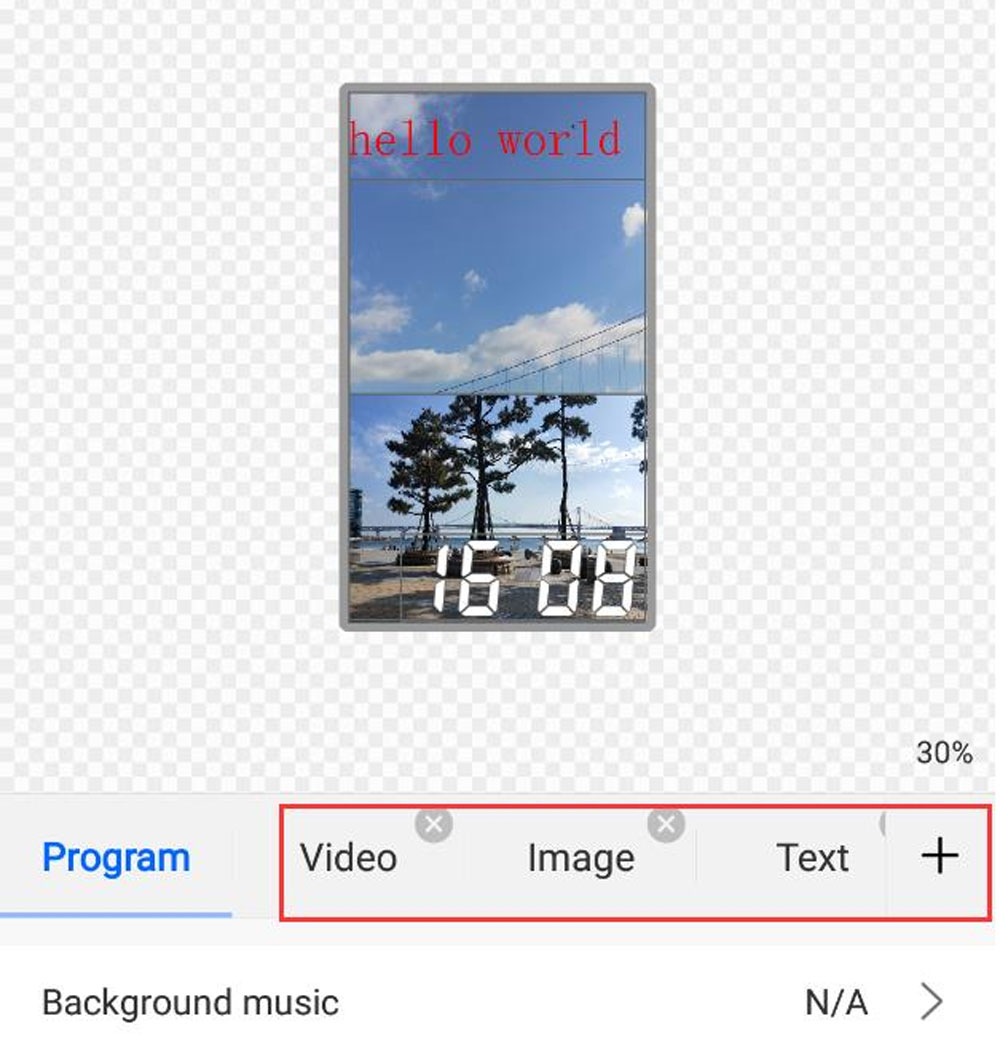
Arrange layers by adding background elements first, followed by other content. For example, overlay text on images or videos to create visually appealing designs. The app supports up to two video layers simultaneously.
5.3.5 Scheduling and Broadcasting
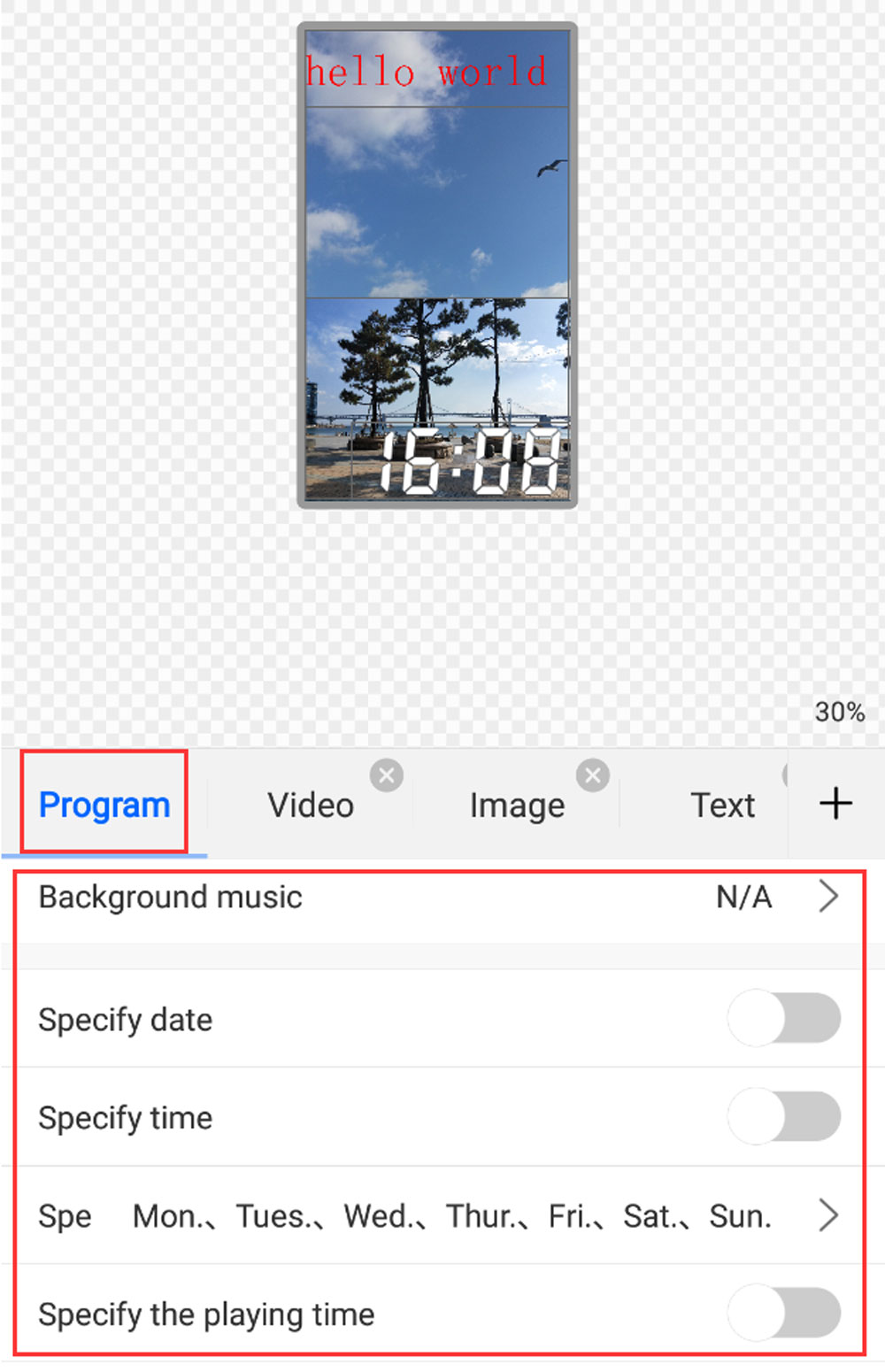
Configure playback settings, including background music, schedule dates, playback times, and weekdays.
Programs can be sent individually or in batches. Use the “Send” option to upload your content to the display.
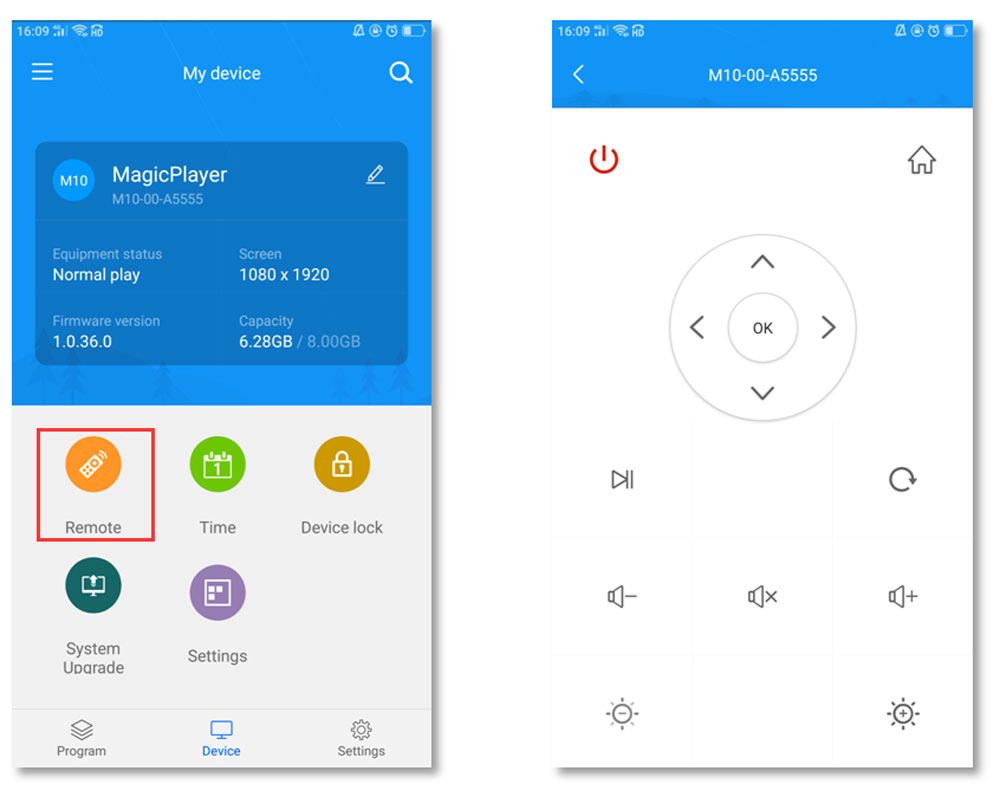
5.3.6 Remote Control Features
Control your display remotely using the app to adjust brightness, volume, playback, or turn the screen on/off.
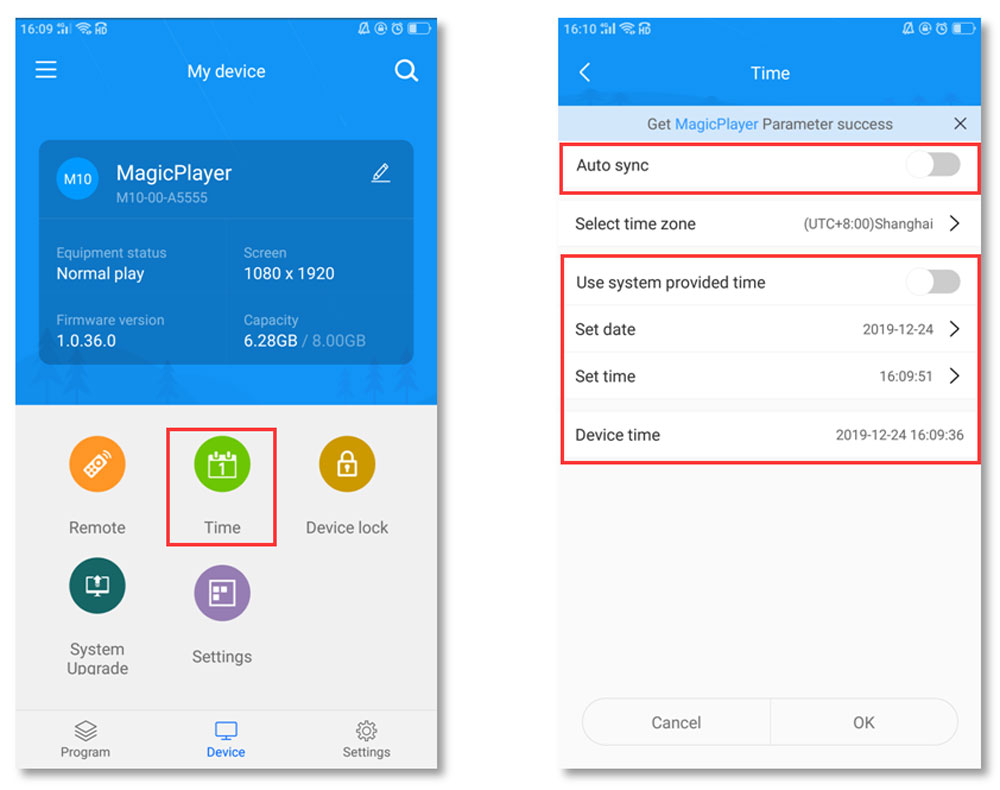
5.3.7 Time Synchronization
Synchronize the controller’s clock using:
- Internet-based auto-sync.
- Your phone’s current time.
- Manual time adjustment.
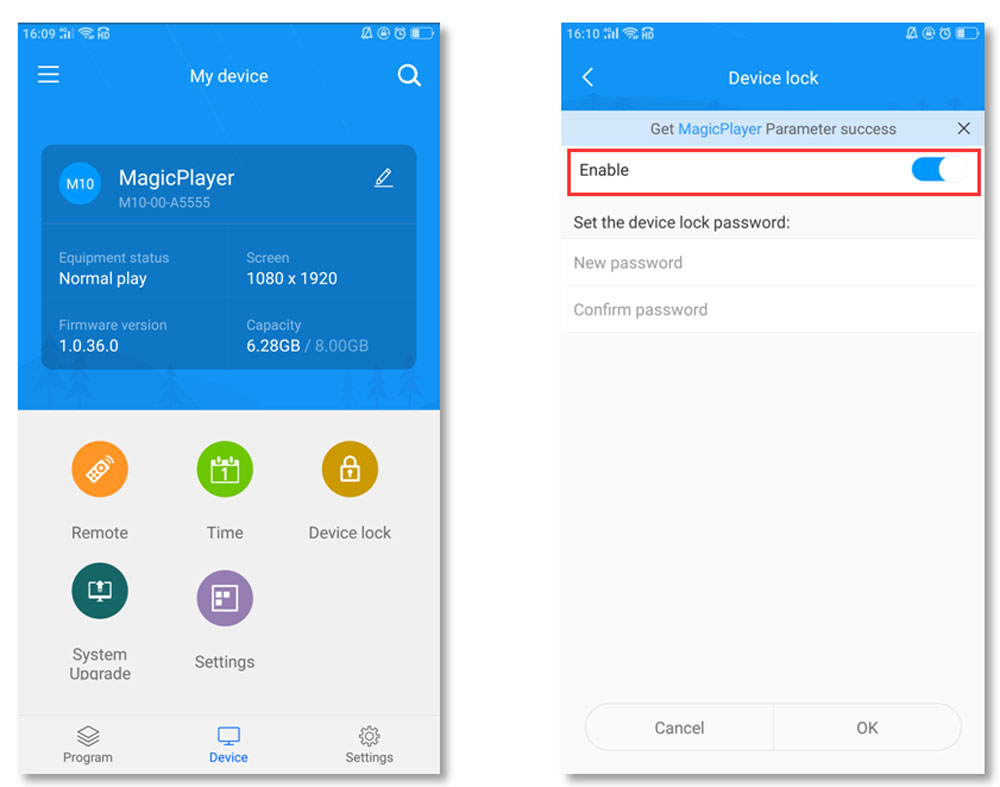
5.3.8 Security Features
Enable “Device Lock” to password-protect program uploads, ensuring unauthorized access is prevented.
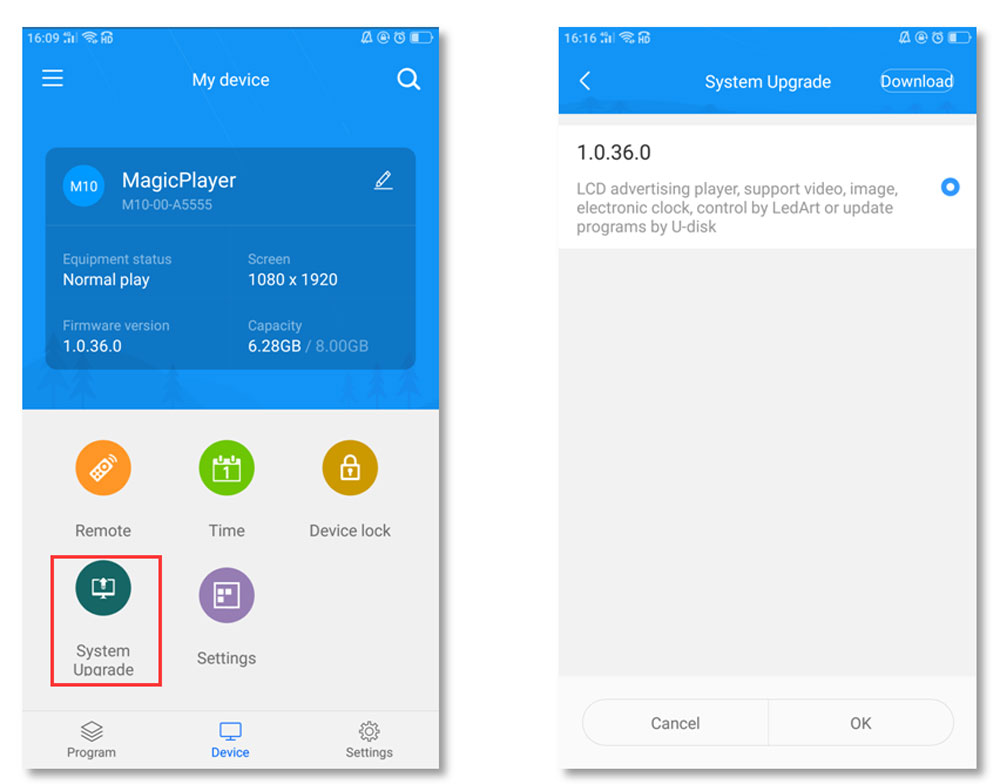
5.3.9 Firmware and System Upgrades
Update the controller’s firmware by downloading the latest version from the “Settings” section and using the “System Upgrade” feature.
5.3.10 Screen Parameter Configuration
Adjust screen settings by selecting and importing parameters into the controller. Required files can be downloaded from the “Download Management” section.
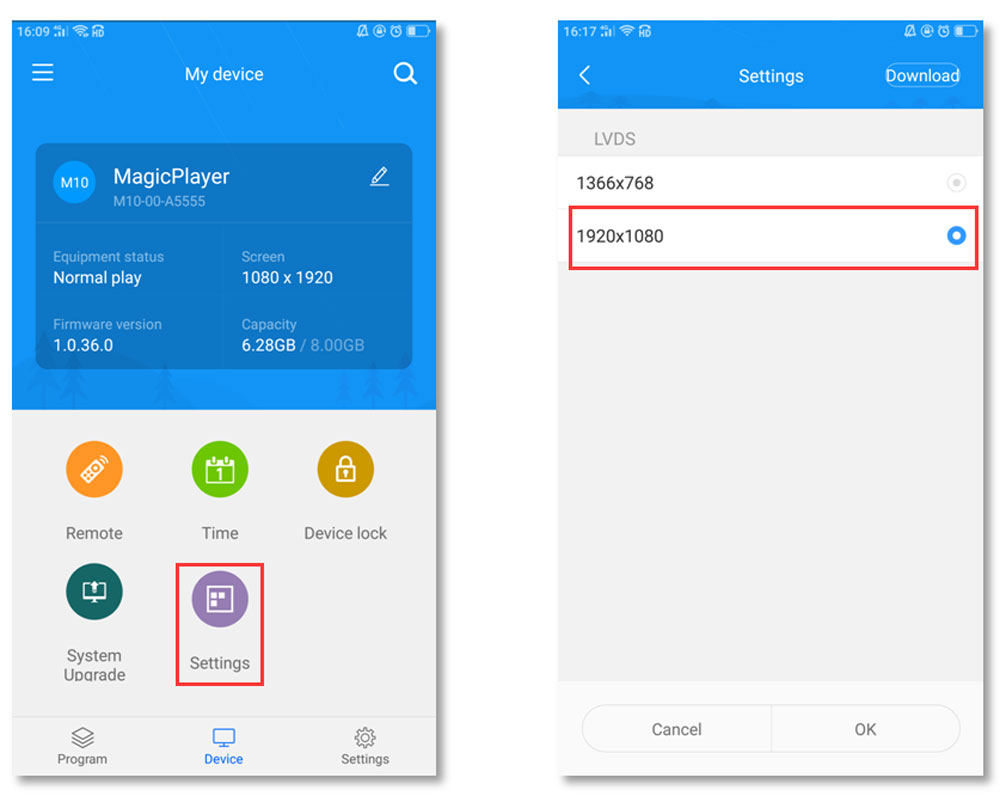
5.3.11 Additional App Settings
Modify app language, manage firmware, adjust hardware settings, and access saved Wi-Fi passwords in the “Settings” module. Advanced options are available for specific controllers like the W series.
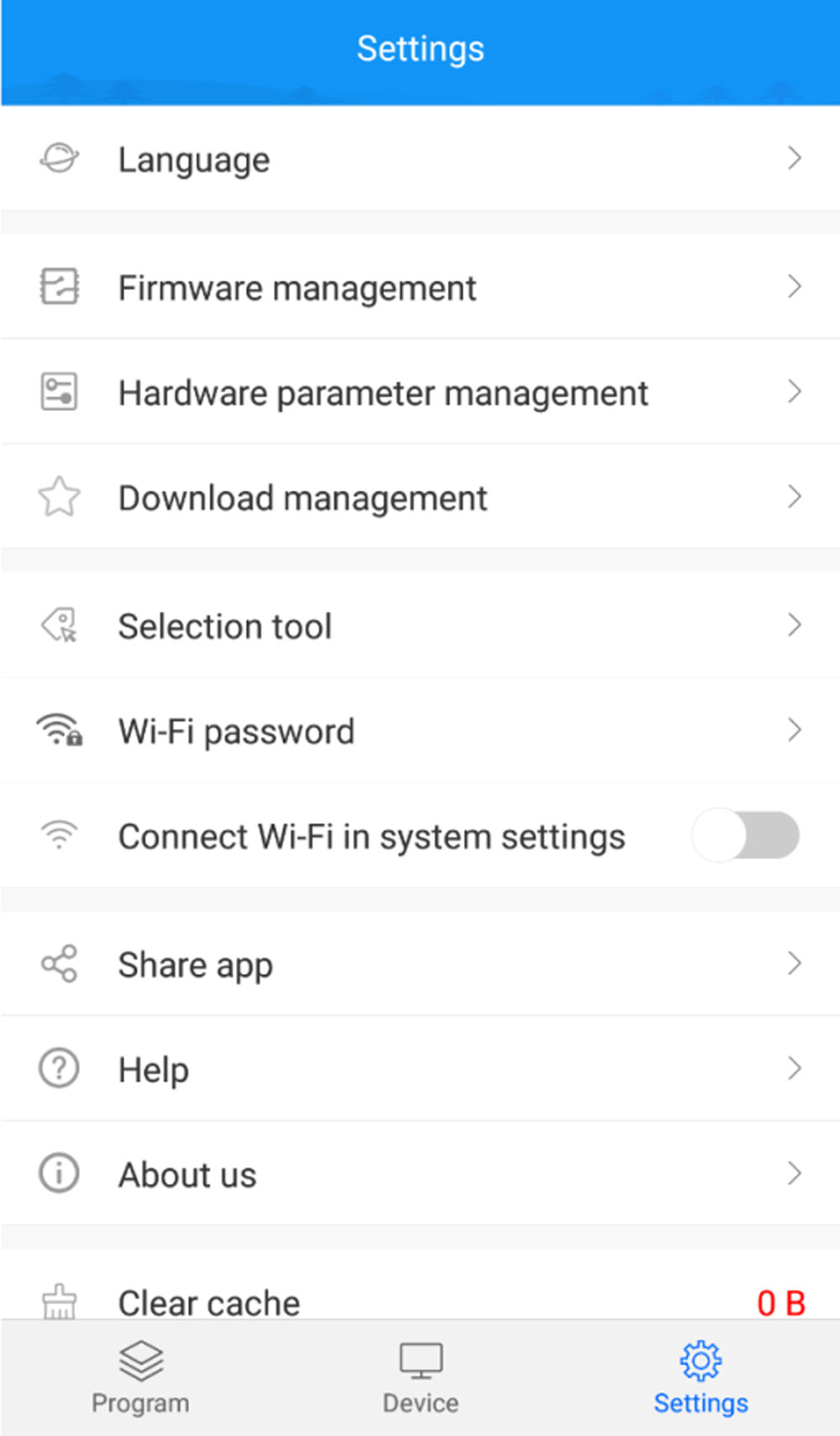
The Huidu LedArt App simplifies the process of editing, distributing, and managing LED and LCD display programs, making it an indispensable tool for efficient screen control.
6. Download the LedArt App Manual
To help users get the most out of the Huidu Led Art App, we provide detailed user manuals for both LedArt and LedArt Lite.
These manuals include full setup guides, feature explanations, troubleshooting steps, and version-specific notes.
If you need other detailed setup and usage instructions for the Huidu LedArt, you can download all official manuals directly from our website or contact LedInCloud.
7. FAQs
Can the LedArt app be used without additional hardware?
Yes, the LedArt app does not require extra hardware. It offers a cost-effective solution for controlling displays, even for non-technical users.
What are the differences between LedArt and LedArt Lite?
LedArt is the full-featured version of the app, supporting full-color and multi-function displays. LedArt Lite is a simplified version designed for single- and dual-color displays.
When Wi-Fi connected but no device online, how to do?
Turn off mobile data, Bluetooth, VPN, or any other potentially interfering connections.
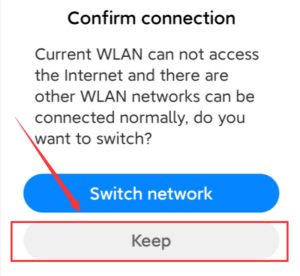
If your phone shows a message like “Current WLAN cannot access the Internet,” and other WLAN networks are available, select “Keep” to maintain the current connection.
What should we do if forget the Wi-Fi password?
For controllers with firmware V4.24 or above:
Press and hold the button (S1) on the controller for 10 seconds while the device is powered on. This resets the Wi-Fi password to the default “88888888.”
For controllers with firmware below V4.24:
Follow these steps to reset the controller:
Power off the controller and locate the button (S1).
Press and hold the button, then power on the controller without releasing it.
After 10 seconds, release the button. The Wi-Fi password will reset to “88888888,” but note that the screen parameters might also be altered.
8. Conclusion
The Huidu LedArt App is an essential tool for seamless and efficient control of LED and LCD displays. Its comprehensive features, from program editing to real-time screen management, make it a versatile choice for both professionals and non-experts. With user-friendly operation, support for diverse controllers, and accessibility on both Android and iOS, LedArt simplifies display control without the need for extra hardware.
Explore more on LedInCloud – LED Screen Cloud Platform to download the app, access detailed guides, and get the resources you need to maximize your LED display’s potential!