
NovaStar Unico: A Practical Guide to Unified LED Screen Control
NovaStar Unico is widely used in professional LED display systems, especially in projects involving multiple devices or complex screen layouts.
This article focuses on the NovaStar Unico control platform itself. It explains what the software is, how it is designed to work, and where it fits within an LED control system.
1. What Is NovaStar Unico Software?
NovaStar Unico software is a unified control platform for LED display systems.
From a functional perspective, Unico sits above the hardware layer. It does not replace LED controllers or video processors. Instead, it provides a centralized software interface to configure, operate, and monitor those devices.
In Unico, work is organized around projects. A project represents a complete LED system, including devices, screen layout, input sources, and output configuration. This structure allows the same system setup to be reused, backed up, or deployed again when needed.
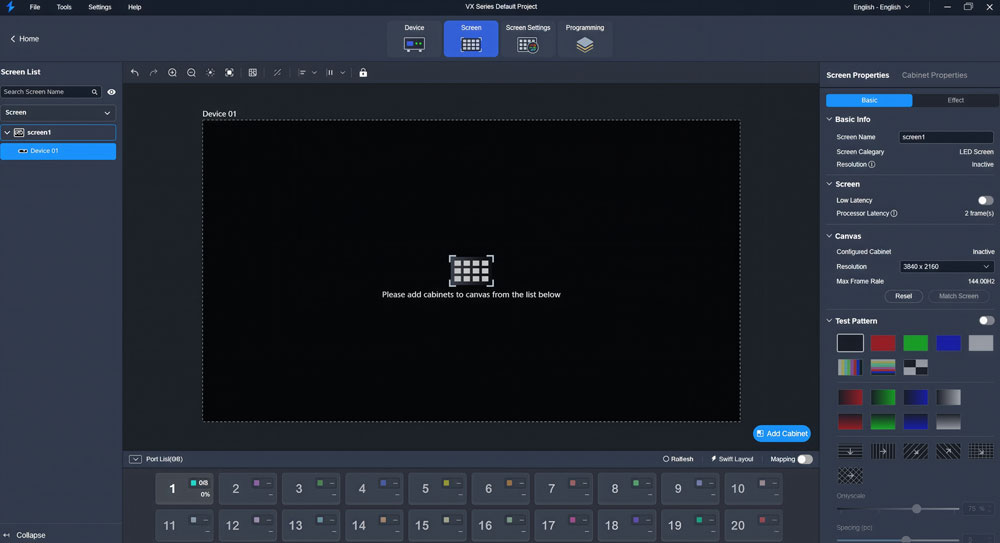
The software supports common tasks such as:
- Device connection and status monitoring
- LED screen configuration and topology setup
- Input and output signal management
- Layer-based content control
- Backup and redundancy configuration
All of these functions are accessed through a visual interface. Most operations are handled through graphical configuration rather than command-based workflows. This makes the software easier to use in complex projects, especially those involving large screens or multiple devices.
2. Why NovaStar Developed the Unico Platform?
In real LED projects, challenges often appear during daily operation rather than initial setup.
As systems become larger, operators need to manage multiple controllers, changing input sources, and screen layouts at the same time. Using tools that focus only on basic configuration makes these tasks harder to handle efficiently.
Another common issue is workflow consistency. Similar projects often require repeated setup, even when the system structure does not change much. This increases operation time and the chance of errors.
The Unico platform was developed to address these practical issues. It provides a centralized control environment where devices, screens, and signals are managed together as one system, with a focus on operation and long-term use.
3. Core Features
The core features of NovaStar Unico are built around one goal: operating an LED system as a complete unit rather than as separate devices.
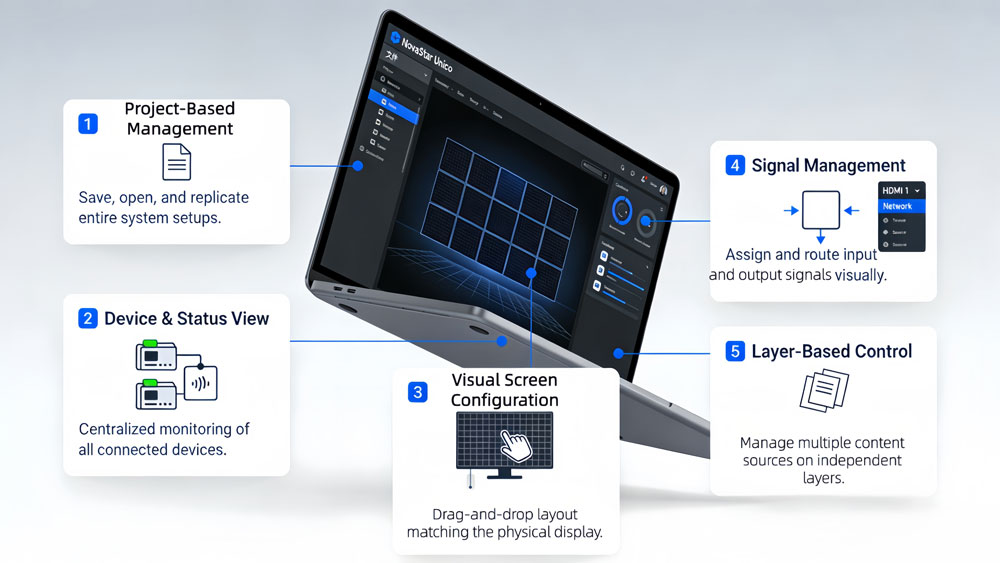
3.1 Project-Based System Management
Unico organizes all work at the project level. A project contains device connections, screen structure, and operational settings.
Once a project is created, it can be saved, opened again, or applied to a similar setup without rebuilding the system from scratch. For operators, this reduces repetitive work and helps keep system structures consistent.
3.2 Device Connection and Status Monitoring
Within a project, Unico provides a centralized view of connected devices.
Operators can see device connection status and basic operational information in one interface. This makes it easier to confirm whether the system is online and responding as expected, especially in projects with multiple controllers or distributed installations.
3.3 Visual Screen Configuration
Screen configuration in Unico is handled through a visual interface.
Users can define screen layout and topology based on the actual physical structure of the LED display. This includes how cabinets and receiving cards are mapped within the system. Visual configuration reduces the risk of logical errors and helps operators verify screen structure more intuitively.
3.4 Input and Output Signal Management
Unico allows input sources and output signals to be managed within the same project.
Operators can assign input sources, adjust output mapping, and control how signals are delivered to the screen. This unified handling of inputs and outputs simplifies system adjustment when signal sources change or when content routing needs to be updated during operation.
3.5 Layer-Based Control
The platform supports layer-based operation.
Layers allow different content sources to be managed independently within the same screen system. This structure is commonly used in professional environments where multiple signals or content types need to be displayed or switched without reconfiguring the entire system.
4. Getting Started
If you want to get the most out of Unico, you need to understand its “Project-first” logic. Unlike older software that forces you to connect hardware immediately, Unico lets you build your entire system digitally. Here is a step-by-step breakdown of how to actually use it in a real-world scenario.
Step 1: Starting a New Project
All work in Unico is saved in a project file (.uprj). Upon launch, the software opens to the Online Projects page. Click New Project to start.
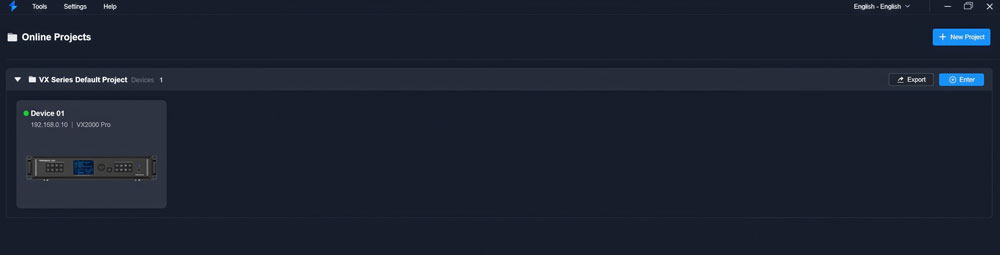
- The Canvas
You will see a workspace. This is where you define the resolution of your total display area.
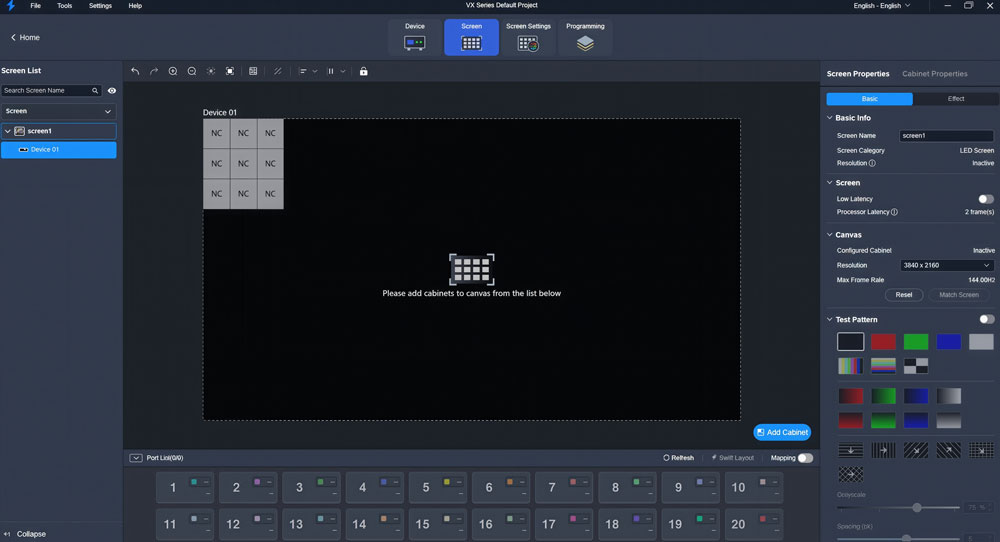
- Virtual Configuration
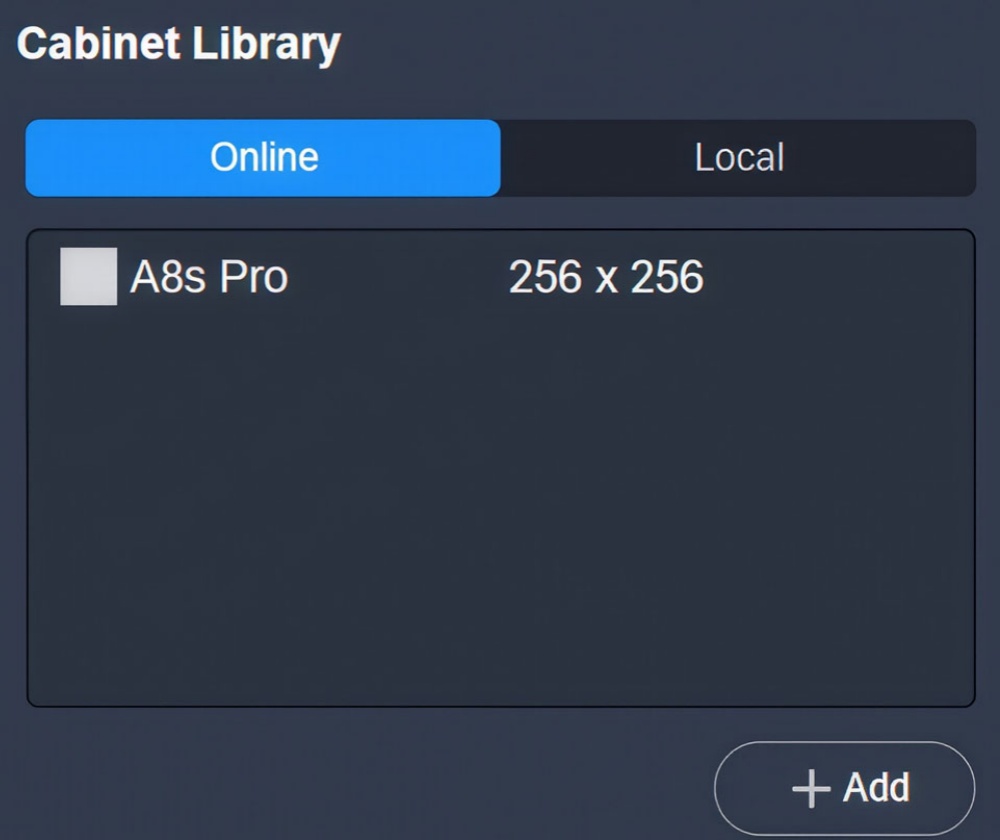
Even without physical hardware, you can add cabinets and configure screen layouts using the Cabinet Library. This allows for offline planning.
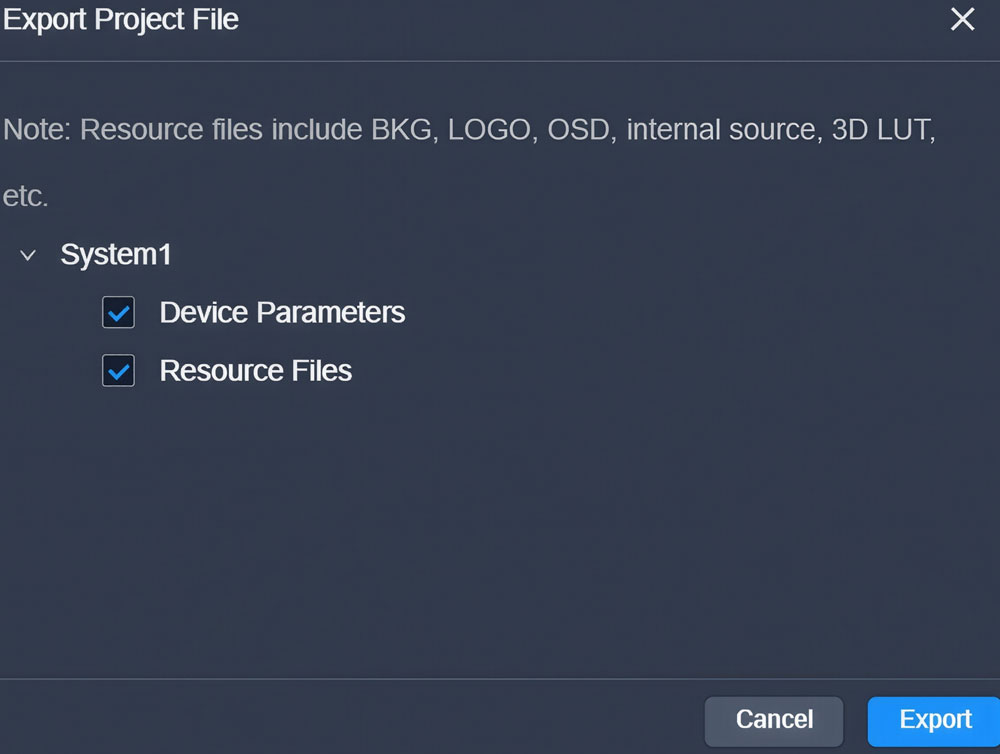
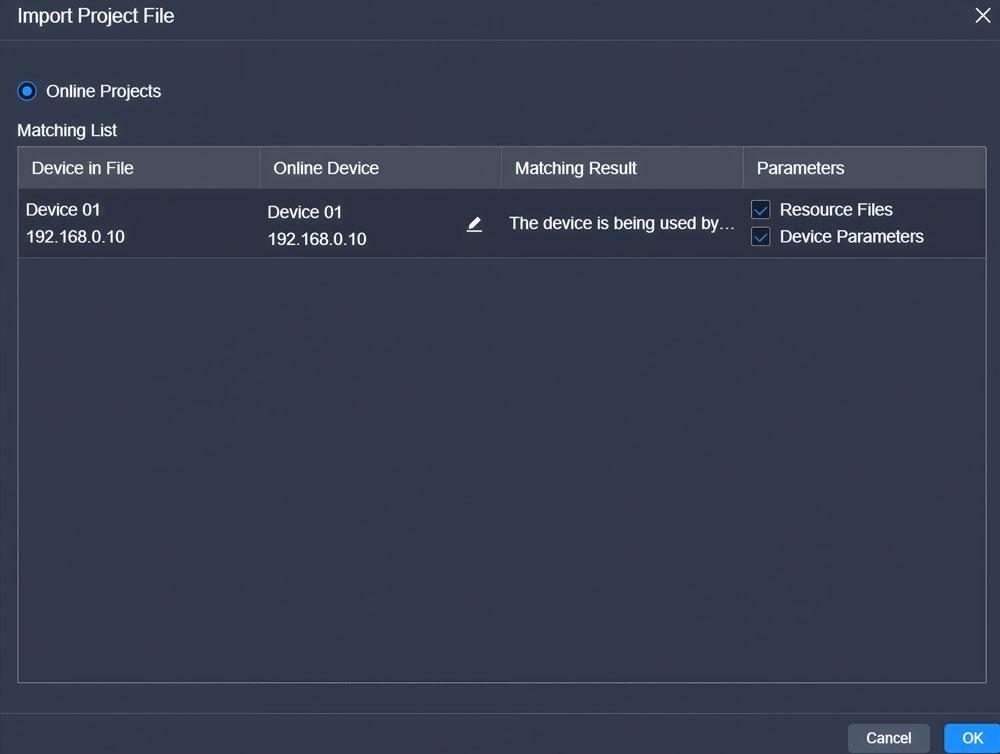
- Project Export
Once you finish the setup, you can export the project file. When you get to the event site, just import it, and your settings are ready to go.
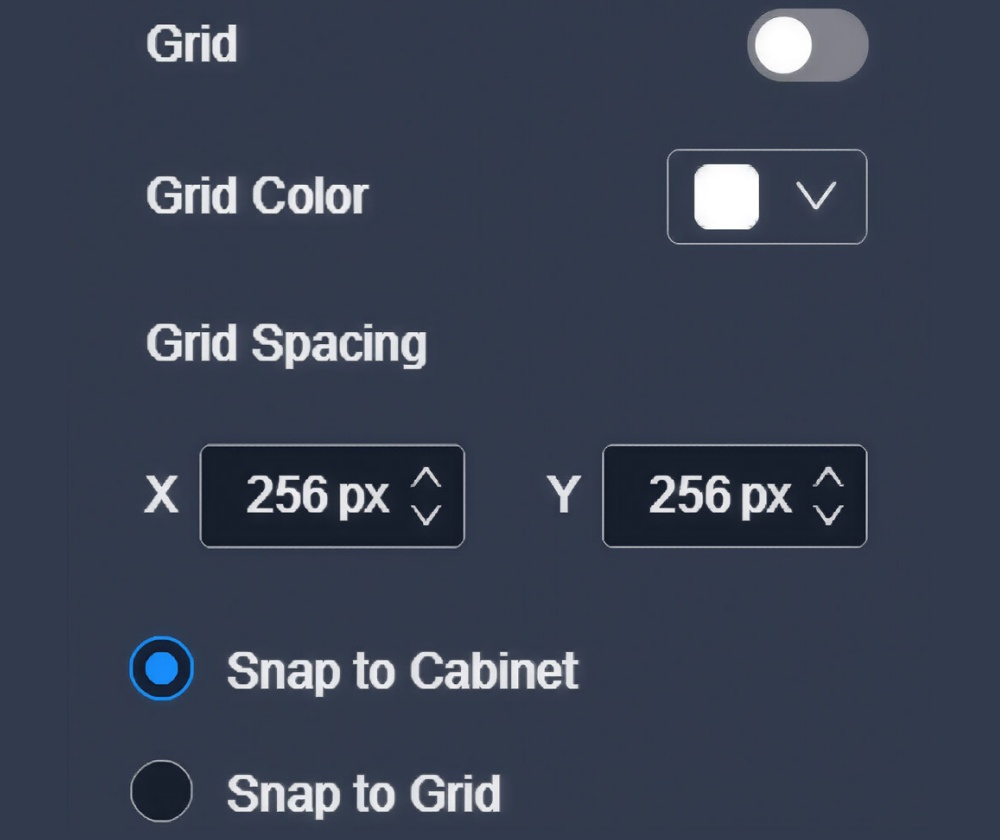
Step 2: Visual Screen Mapping (The "Snap" Workflow)
Mapping used to be the most tedious part of LED setup. Unico changes this with a visual canvas.
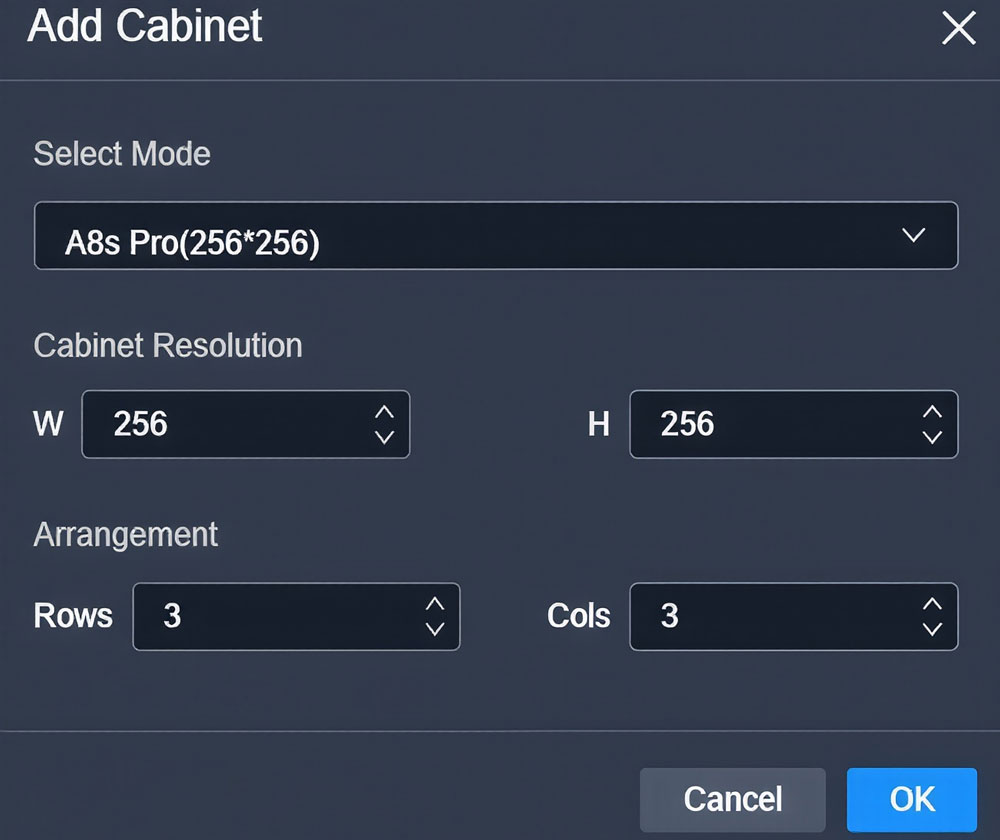
- Adding Cabinets
Instead of typing coordinates, you simply drag cabinets onto the screen.
- The Snap Feature
When you move one cabinet near another, it “snaps” into place. This ensures there are no black lines or overlapping pixels. It works like a magnet.
- Cabinet Libraries
If you are using standard cabinets, you can select them from the built-in library. It automatically knows the pixel width and height, saving you from manual data entry.
Step 3: Configuring Backup and Redundancy
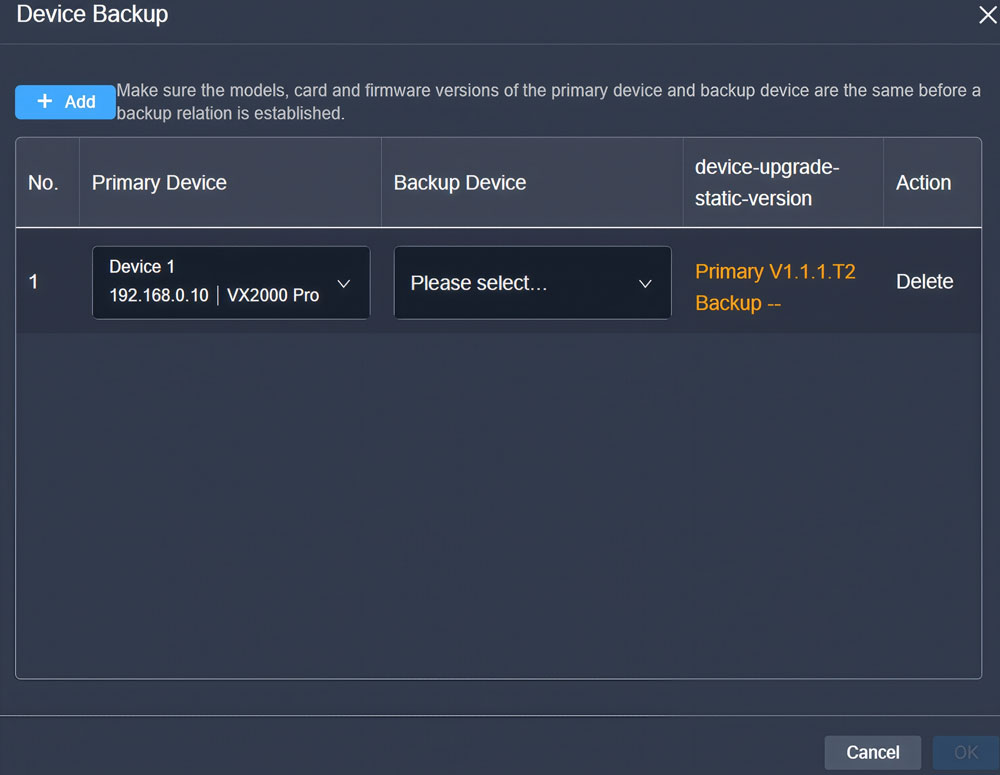
This is the most critical part of professional events. Unico handles backup at multiple levels to ensure the screen never goes dark.
- Setting up Port Backup
In the Device Management tab, you can see your Ethernet ports. You can designate Port 2 to be the backup for Port 1. If the cable in Port 1 fails, Port 2 takes over the signal instantly.
- Device Hot Backup
For mission-critical shows, you can use two controllers. You set one as the Primary and the other as the Backup. Unico monitors the status of both. If the Primary device loses power or signal, the Backup device takes control of the screen.
- Verifying the Link
Once you set the backup, the software shows a clear link between the two. This visual feedback tells you exactly which port is protecting which part of the screen.
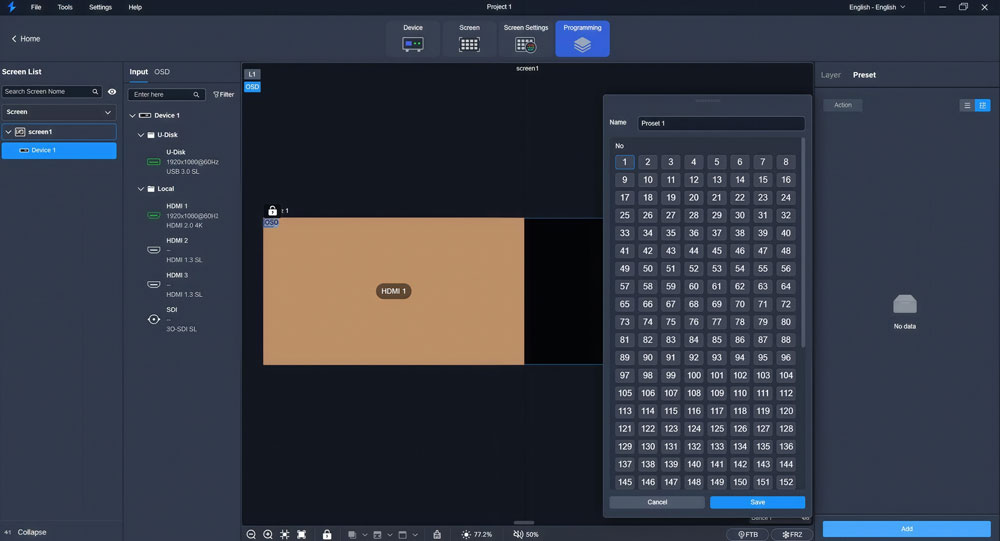
Step 4: Layer Management and Presets
Unico isn’t just for setup; it’s for operation.
- Source Cropping
If your video source is 4K but your screen is a weird size, you can use the Crop tool. This lets you select exactly which part of the video you want to show.
- Using Presets
After you have arranged your layers and sources, save the configuration as a Preset. You can create dozens of presets for different parts of a show. During the event, you just click the preset thumbnail, and the screen switches layouts instantly. This keeps the transition smooth and professional.
5. Who Should Use It?
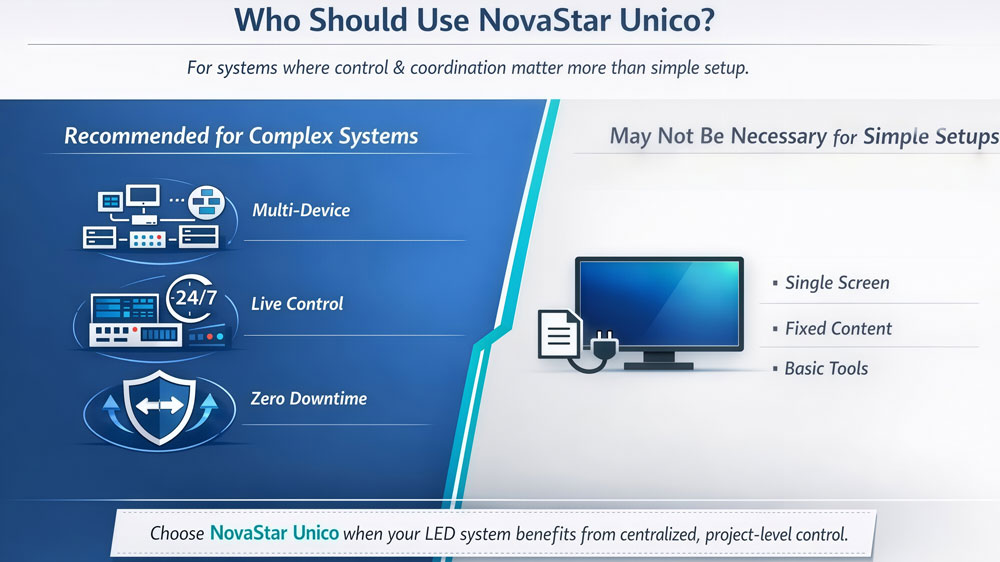
NovaStar Unico is not designed for every LED project. It is intended for systems where control, coordination, and long-term operation matter more than simple setup.
- System Integrators and Technical Engineers
In projects involving multiple controllers, complex screen layouts, or backup requirements, Unico provides a clearer system view. Engineers can manage devices, screens, and signals within one project instead of handling each part separately.
For teams that deploy similar systems repeatedly, the project-based structure also helps reduce setup time and maintain consistency across installations.
- Operators Managing Live or Long-Running Systems
In environments such as control rooms, exhibition spaces, or permanent installations, systems are often adjusted while running. Input sources may change, layers may be updated, and system status needs to be monitored continuously.
Unico supports this type of workflow by keeping operational controls, monitoring, and backup logic in one interface. This reduces the need to switch between tools during live operation.
- Projects with Higher Stability Requirements
When backup design, signal routing, and device roles are planned together, it becomes easier to manage risk during operation. Unico is therefore commonly used in projects where downtime is not acceptable or where systems run for extended periods.
- When Unico May Not Be Necessary
For smaller projects, Unico may not be required.
Single-screen systems with simple structure and fixed content can often be handled with basic configuration tools. In these cases, introducing a system-level control platform may add unnecessary complexity.
Choosing Unico makes the most sense when the LED system itself is complex enough to benefit from centralized control.
6. NovaStar Unico vs NovaLCT
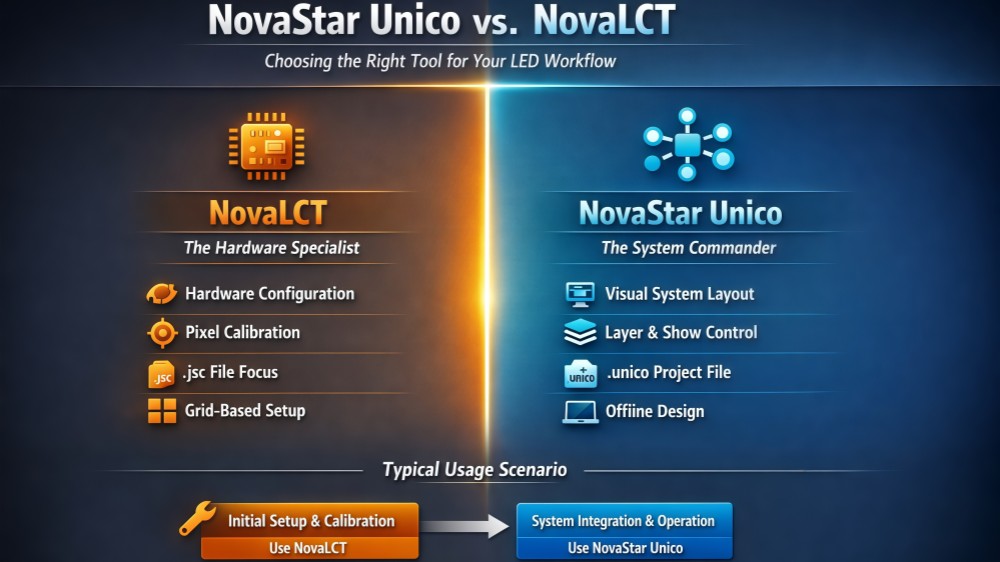
While both software packages are developed by NovaStar Technology to manage LED display systems, they serve different primary purposes and cater to different user experiences.
- Detailed Comparison of Technical Capabilities
| Category | NovaLCT | Unico Control Platform |
| Operational Focus | Hardware Commissioning. Focused on receiving cards and driver IC settings. | Unified Management. Focused on multi-device coordination and visual layouts. |
| Primary File Types | Works with .rcfgx (receiving card) and .scr (screen connection) files. | Uses a single .uprj project file to store all hardware and layout data. |
| Topology Mapping | Grid-based manual mapping. You click boxes in a grid to define data flow. | Visual Canvas. Supports free-form drag-and-drop with an automatic “Snap” feature. |
| Offline Capability | Very limited. You must be connected to hardware for most setup steps. | Full Offline Design. You can plan the entire project using virtual devices before reaching the site. |
| Visual Processing | Basic hardware-level monitoring and correction. | Advanced management of layers, OSD, source cropping, and preset switching. |
| Redundancy | Basic port-to-port or card-to-card backup settings. | Comprehensive backup design covering devices, ports, and input signal sources. |
| Calibration | The primary tool for managing brightness and chroma coefficients at a pixel level. | A gateway for quick coefficient management and visual consistency checks. |
| System Interface | Traditional engineering UI. Menu-heavy and requires specialized training. | Modern, dark-mode UI. Designed for speed and intuitive operation. |
- Summary of Application
✓ NovaLCT is the indispensable utility for the initial hardware setup. It provides the necessary depth for engineers to configure the driver IC, define data scan modes, and perform precise pixel-level calibration.
✓ Unico is the preferred platform for live event management and complex installations. By consolidating screen topology, layer control, and preset management into a single interface, it streamlines the operational workflow and reduces the complexity of managing multiple video processors and controllers.
7. NovaStar Unico Software Download
Getting the right software version is the first step toward a successful setup. You can download the NovaStar Unico Control Platform directly to start managing your LED projects.
Always ensure your computer meets the recommended system requirements, such as a Windows 10 (64-bit) operating system and sufficient RAM, to ensure a smooth, lag-free experience while managing high-resolution layers.
- More NovaStar Softwares
If you are looking for other official resources, such as firmware updates, specialized calibration tools, or drivers, we provide a comprehensive library of files. For all other NovaStar tools, we recommend visiting our NovaStar Software page to download the latest versions of NovaLCT, ViPlex Express, or various resources.
8. FAQs
Is NovaStar Unico software a replacement for LED controllers?
No. NovaStar Unico software does not replace LED controllers or sending hardware. Controllers handle signal output and screen driving, while Unico works above the hardware layer as a control and operation platform.
Can NovaStar Unico be used together with other NovaStar tools?
Yes. In many projects, basic configuration may still be completed using other NovaStar tools during initial setup. Unico is then used for system operation, monitoring, and adjustment during daily use.
Does Unico support backup and redundancy?
Yes. Unico supports backup design at different levels, including signal sources, transmission paths, and device structure. Backup is configured as part of the project and verified during system testing rather than handled as a temporary setting.
Is NovaStar Unico suitable for small LED projects?
Not always. For simple projects with a single screen and fixed content, basic configuration tools may be sufficient. Unico is more suitable for systems with multiple devices, complex layouts, or higher operational requirements.
Does NovaStar Unico require an internet connection to work?
No. NovaStar Unico operates within a local network environment. It communicates directly with connected NovaStar devices over the network and does not rely on an external internet connection for normal operation.
An internet connection is only required for software download or update, not for daily system control.
Can NovaStar Unico work with multiple screens in one project?
Yes. A single Unico project can include multiple screens. Each screen can have its own layout, resolution, and signal assignment, all managed within the same project structure.
9. Conclusion
Choosing the right software is just as important as choosing the right LED hardware. As we have explored, the NovaStar Unico Control Platform is a significant step forward for the industry. It moves away from the old, technical way of managing individual cards and moves toward a visual, project-based system. By integrating video processing and screen control into one interface, Unico makes managing complex displays much faster and more reliable.
If you are just getting started or need a reliable partner for your next LED project, we are here to help. You can visit our LED Screen Cloud Platform to explore our full range of LED display solutions and technical support services. With the right tools and the right platform, managing your LED screen project has never been easier.