
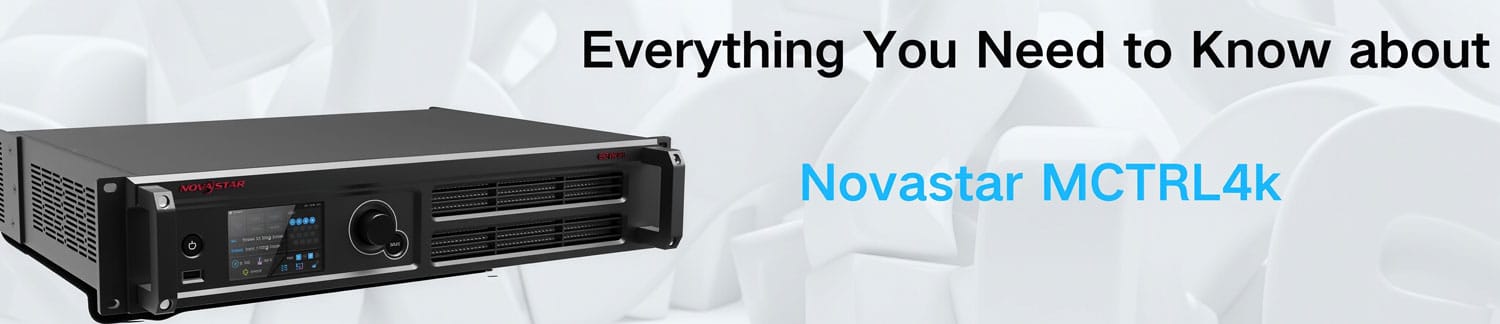
NovaStar MCTRL4K: What Makes It a True 4K LED Controller
The NovaStar MCTRL4K is a high-capacity LED display controller built for large-scale LED installations. A single unit loads up to 4096×2160@60Hz, with custom resolution support up to 7680 pixels wide or tall.
It’s used in concerts, sports venues, Olympic events, security monitoring centers, and fixed installations worldwide. If you’re evaluating this controller for a project, this guide covers everything — specs, features, setup, software, and pricing.
Catalogs:
1. What Is the NovaStar MCTRL4K?
2. Key Specs at a Glance
3. Input & Output — What’s on the Back Panel
4. NovaStar MCTRL4K Key Features
5. Mosaic Mode vs Multi-Card Mode
6. NovaStar MCTRL4K Scaling and Custom Resolution
7. NovaStar MCTRL4K vs MCTRL660
8. NovaStar MCTRL4K Price
9. NovaStar MCTRL4K Software, Firmware and Manual
10. FAQ
1. What Is the NovaStar MCTRL4K?
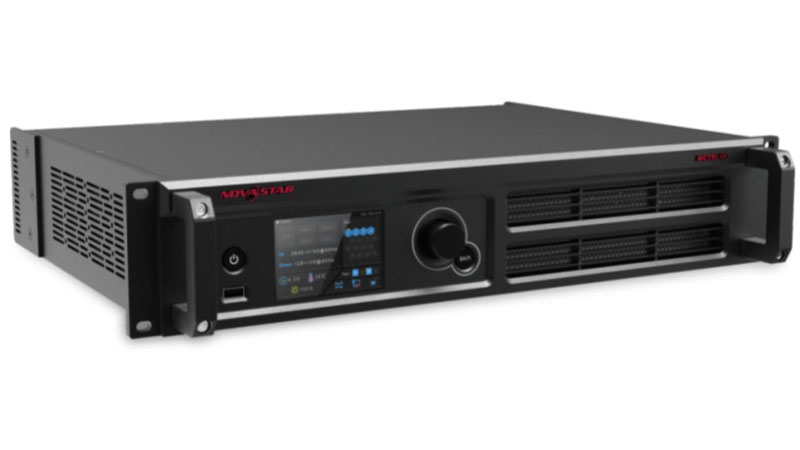
The MCTRL4K is NovaStar’s sending card for large LED displays. It sits between your video source and the LED wall, processing and distributing the image across all cabinets.
It comes in a standard 2U rack unit and draws only 30W. So despite the output capacity, it’s compact and easy to rack.
The controller works with NovaLCT and SmartLCT software — both free. You can also configure it from a web browser or directly from the front panel LCD without a PC.
It supports two working modes: Mosaic mode runs it as a single high-capacity controller, and Multi-card mode splits it into two independent sending cards. More on that in a later section.

2. Key Specs at a Glance
Before checking the features in detail, it helps to understand the basic capabilities of the NovaStar MCTRL4K.
The controller supports up to 8.8 million pixels when using HDMI or DP inputs. This means it can handle large LED video walls and high-resolution display projects.
It also supports custom screen layouts with a maximum width or height of 7680 pixels. This is useful for special screen designs, such as ultra-wide stage backgrounds, ribbon displays, and other non-standard LED screens.
The MCTRL4K also provides flexible transmission options. It comes with 16 Gigabit Ethernet outputs and 4 × 10G optical ports. These interfaces help the controller work with large LED systems and longer-distance signal transmission.
Here are the main NovaStar MCTRL4K specs:
|
Item |
Specification |
|
Max Loading Capacity (DP/HDMI) |
8.8 Million Pixels |
|
Max Loading Capacity (DVI) |
8.3 Million Pixels |
|
Max Width / Height |
7680 Pixels |
|
Ethernet Outputs |
16 × Neutrik Gigabit Ports |
|
Optical Outputs |
4 × 10G Optical Ports |
|
Video Inputs |
1 × DP 1.2, 1 × HDMI 2.0, 2 × Dual-Link DVI |
|
Bit Depth |
8-bit, 10-bit, 12-bit |
|
HDR Support |
HDR10 and HLG |
|
Power Consumption |
30W |
|
Weight |
4.6 kg |
3. Input & Output — What's on the Back Panel
The NovaStar MCTRL4K offers a wide range of input and output options for large LED display projects. It supports both copper and optical transmission, making it suitable for standard installations as well as long-distance signal distribution.

3.1 Video Inputs
The front-end signal can enter the controller through the following interfaces:
- 1 × DP 1.2
- 1 × HDMI 2.0
- 2 × Dual-Link DVI
These inputs allow the MCTRL4K to accept high-resolution video sources from media servers, PCs, video processors, and broadcast systems.
For 4K workflows, DP 1.2 and HDMI 2.0 support input resolutions up to 4096×2160 at 60Hz. The Dual-Link DVI inputs can also be used for high-resolution content or specific display configurations.
3.2 Ethernet Outputs
On the output side, the controller provides:
- 16 × Neutrik Gigabit Ethernet ports
These ports send image data to the receiving cards installed inside the LED display cabinets.
Under standard conditions, a single Ethernet port can load up to:
- 650,000 pixels at 8-bit color depth
- 320,000 pixels at 10-bit or 12-bit color depth
This allows the NovaStar MCTRL4K LED display controller to drive very large screens while maintaining stable signal transmission.
3.3 Optical Fiber Outputs
For long-distance transmission, the MCTRL4K includes:
- 4 × 10G optical ports
OPT 1 corresponds to Ethernet ports 1–8, while OPT 2 corresponds to Ethernet ports 9–16. OPT 3 and OPT 4 can be used as backup links to improve system redundancy.
Compared with traditional network cables, optical fiber transmission can cover much longer distances and is often used in stadiums, large venues, and broadcast environments.

3.4 Genlock Synchronization
The rear panel also includes Genlock IN and Genlock LOOP connectors.
These interfaces allow multiple controllers to synchronize with a common reference signal. The MCTRL4K supports Bi-level Sync, Tri-level Sync, and Black Burst signals, which are commonly used in broadcast and professional video applications.
For projects that require frame-level synchronization across multiple LED screens, Genlock helps maintain consistent image timing throughout the system.
4. NovaStar MCTRL4K Key Features
A lot of LED controllers can drive a big screen. But the MCTRL4K goes further than that. Here’s what sets it apart.
✔ HDR — Better highlights, better shadows
Most LED displays run in SDR. The problem with SDR is that bright areas tend to blow out and dark areas lose detail. HDR fixes that by expanding the range between the two.
The MCTRL4K supports HDR10 and HLG. HDR10 is the standard choice for fixed installations and playback content. HLG is better suited for live broadcast — you don’t need to grade the footage in post, the controller handles it in real time. There are 7 HLG modes ranging from 300 nits to 1700 nits, so you can match the setting to your screen’s actual peak brightness.
Worth noting: HDR only works via HDMI input, requires a 10-bit signal, and needs A8s or A10s Plus receiving cards on the cabinet side. Enabling it also cuts each Ethernet port’s loading capacity in half, so plan your layout accordingly.
✔ Low Latency — Under 1ms
In live events, latency is a real problem. If the screen lags even slightly behind the audio or the performer, it’s noticeable. The MCTRL4K brings that delay down to less than 1ms, which is essentially imperceptible.
This works with DP or HDMI input only, and each Ethernet port needs to load cabinets vertically. It can’t run alongside Genlock or 3D at the same time.

✔ 3D Support
Pair the MCTRL4K with NovaStar’s EMT200 emitter and 3D glasses, and you get full 3D display on an LED wall. It supports Side-by-Side, Top-and-Bottom, and Frame Sequential formats. In DVI mode, DVI1 handles the left-eye feed and DVI2 handles the right.

✔ Individual RGB Gamma Adjustment
On large LED walls, color uniformity is hard to maintain — especially at low grayscale levels. The MCTRL4K lets you adjust the red, green, and blue gamma channels separately when using 10-bit or 12-bit input. That gives you fine control over white balance and shadow detail that a global gamma curve just can’t achieve.
✔ Pixel-Level Calibration
Working with NovaStar’s calibration system, the MCTRL4K can calibrate brightness and chroma at the individual pixel level. So even across hundreds of cabinets, the display looks consistent — no hot spots, no color drift between panels.
✔ RGB Limited to Full Conversion
Some sources output RGB Limited instead of RGB Full. Without correction, blacks look grey and low-end detail gets clipped. The MCTRL4K detects this and converts automatically. Just make sure the source is actually Limited before enabling it — applying it to an RGB Full signal will cause grayscale loss.
✔ Genlock
For multi-screen setups or broadcast applications where timing matters, the MCTRL4K has a Genlock IN/LOOP connector. It supports Bi-level, Tri-level, and Blackburst. Up to 10 units can sync their output this way.
✔ Web Control
No software needed for basic configuration. Connect the MCTRL4K to your local network, open Chrome on any device, type in the device IP, and you can adjust settings remotely. It’s useful on-site when you don’t want to carry a laptop to the controller rack.
5. Mosaic Mode vs Multi-Card Mode
The MCTRL4K has two working modes. Choosing the right one depends on what your project actually needs.
5.1 Mosaic Mode
This is the default mode. The MCTRL4K works as a single sending card, taking one video input and distributing it across all output ports.
In mosaic mode, you can choose from four input sources: Auto, DP, HDMI, or DVI×2. When set to Auto, the controller detects inputs in this order — DP first, then HDMI, then DVI. It also supports two DVI mosaic layouts: Top-and-Bottom or Side-by-Side.
This mode is the right choice when you’re driving one large display from a single video source.

5.2 Multi-Card Mode
In this mode, the MCTRL4K splits into two independent sending cards. DVI1 and DVI2 each carry a separate video source, and both can be displayed on the same screen at the same time. Each card handles up to 3840×1080@60Hz.
So if you need to show two different content sources on one LED wall simultaneously, this is how you do it.
One thing to keep in mind: in multi-card mode, the only input option is DVI. DP and HDMI are not available. And the two DVI sources can be displayed at the same time but cannot be configured at the same time.

5.3 Which one should you use?
If you have one video source and one big screen — go with Mosaic. If you need two independent content feeds on the same display — switch to Multi-card.
6. NovaStar MCTRL4K Scaling and Custom Resolution
One of the more practical questions people ask about the nova mctrl4k is how to handle non-standard screen sizes. Here’s how it works.
6.1 Standard Resolutions
The MCTRL4K comes with a full list of preset resolutions for each input type. You just pick one from the menu.
|
Input |
Max Standard Resolution |
|
DP 1.2 |
3840×2160@60Hz |
|
HDMI 2.0 |
3840×2160@60Hz |
|
Dual-Link DVI |
3840×2160@30Hz |
All three inputs also support a wide range of frame rates — 24, 25, 30, 48, 50, 60Hz and more. The MCTRL4K is also adaptive to decimal frame rates like 23.98, 29.97, 59.94Hz.
6.2 Steps to Customize a Resolution
Customize a resolution by setting a custom width, height, and refresh rate.
- Step 1: On the home screen, press the knob to enter the main menu screen.
- Step 2: Go to Input Settings > Input Resolution > Custom to set the width, height, and refresh rate.
- Step 3: Select Apply and press the knob to apply the custom resolution.

6.3 Set an Ultra-High Resolution
Set an ultra-high resolution via the NVIDIA grphics card of the compute. It only works when the input source is DP or HDMI. The width or height is up to 7680 pixels.
- Recommended graphics cards: NVIDIA GeForce GTX 970, NVIDIA GeForce GTX 1060, and NVIDIA GeForce GTX 750 Ti.
- Note: When the width or height of the output image is greater than 4092 pixels, the resolution must be customized via the NVIDIA graphics card.
Steps:
- Step 1: Right-click on the desktop.
- Step 2: Select NVIDIA Control Panel.
- Step 3: On the left panel, choose Display > Change resolution. On the right area, select NOVA MCTRL4K.
- Step 4: Under 2. Apply the following settings, and click Customize. In the Customize dialog box that appears, click Create Custom Resolution. In the Create Custom Resolution dialog box that appears, set the parameters.
When you set the timing standard to Manual, use the MCTRL4K Ultra-High Resolution Settings. Generator (Rev 1.1) to calculate the parameters, including active pixels, front porch (pixels), sync width (pixels), polarity, total pixels, and refresh rate. Then enter the parameter values manually. Note that the pixel clock must not be greater than 595.0 MHz.
When you set the timing standard to CVT reduced blank, the software will calculate the parameters automatically and they cannot be changed manually.
- Step 5: Click Test. In the displayed dialog box indicating the test is successful, click Yes to save the custom resolution.

7. NovaStar MCTRL4K vs MCTRL660
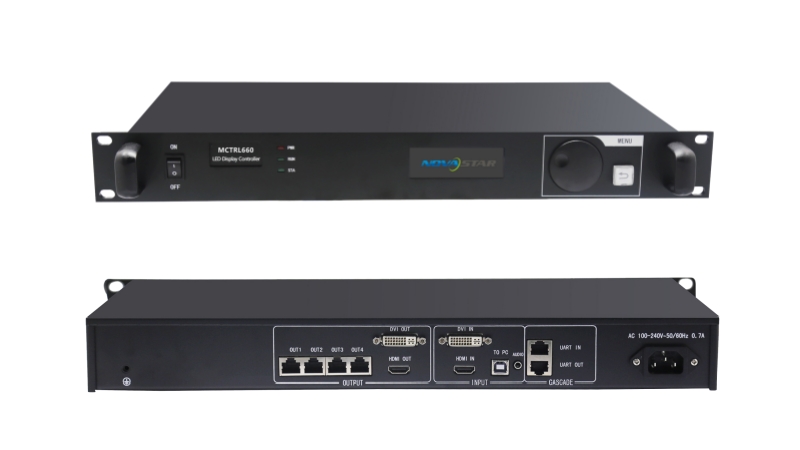
People often compare these two controllers. They’re both from NovaStar, both used in rental and fixed installations, but they target very different project scales. Here’s a direct comparison.
|
Parameter |
MCTRL4K |
MCTRL660 |
|
Max loading (standard input) |
8,800,000 pixels |
1,920×1,200 @ 60Hz |
|
Max custom width/height |
7,680 pixels |
3,840 pixels |
|
Input connectors |
1× DP 1.2, 1× HDMI 2.0, 2× DL-DVI |
1× SL-DVI, 1× HDMI 1.3 |
|
HDMI version |
HDMI 2.0 |
HDMI 1.3 |
|
Ethernet output ports |
16× Neutrik Gigabit |
4× RJ45 Gigabit |
|
Optical ports |
4× 10G (up to 10km) |
None |
|
HDR support |
HDR10 + HLG |
Not supported |
|
3D support |
Yes (with EMT200) |
Not supported |
|
Low latency |
<1ms |
Not supported |
|
Bit depth |
8 / 10 / 12-bit |
8 / 10 / 12-bit |
|
Cascading |
Up to 10 units (USB or Genlock) |
Up to 20 units (UART) |
|
Audio input |
No |
Yes |
|
Power consumption |
30W |
16W |
|
Dimensions |
482.6 × 372.0 × 88.1 mm |
483.0 × 258.1 × 55.3 mm |
|
Weight |
4.6 kg |
3.6 kg |
So which one do you actually need?
The MCTRL660 is a solid controller for mid-size projects. It’s lighter, draws less power, and can cascade up to 20 units — which makes it flexible for multi-screen rental setups. But it only has 4 Ethernet outputs and no HDR, so there’s a hard ceiling on what it can do.
The MCTRL4K is a different league. With 16 Ethernet ports, 4 optical ports, and support for HDR, 3D, and low latency, it’s built for large-scale installs where image quality and loading capacity are the priority.
If your screen is under 2 million pixels and you don’t need HDR or 3D, the MCTRL660 does the job. But once you’re pushing a large 4K wall, a stadium screen, or a broadcast-grade installation, the NovaStar 4k controller MCTRL4k is the one you want.
8. NovaStar MCTRL4K Price
The NovaStar MCTRL4K is priced at around $3,585 per unit. That said, the final price depends on your order quantity, shipping destination, and whether you need any additional accessories.
Want an exact quote?
The fastest way is to register on the LedInCloud – LED Screen Cloud Platform. It’s free. Once you’re in, you can:
- Check the current price and stock availability in real time
- Download the MCTRL4K manual, specifications, and firmware files
- Request a formal quote directly from our team
- Access configuration files and other technical resources
- No back-and-forth emails, no waiting. Everything is self-service.

9. NovaStar MCTRL4K Software, Firmware and Manual
For the latest software resources for your MCTRL4K controller, visit the NovaStar Software download page. Here, you can access a variety of tools designed to enhance your LED display experience.
MCTRL4K can work with NovaLCT and SmartLCT. NovaLCT is the standard configuration tool for NovaStar LED display controllers. It’s used for system setup, screen configuration, and calibration. SmartLCT is designed with a more user-friendly interface and is tailored for simpler and quicker setup processes like building-block screen configuration, offline (online) design, seam brightness adjustment, image rotation, etc.
NovaLCT Firmware Update Processes:
- Step 1: Run the NovaLCT. On the menu bar, go to User > Advanced Synchronous System User Login. Enter the password and click Login.
- Step 2: Input the secret code “admin”.
- Step 3: Browse the newest firmware package, and click Update.
SmartLCT Firmware Update Processes:
- Step 1: Run SmartLCT and go to the V-Sender page.
- Step 2: In the properties area on the right, click to enter the Firmware Upgrade page.
- Step 3: Select the newest firmware you have downloaded before.
- Step 4: Click Update.
10. FAQs
Can I run two different content sources on the same screen at the same time?
Yes, but only in Multi-card mode with DVI input. DVI1 and DVI2 each carry an independent video source, and both can be displayed on the screen simultaneously. This feature is not supported with DP or HDMI input.
What receiving cards work with HDR on the MCTRL4K?
HDR requires NovaStar A8s or A10s Plus receiving cards on the cabinet side. Standard receiving cards cannot properly process HDR signals, so they are not recommended for HDR applications.
How many MCTRL4K units can I cascade?
Up to 10 units can be cascaded. You can use USB IN/OUT for centralized PC control, or use GENLOCK IN/LOOP ports to synchronize output across all units.
The screen shows a black image after I change the input resolution. What's wrong?
This usually happens when the new resolution does not match the graphics card output settings. The MCTRL4K and GPU must use exactly the same resolution. For custom ultra-wide resolutions above 4092 pixels, the setting must be configured in the NVIDIA Control Panel instead of only on the controller.
Does the MCTRL4K support interlaced input?
No. All input interfaces including DP, HDMI, and DVI only support progressive signals. Interlaced formats are not supported.