NovaStar MX40 Pro LED Display Controller Overview & Setup
NovaStar MX40 Pro is a professional LED display controller designed for large-scale, high-resolution display systems. It sits between video sources and LED screens, handling signal input, processing, and output in a single device.
This article takes a practical look at the MX40 Pro. It explains what the controller is, how it works in real systems, and where it fits best.
Table of Contents
1. What is NovaStar MX40 Pro?
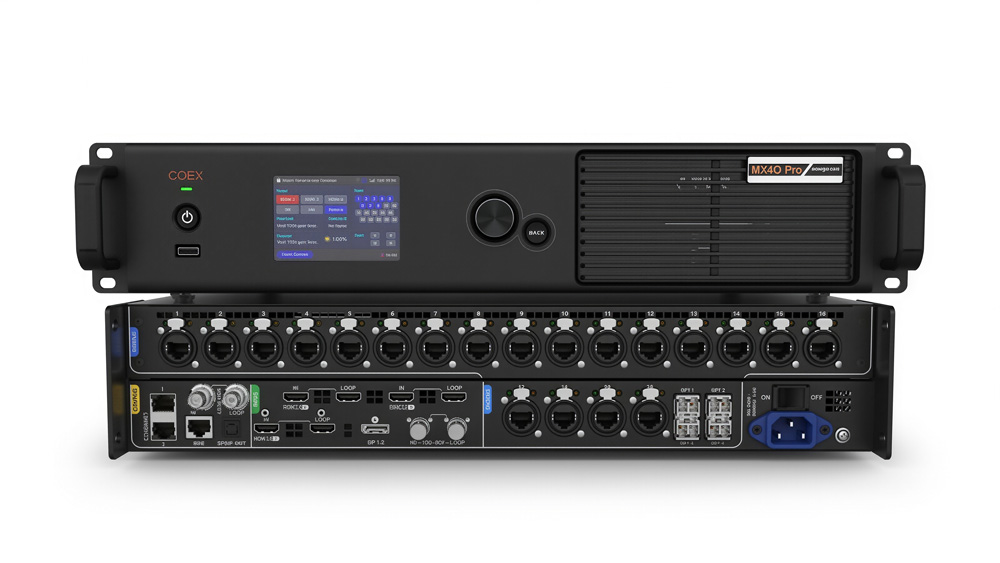
The Nova MX40 Pro is a high-performance LED display controller that integrates video processing, signal distribution, and system control into one unit. It supports multiple video inputs, processes high-resolution signals, and outputs data to LED screens through Ethernet and optical interfaces.
From a system perspective, the MX40 Pro works as the core control layer. It receives video signals from sources such as media servers or switchers, processes the image, and distributes pixel data to receiving cards across the LED wall. This makes it suitable for large displays where consistent image quality and stable signal delivery are required.
In the sections below, we will look more closely at its key features, performance characteristics, and how it is typically configured and operated in real-world projects.
2. Key Features of the MX40 Pro
When engineers choose the NovaStar MX40 Pro, they usually focus on how it behaves in a real system, not just on a list of ports or numbers. This controller stands out because it combines video processing, signal control, and system capacity in a single workflow. Below are the key features that shape how it is used on site.
Flexible Video Input and Output Architecture
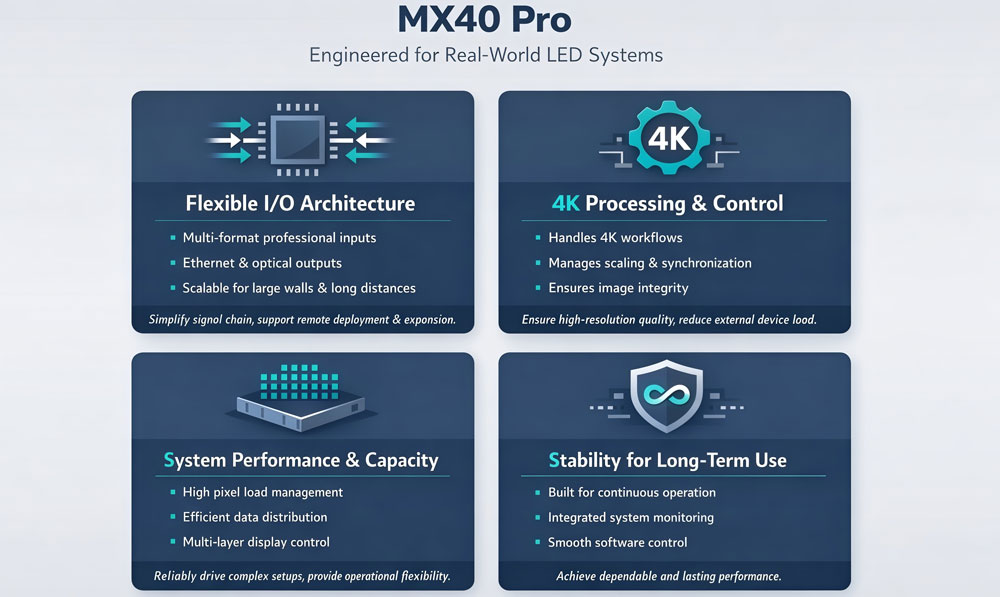
The COEX MX40 Pro supports multiple professional video input types, which allows it to connect directly to media servers, video switchers, and other common signal sources. This flexibility reduces the need for extra converters and keeps the signal chain clean.
On the output side, the controller distributes image data through Ethernet and optical outputs. This design works well for large LED walls and long-distance signal transmission. In practice, engineers can place the controller in a control room while keeping stable signal delivery to screens installed far away.
As projects scale up, this input and output structure makes system expansion easier. You can add screen area without redesigning the entire signal path.
4K Image Processing and Signal Control
The MX40 Pro handles high-resolution signals and processes them internally before sending data to the LED display. It supports 4K-level workflows, which is now a common requirement for fine-pitch LED screens and immersive visual environments.
Beyond resolution, the controller focuses on image integrity. It manages scaling, frame synchronization, and signal timing at the controller level. This reduces the workload on external devices and helps keep the image stable during long operating hours.
For projects that involve broadcast or studio environments, this level of processing control matters. It helps maintain consistent visuals across the entire LED canvas.
System Performance and Capacity
From a system perspective, performance is not just about maximum numbers. It is about how reliably the controller manages large pixel loads and complex display layouts.
The MX40 Pro NovaStar is designed to handle high pixel capacity as defined in its official specifications. It distributes data efficiently across outputs, which supports wide LED walls and high-resolution configurations. At the same time, the controller supports multi-layer display control, allowing different content layers to coexist within one system.
This approach gives operators more flexibility. They can build complex visual layouts without overloading the system or adding unnecessary hardware.
Stable Operation for Long-Term Use
Stability is another key feature that often goes unnoticed until problems appear. The MX40 Pro is built for continuous operation in professional environments. It supports system monitoring and integrates smoothly with NovaStar’s control software, which helps teams manage configuration, backups, and ongoing operation.
For fixed installations and studios, this stability reduces daily maintenance pressure. For live or production environments, it lowers the risk of unexpected signal issues during operation.
Taken together, these features explain why the MX40 Pro is often selected for demanding LED projects. It does not focus on one single highlight. Instead, it balances signal flexibility, image processing, and system capacity in a way that fits real-world LED display systems.
3. Nova MX40 Pro for NovaStar xR Solution
In recent years, xR and virtual production have become one of the most demanding use cases for LED display controllers. These environments place high requirements on signal accuracy, synchronization, and system stability. In this context, the NovaStar MX40 Pro fits naturally into many xR workflows.
3.1 Solution Details
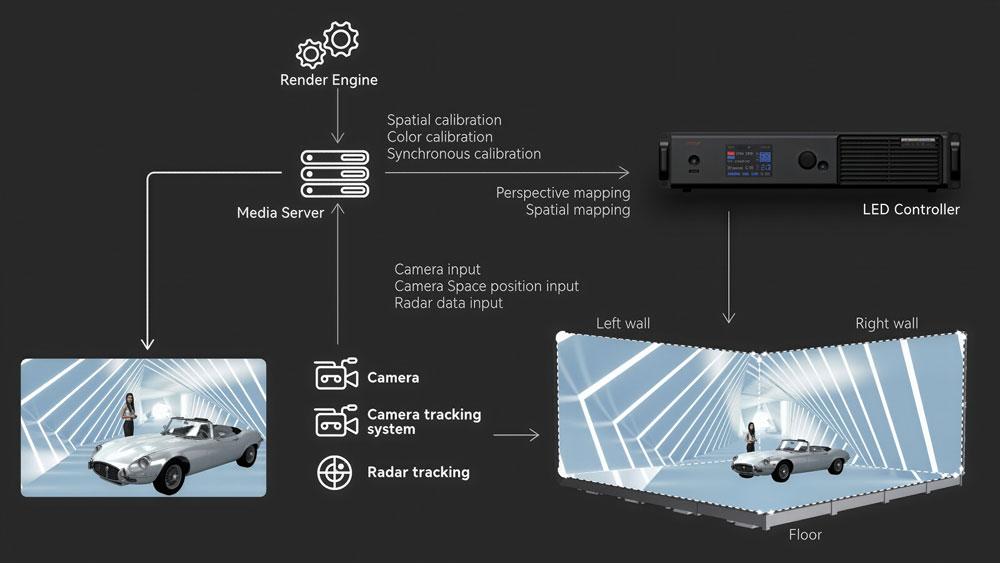
In the realm of xR (extended reality) virtual shooting, the integration of LED displays, cameras, tracking systems, rendering engines, scene construction, and media servers is important for creating immersive and realistic environments.
Despite advancements in xR technology, challenges persist in virtual shooting. Common issues include scanning lines, color distortion, and inconsistent color rendering from different angles. These problems can significantly affect the visual fidelity and overall experience of the xR scenes, particularly in film production where color accuracy and rendering index are crucial.
To address these challenges, NovaStar has introduced a comprehensive xR virtual shooting control system solution. Central to this solution is the MX40 Pro, which integrates seamlessly with Novastar’s new Visual Management Platform (VMP) and the A10s Pro receiving card. This combination offers a robust control system for xR shooting, enhancing screen configuration, display effect adjustments, and defect processing.
3.2 The Role of the MX40 Pro in xR Systems
The NovaStar xR virtual shooting control system, anchored by the MX40 Pro, offers several notable advantages:
Enhanced Visual Quality: By addressing common xR issues such as color distortion and scanning lines, virtual scenes are rendered with exceptional clarity and accuracy.
Seamless Integration: The MX40 Pro works in harmony with the VMP and A10s Pro receiving card, providing a unified solution for managing and optimizing xR environments. This integration simplifies the control process, making it more intuitive and efficient for operators.
Efficient Power Consumption: The system’s dynamic engine reduces power consumption by approximately 20%. The improved dynamic brightness and detail clarity further elevate the visual experience.
Flexibility and Control: On the input side, you can flexibly control the color of the display source, while on the output side, you can globally adjust the display effect.
Improved Operational Experience: The MX40 Pro, supported by the VMP and A10s Pro, offers a more convenient and effective control experience. The system’s ability to streamline screen configuration, adjust display effects, and handle shooting defects contributes to a smoother workflow and better results in virtual shooting projects.
VMP & MX40 Pro
1:07
1:43
1:04
2:20
1:11
4. System Setup & Configuration
This section explains how to set up and configure the NovaStar MX40 Pro.
Step 1: Power On the MX40 Pro
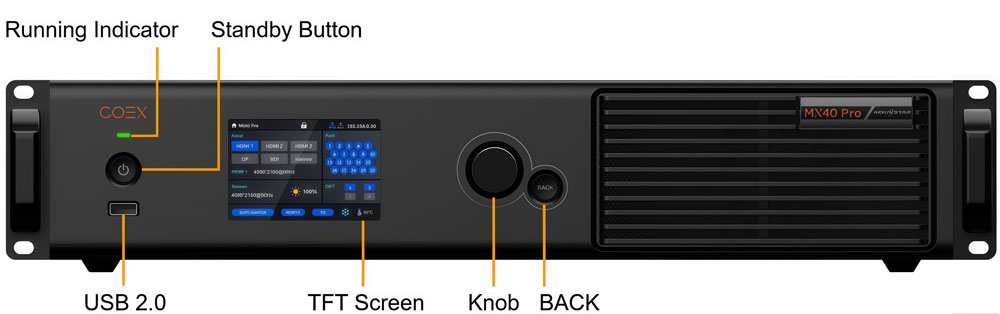
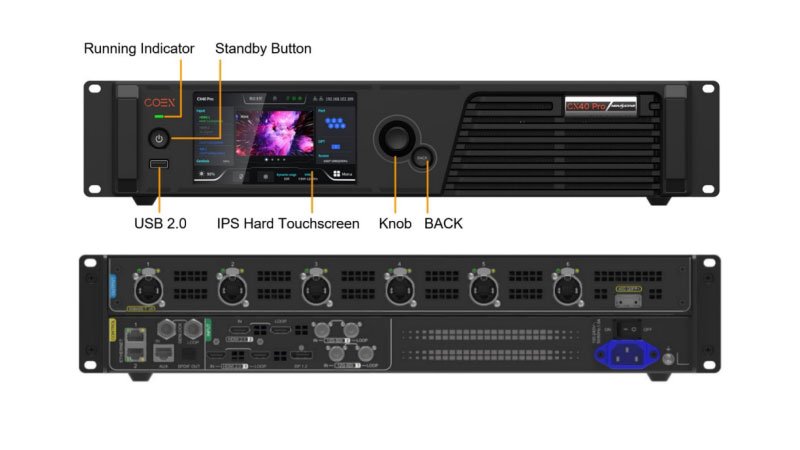
After completing all physical connections, power on the MX40 Pro using the standby button on the front panel.
Once the device starts, the status indicator shows the operating state. When the controller enters normal working mode, users can begin configuration through the front panel display and control knob.
At this stage, no external software is required.
Step 2: Select the Input Source
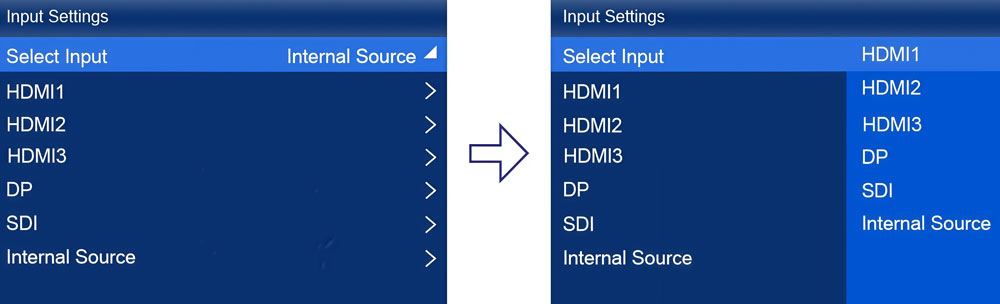
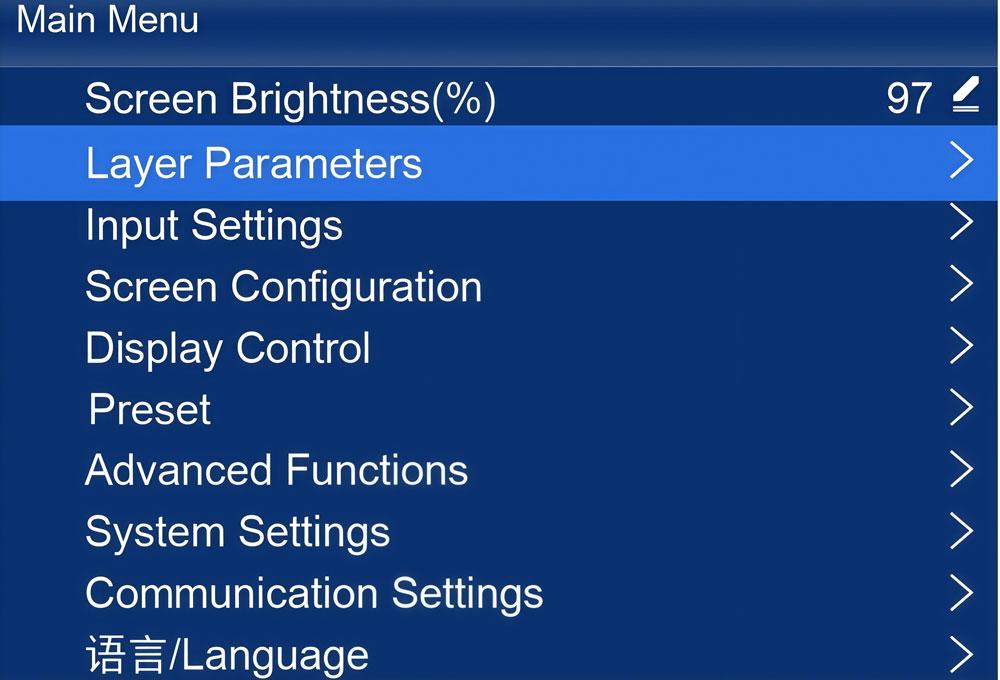
After startup, enter the main menu using the front panel control.
From the input settings menu, select the active video input connected to the system. The MX40 Pro supports multiple input types, but only one input is active at a time.
After selecting the input source, confirm that the incoming signal is detected correctly. The input resolution and frame rate should match the signal provided by the video source.
For best results, NovaStar recommends using a resolution that matches the LED screen size or is close to it. This reduces unnecessary scaling during processing.
Step 3: Configure the Screen Parameters
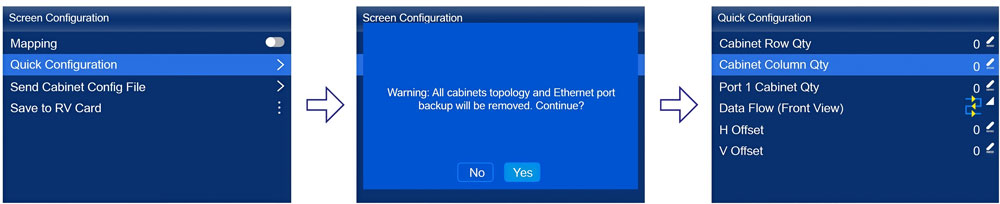
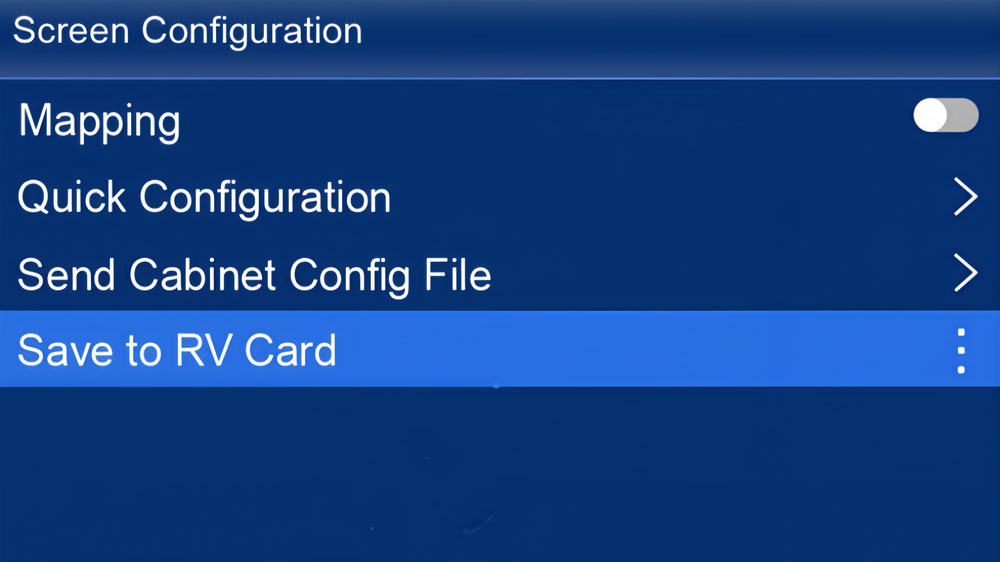
The MX40 Pro supports quick screen configuration directly from the front panel under specific conditions.
This method applies when:
- The LED screen has a standard rectangular layout
- All cabinets are identical
- Cabinet wiring follows a continuous and regular data flow
Under these conditions, enter the screen configuration menu and set:
- Screen width and height
- Cabinet arrangement
- Data flow direction
The controller then calculates the loading relationship between the screen and output ports automatically.
If the screen layout is irregular or uses mixed cabinet sizes, NovaStar recommends performing screen configuration through VMP software instead of the front panel.
Step 4: Assign Ethernet Outputs
After defining the screen layout, the MX40 Pro assigns cabinets to Ethernet output ports.
Cabinets loaded by each Ethernet port should follow a balanced distribution. Typically:
- Multiple ports load the same number of cabinets
- The final port loads the remaining cabinets
This distribution helps maintain stable data transmission and avoids uneven load on individual outputs.
Once assignment is complete, verify that all cabinets display content correctly.
Step 5: Check Display Output and Adjust If Needed
After screen and output configuration, check the displayed image across the entire LED screen.
If the image appears incorrect, return to the corresponding menu to adjust screen size, data flow direction, or input settings. The MX40 Pro allows these adjustments without restarting the device.
Engineers usually complete this verification before moving on to long-term operation.
Step 6: Save and Maintain the Configuration
After the display works as expected, keep the configuration unchanged during normal operation.
In professional projects, teams often document the final configuration and keep records for future maintenance or system expansion. This practice reduces setup time if hardware changes occur later.
By following these steps, operators can complete basic setup and configuration of the NovaStar MX40 Pro using the controller itself.
5. Operation Considerations by Scenario
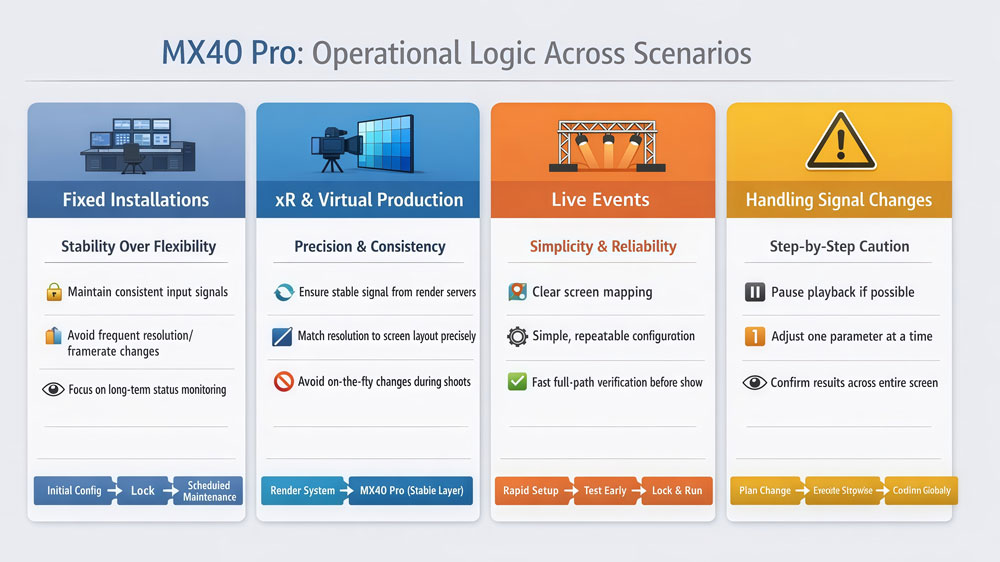
Once the NovaStar MX40 Pro is configured and running, day-to-day operation depends heavily on the application scenario. Different environments place different demands on the controller.
5.1 Fixed Installations (Control Rooms, Conference Centers)
In fixed installations, stability matters more than flexibility. After initial setup, operators usually keep the MX40 Pro configuration unchanged for long periods.
In this scenario, teams focus on:
- Maintaining consistent input signals
- Avoiding frequent resolution or frame rate changes
- Monitoring system status during long operating hours
Because the screen layout rarely changes, operators rely on saved configurations and routine checks rather than repeated adjustments. If maintenance is required, changes are typically made during scheduled downtime.
5.2 xR and Virtual Production Studios
xR environments place higher operational demands on the controller. The LED wall works directly with cameras and rendering systems, so timing and consistency become critical.
In practice, operators pay close attention to:
- Input signal stability from rendering servers
- Resolution matching between render output and screen layout
- Avoiding on-the-fly configuration changes during shooting
During production, most adjustments happen upstream, such as in the rendering or playback system. The MX40 Pro remains stable and acts as a controlled output layer. This approach reduces the risk of visual artifacts appearing on camera.
5.3 Live Events and Temporary Installations
Live events introduce a different operational rhythm. Setup time is limited, and systems often need to adapt quickly to changing conditions.
In these cases, operators value:
- Clear screen mapping
- Simple and repeatable configuration logic
- Fast verification of output before the event starts
Although the MX40 Pro supports complex configurations, engineers often keep live event setups straightforward. They finalize configuration early, test the full signal path, and avoid major changes once the event is underway.
5.4 Handling Signal Changes During Operation
Across all scenarios, one operational principle remains consistent: avoid unnecessary signal changes during active use.
If a signal change is required, operators usually:
- Pause content playback if possible
- Adjust one parameter at a time
- Confirm the result across the full screen
This step-by-step approach reduces the chance of unexpected display behavior and makes troubleshooting easier.
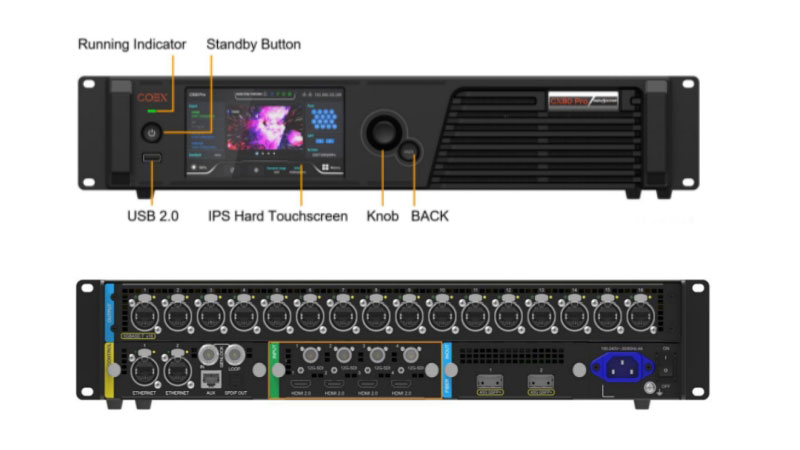
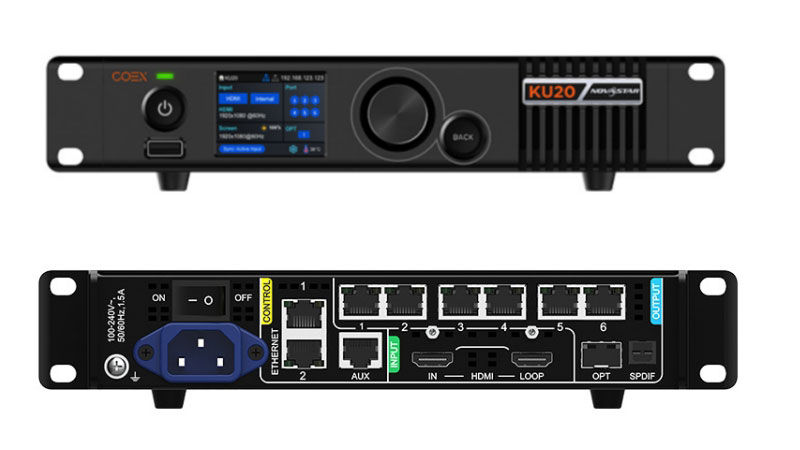
6. MX40 Pro vs Other COEX Series Products
This section focuses on NovaStar MX40Pro pricing and where to access official resources.
| Feature Category | CX80 Pro | NovaStar CX40 Pro | MX40 Pro | NovaStar KU20 |
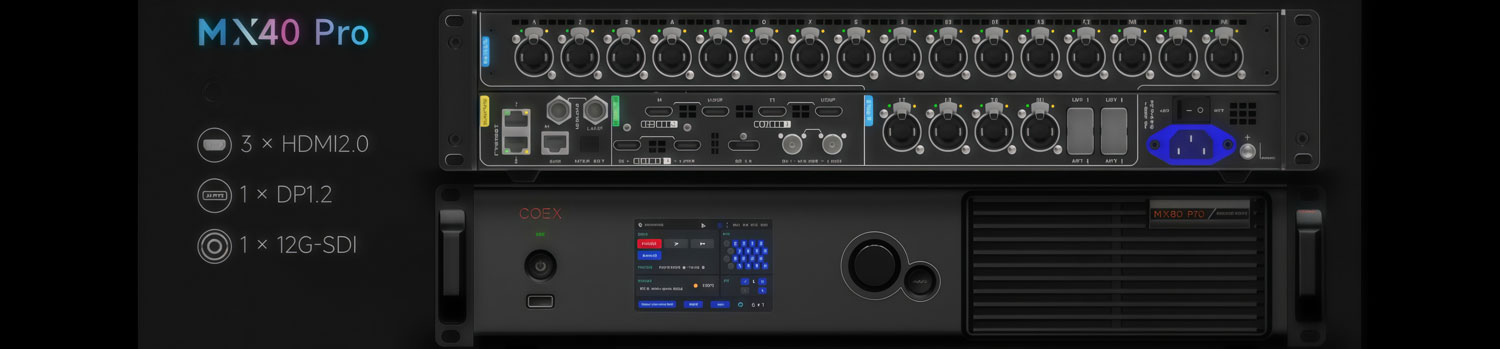
| Inputs | Input Card 1: 4x 12G-SDI, 1x HDMI 2.1, 1x DP 1.4 Input Card 2: 4x 12G-SDI, 4x HDMI 2.0 | 2x HDMI 2.0 (with loop through) 1x DP 1.2 2x 12G-SDI (with loop through) | 3x HDMI 2.0 (with loop through) 1x DP 1.2 1x 12G-SDI (with loop through) | – 1x HDMI 1.3 (with loop through) |
| Video Inputs | 12-bit, 10-bit, 8-bit video inputs | 12-bit, 10-bit, 8-bit video inputs | 12-bit, 10-bit and 8-bit video inputs | – 10-bit, 8-bit video inputs |
| Outputs | 16x 5Gbps Ethernet ports 2x 40Gbps optical ports 1x SPDIF digital audio port | 6x 5Gbps Ethernet ports 1x 40Gbps optical port 1x SPDIF digital audio port | 20x Gigabit Ethernet ports 4x 10G optical ports 1x SPDIF digital audio port | 6x Ethernet ports 1x 10G optical output |
| Control Ports | 1x Genlock signal input (with loop through) 2x Ethernet control ports 1x Auxiliary port | 1x Genlock signal input (with loop through) 2x Ethernet control ports 1x Auxiliary port | 1x Genlock signal input (with loop through) 2x Ethernet control ports 1x Auxiliary port | |
| Image scaling | Custom, pixel to pixel | Custom, pixel to pixel, snap to canvas | Custom, pixel to pixel, snap to canvas, fill screen | Custom, pixel to pixel |
| Device Controls | 5.5-inch 1080p touch LCD VMP software control Cascading control via Ethernet | VMP software control Cascading control via Ethernet Touch LCD | VMP software control Cascading control via Ethernet Support the SNMP and Art-Net protocols. | VMP software control Cascading control via Ethernet Support the SNMP and Art-Net protocols. |
7 COEX MX40 Pro Price
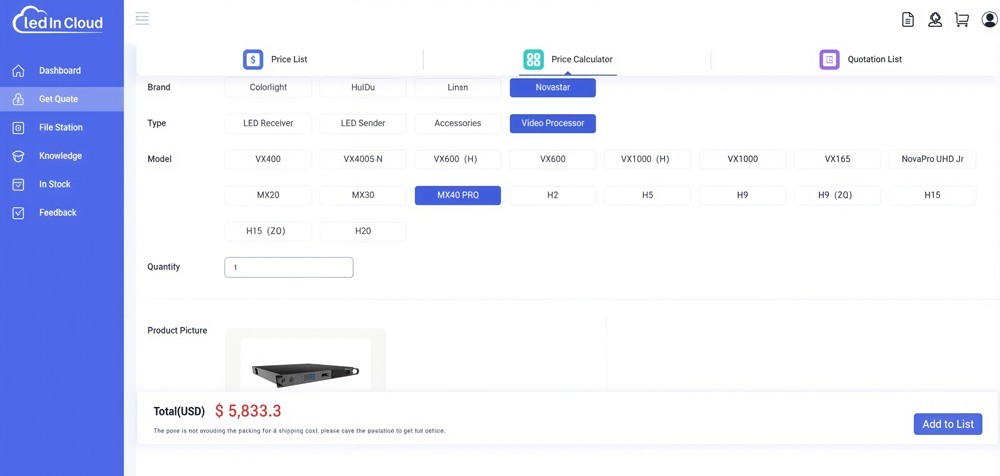
The MX40 Pro is priced at approximately $5,833 USD. However, the final cost can vary based on specific user requirements and configurations. To get an accurate quote tailored to your needs, we recommend registering and logging in to our LED Screen Cloud Platform.
On the platform, you’ll have access to detailed pricing information for all NovaStar products. Additionally, you can consult with our professional team to guarantee you get the best solution for your project.
8. NovaStar MX40 Pro Manual and Software
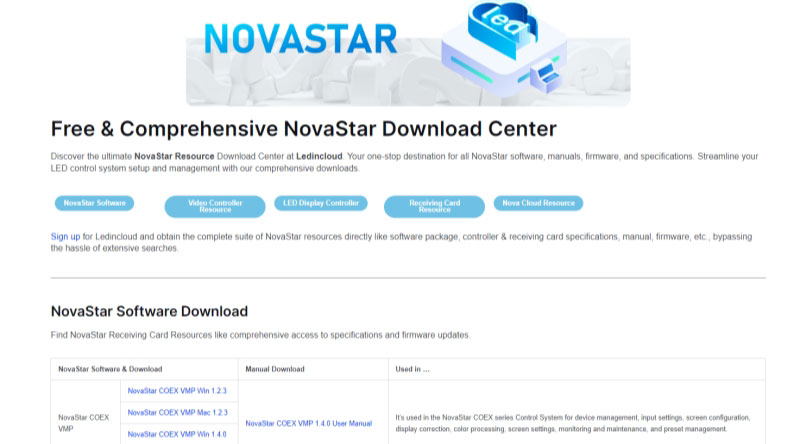
For daily use and long-term maintenance, the NovaStar MX40 Pro manual and software are essential references. They provide clear guidance on configuration logic, operating limits, and system behavior.
More Resouces, navigate in LedInCloud for NovaStar Software.
9. FAQs
What are the input options available for the MX40 Pro?
The MX40 Pro supports three types of inputs: 3x HDMI 2.0 with loop through, 1x DP 1.2, and 1x 12G-SDI with loop through. It also supports 12-bit, 10-bit, and 8-bit video inputs.
What is the maximum load capacity of the MX40 Pro?
The MX40 Pro has a load capacity of up to 9 million pixels, distributed across 20 Gigabit Ethernet ports and 4x 10G optical ports.
Does the MX40 Pro support HDR and what standards does it comply with?
Yes. The MX40 Pro supports HDR10 and complies with SMPTE ST 2084 and SMPTE ST 2086 standards. It also supports HLG.
What kind of projects is the MX40 Pro best suited for?
The Nova MX40 Pro targets professional LED display systems. It is commonly used in large fixed installations, broadcast environments, and XR or virtual production studios. Projects with high pixel counts, fine-pitch LED panels, or long operating hours benefit most from this controller.
It is not designed for small or entry-level LED setups.
Can the MX40 Pro handle 4K LED displays?
Yes. The COEX MX40 Pro supports high-resolution workflows and is commonly used in 4K-class LED display systems.
10. Conclusion
The NovaStar MX40 Pro is designed for LED display projects where system scale, image control, and long-term stability are non-negotiable. It is not a basic sending box, and it is not meant to simplify complex projects by hiding system logic. Instead, it gives engineers clear control over how signals enter, process, and reach the LED screen.
If you are planning a project and want to confirm whether the MX40 Pro fits your system design, or if you need support with configuration, system planning, or documentation, feel free to contact LedInCloud. We can help you review technical requirements, discuss real project scenarios, and point you to the right resources.