
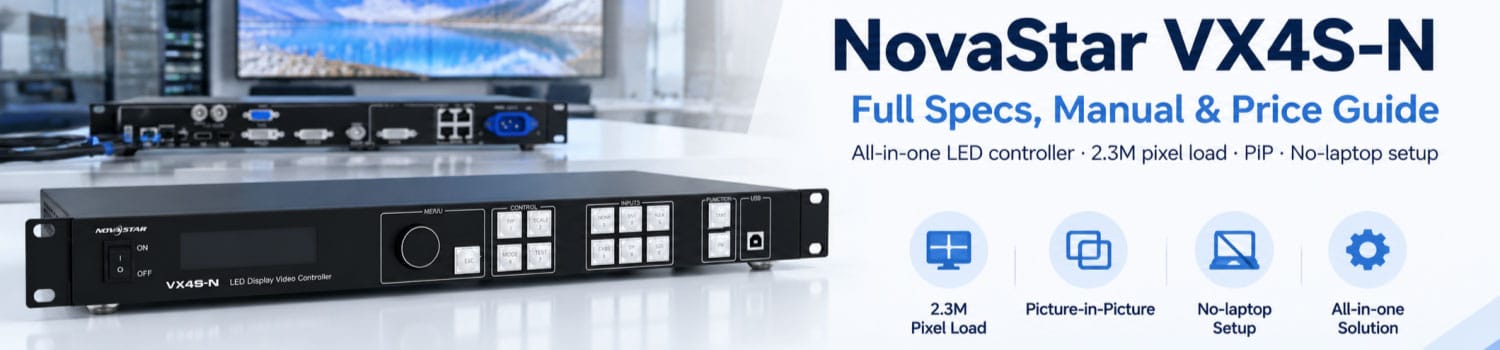
What Is the NovaStar VX4S-N? Specs and Manual Inside
Is the NovaStar VX4S-N still worth buying? That depends on what you already own. If you’re running an older NovaStar system and just need a reliable all-in-one controller for a fixed-install screen, the VX4S-N still gets the job done. But if you’re starting a new project from scratch, you’ll want to know where it stands today, what it can and can’t do, and whether a newer model makes more sense.
This guide walks through the specs, the manual, the software, and the price, so you can make that call yourself.
1. What Is the NovaStar VX4S-N?
The NovaStar VX4S-N is an all-in-one LED display controller. It combines video processing and screen control in one box, so you don’t need a separate scaler sitting next to it. It takes signals in from VGA, DVI, HDMI, DP, CVBS, and 3G-SDI, processes them, and sends the output straight to your LED screen through four Gigabit Ethernet ports.
Since it’s discontinued, if you already own one, it still works exactly as designed, and the rest of this guide will help you get the most out of it. If you’re starting a new project and haven’t bought anything yet, it’s worth reading the comparison section further down before you decide.


2. Key Features
Even though it’s off the market now, the VX4S-N packed a lot into a small box. Here’s what stood out about it when it was still in active use.

① Inputs and output capacity. The VX4S-N takes in CVBS, VGA, DVI, HDMI 1.3, DP, and 3G-SDI, with both DVI and SDI supporting loop-through. That’s wide enough to cover most signal sources on a stage or in a fixed install, so an external converter box usually wasn’t needed. On the output side, four Gigabit Ethernet ports load up to 2.3 million pixels combined, which is enough for a lot of mid-to-large screens without adding more hardware.
② Picture-in-picture. PIP here goes beyond a basic on/off switch. You can set its position, resize the window, crop the source, adjust transparency, and swap the main and PIP layers on the fly. Eight layout presets cover common placements like left top or center, and a custom mode handles anything those presets don’t.
③ Setup without a laptop. This is where the VX4S-N still holds up well. As long as your cabinets are a regular size and shape, you can set rows, columns, and data flow right from the front panel knob, no NovaLCT-Mars software required. A working screen usually takes just a few minutes to configure this way.
④ Image quality. The Nova G4 processing engine handles scaling and color, keeping the picture free of flickering and visible scan lines. It also runs white balance calibration and color gamut mapping, so the output matches what your specific LED panels can actually reproduce.
⑤ Scaling to bigger screens. For screens too large for one unit, multiple VX4S-N controllers can be cascaded through image mosaic. Equal division splits the load evenly, while unequal division lets each unit cover a different area size and starting position, which helps with irregular or segmented layouts.
⑥ Reliability extras. Each input can be paired with a backup source, so the controller switches over automatically if the primary signal drops. Audio runs independently too, either from the dedicated audio-in port or riding along with HDMI, with Ethernet port 1 handling audio output when a multi-function card is connected.
3. VX4S-N Specifications
You don’t need every number on the spec sheet, just the ones that decide whether the VX4S-N fits your screen.
| Category | Key Specs |
| Inputs | 1x CVBS, 1x VGA, 1x DVI (loop-through), 1x HDMI 1.3, 1x DP, 1x 3G-SDI (loop-through) |
| Max input resolution | Up to 1920×1200@60Hz (VGA/DVI/HDMI/DP); custom resolutions up to 3840px wide on DVI, HDMI, DP |
| SDI input | Fixed, no resolution/bit-depth settings; supports ST-424 (3G) and ST-292 (HD) up to 1920×1080@60Hz |
| Color depth | 8-bit and 10-bit RGB/YCbCr supported up to 1920×1080@60Hz on HDMI/DP; 12-bit RGB and 4:2:0 signals not supported |
| Output | 4x Gigabit Ethernet, up to 2,300,000 pixels combined, max width 3840px, max height 1920px |
| Audio output | Only Ethernet port 1 carries audio |
| Power | 100-240V AC, 25W consumption |
| Dimensions | 482.6 mm × 250.0 mm × 50.0 mm, 2.55 kg net (fits standard 1U rack space) |
| Operating temperature | –20°C to +60°C |
A couple of things worth flagging before you build around these numbers. First, the SDI input reads the incoming signal as-is, so if that’s going to be your main source, check your camera or switcher output matches before you’re on site. Second, if you’re feeding it a high bit-depth signal through HDMI or DP, stick to 8-bit or 10-bit. 12-bit RGB and 4:2:0 chroma signals just aren’t supported here.
4. How to Set Up the VX4S-N
Getting a screen running on the VX4S-N follows a set order: connect your sources, set the input resolution, configure the screen, then set your output. Skip a step or do them out of order, and you’ll usually end up staring at a blank or scrambled display wondering what went wrong. Here’s how each stage actually works.
Step 1: Connect your devices
• Plug your camera into the 3G-SDI port.
• Plug your PC into DVI, HDMI, DP, or VGA.
• Plug your DVD player into HDMI or DVI.
• Plug your TV box into CVBS.
• Connect the LED screen to the four Ethernet output ports.
• Connect a monitor to DVI OUT if you want to preview the output.
• Connect your control PC via USB or the ETHERNET port.
• For multiple units, chain them by plugging one unit’s USB output into the next unit’s USB input.

Step 2: Set the input resolution
• Open the Input Settings menu.
• Select Preset Resolution and choose a match from the list, if one exists.

• If no preset matches, select Custom Resolution instead.
• Enter width, height, and refresh rate.
• Select Apply and press the knob to confirm.
• Skip step 5 and the custom resolution won’t take effect.

Step 3: Configure the screen
• Confirm your cabinets are a regular rectangle and identical in size. If not, use NovaLCT-Mars on a PC instead.
• Open Screen Settings.
• Set Cabinet Row Qty and Cabinet Column Qty to match your screen.
• Set Port 1 Cabinet Qty.
• Set Data Flow, rotating the knob to preview each direction on the live screen.
• Press the knob to save once you’re happy with the result.
• Keep every port’s data flow running the same direction, and keep port 1 as the starting point.

Step 4: Set the output
• Open Output Settings.
• Select Disable Scaling for a point-to-point match, best when input and display resolution are identical.

• Or select Auto Fit to stretch the source to fill the screen automatically.
• Or select Custom Scaling, then set Input Capture to define the part of the source you want to grab.
• Set Output Window to place that captured image on your screen.

Step 5: Set up image mosaic (for multi-unit screens)
• Open Advanced Settings → Image Mosaic.
• Choose Equal Division if every unit will cover the same size area, or Unequal Division if each unit covers a different area.
• For Equal Division: enter the total width and height in pixels, set the mosaic row and column count, then assign a serial number to each unit.
• For Unequal Division: enter the total width and height in pixels, then set each unit’s load area width, height, and starting X/Y position.
• Repeat this configuration on every VX4S-N unit in the chain.
5. NovaStar VX4S-N Manual, Software and Firmware
Everything you need to keep a VX4S-N running is available as a direct download, no account or registration required.
✔ VX4S-N Manual — covers full menu operation, from input settings to troubleshooting.
✔ VX4S-N Specifications — the official spec sheet with input, output, and physical details.
✔ VX4S-N Firmware — install this through NovaLCT-Mars if your unit is running an older firmware version.
✔ NovaLCT-Mars — needed for irregular cabinet shapes, custom screen configuration, and firmware updates.
✔ NovaStar RCFG File Download — cabinet config files you can load directly if you’re working with standard NovaStar receiving cards.
If you’re not sure which firmware version your unit is running, check Advanced Settings → Hardware Version on the front panel before downloading anything. Installing firmware that doesn’t match your hardware can cause more problems than it solves.
6. NovaStar VX4S-N Price
Since NovaStar discontinued the VX4S-N, there’s no official price list for it anymore. What you’ll find are leftover units from dealers who still have stock, or listings on the used equipment market, and prices vary a lot depending on the source, the unit’s condition, and your region.
If you’re comparing it against current NovaStar controllers instead, or just want an accurate quote for LED display gear in general, LedInCloud runs a free price calculator. Register an account on the LED Screen Cloud Platform and you can pull current wholesale pricing on NovaStar’s active lineup without waiting on a sales email back and forth.
7. VX4S-N vs Newer Alternatives
If you’re picking a controller for a new project today, it’s worth seeing exactly where the VX4S-N sits next to NovaStar’s current lineup. Here’s a side-by-side look at the numbers that actually change what you can build.
Features | VX4S-N | ||
Status | Discontinued | Active | Active |
Max pixel load | 2.3 million | 2.6 million | 2.6 million |
Max output size | 3840×1920 | 10,240×8,192 | 10,240×8,192 |
Max input resolution | 1920×1200@60Hz | 1920×1200@60Hz (custom up to 3840×648) | 4096×2160@60Hz (4K) |
Fiber input/output | None | 1x optical port | 2x 10G optical ports |
Layers | 1 main + 1 PIP | 2 layers | 6 layers |
Presets | 10 | 10 | Up to 256 |
Control options | Front panel knob only | Front panel, NovaLCT, V-Can | Front panel, NovaLCT, Unico, VICP app, optional remote |
Extras | — | Mosaic input on OPT 1 | OSD, 3D support, USB media playback, Mac compatibility |
Power draw | 25W | 28W | 42W |
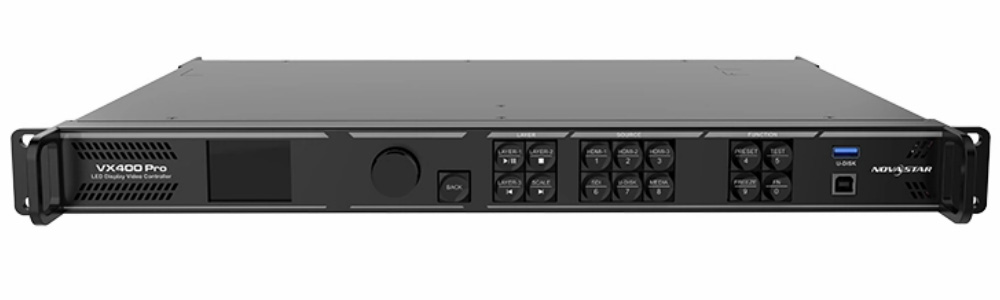
The gap is bigger than the pixel counts suggest. The VX400 covers most of what the VX4S-N did, plus a much higher output ceiling and fiber connectivity, which matters if your screen sits any real distance from the control room. The VX400 Pro goes further still: 4K input, six layers instead of one PIP window, and app-based control through Unico or VICP, which the VX4S-N never had.
So which one makes sense? If you’re running a standard fixed install or rental setup without 4K sources or complex multi-layer needs, the VX400 covers it without paying for features you won’t use. If your project involves 4K content, long cable runs that need fiber, or you want six independent layers on screen at once, the VX400 Pro is built for that.

8. FAQ
My VX4S-N screen only lights up in the middle, why?
This usually happens when the input resolution does not match the LED display size and Scaling is disabled. In this mode, the controller outputs the source signal at its original size, so areas outside the source resolution remain dark. Switch to Auto Fit or configure custom scaling to match your screen size.
Can I use a laptop's HDMI output directly, or do I need a specific graphics card?
Yes. A standard laptop HDMI output can be connected directly to the VX4S-N as long as the output resolution is within the controller's supported range, up to 1920×1200@60Hz or a compatible custom resolution. No specific graphics card is required.
The screen shows the wrong colors or looks washed out through CVBS or VGA. What's wrong?
This is usually related to missing ADC calibration. Analog inputs such as CVBS and VGA require analog-to-digital conversion, and incorrect calibration can cause color shifts or reduced image quality. Run ADC Calibration from the Advanced Settings menu to correct the issue.
Can I control multiple VX4S-N units from one PC?
Yes. Multiple VX4S-N units can be controlled through USB cascading. Connect the PC USB output to the first unit, then connect each additional unit through USB output and input ports in sequence. Network control is not supported for this cascading method.
Does the VX4S-N support Mac?
The VX4S-N documentation does not list native Mac support. Advanced configuration through NovaLCT-Mars requires Windows. Mac users need Windows through virtualization or a separate Windows computer for software-based setup and configuration.
9. Conclusion
The NovaStar VX4S-N was a solid all-in-one controller, and if you already own one, there’s no reason to stop using it. It still handles PIP, screen configuration, and multi-unit mosaic setups just fine for a straightforward fixed install. But it’s no longer in production, and its ceiling, input resolution, output size, layer count, all sit well below what NovaStar’s current lineup offers.
If you’re starting a new project, that gap is worth taking seriously. The VX400 picks up almost everything the VX4S-N did and adds real headroom on top. The VX400 Pro goes further for anyone working with 4K sources or multi-layer setups. Either way, Contact LedInCloud before you commit, so you know exactly what fits your budget and your screen.